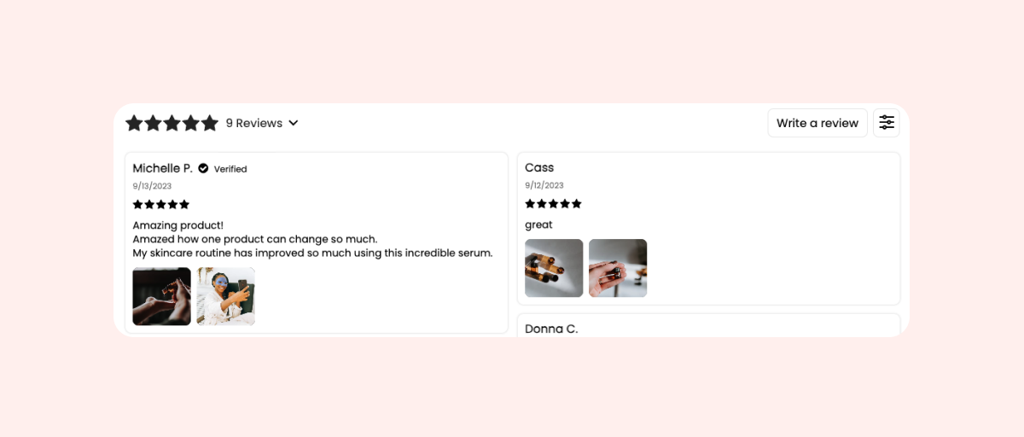
Customize your Reviews Widget's layout, colors, text, and preferences, ensuring it seamlessly fits your brand and highlights happy customers' reviews throughout your buyers' journeys.
In this article, we’ll cover all the different widget customization options available in our in-app Reviews Widget editor.

Widget theme
Choose a ready-made theme for your Reviews Widget to match your brand's look and feel. Each theme sets the layout, styling, and colors as a starting point you can customize.
After selecting a theme:
You can further adjust the Layout, Style, and Colors to fully match your brand
Update the Text and Preferences settings to fine-tune the widget’s content and behavior
Note: Any manual changes to your selected theme will set it to the "Custom" theme.
Note: While you can preview the widget on any background color, it will remain transparent and displayed on your store's background color in your live store.
Smart design with AI
Use Smart design with AI to instantly generate a theme that matches your store.
- Open the Reviews Widget editor
- Click "Smart design with AI"
- Our AI will scan your store's design, including colors, fonts, and overall style, then create a custom theme built to feel native to your brand
- Click "Apply" to continue editing the design, or "Discard" if you'd like to generate a new one or create a design manually
- Click "Save" to publish the design to your live store
Widget layout
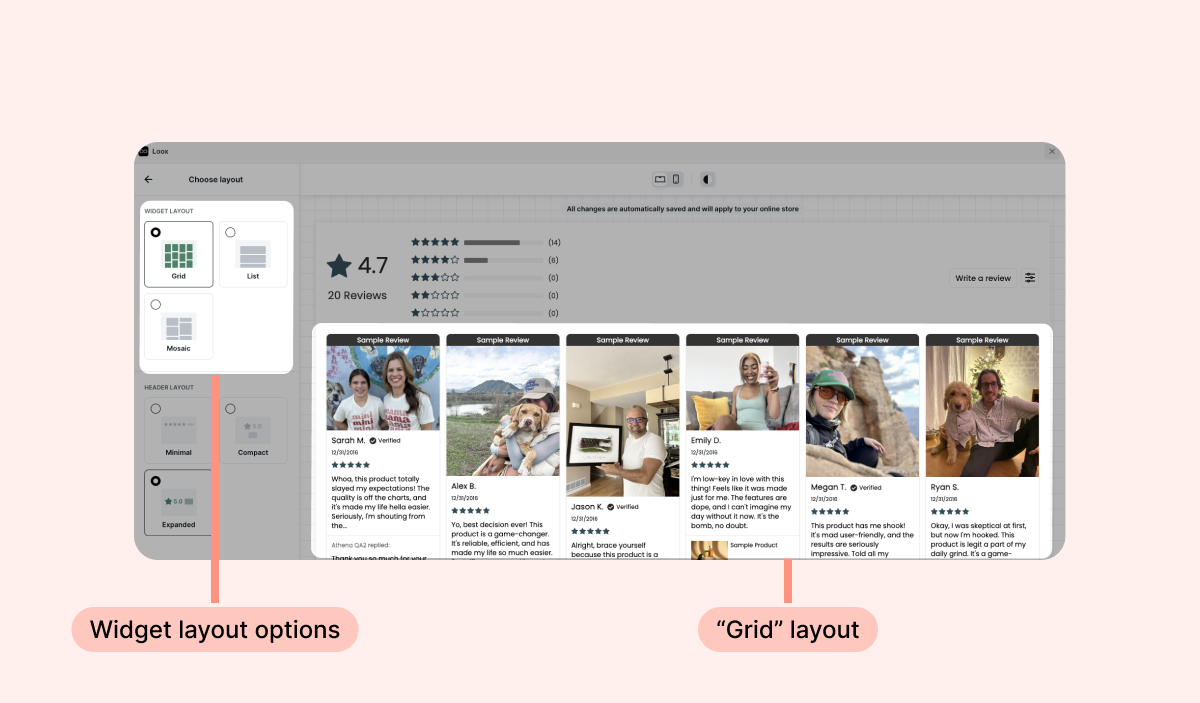
Adjust the Reviews Widget’s layout to match your store’s design
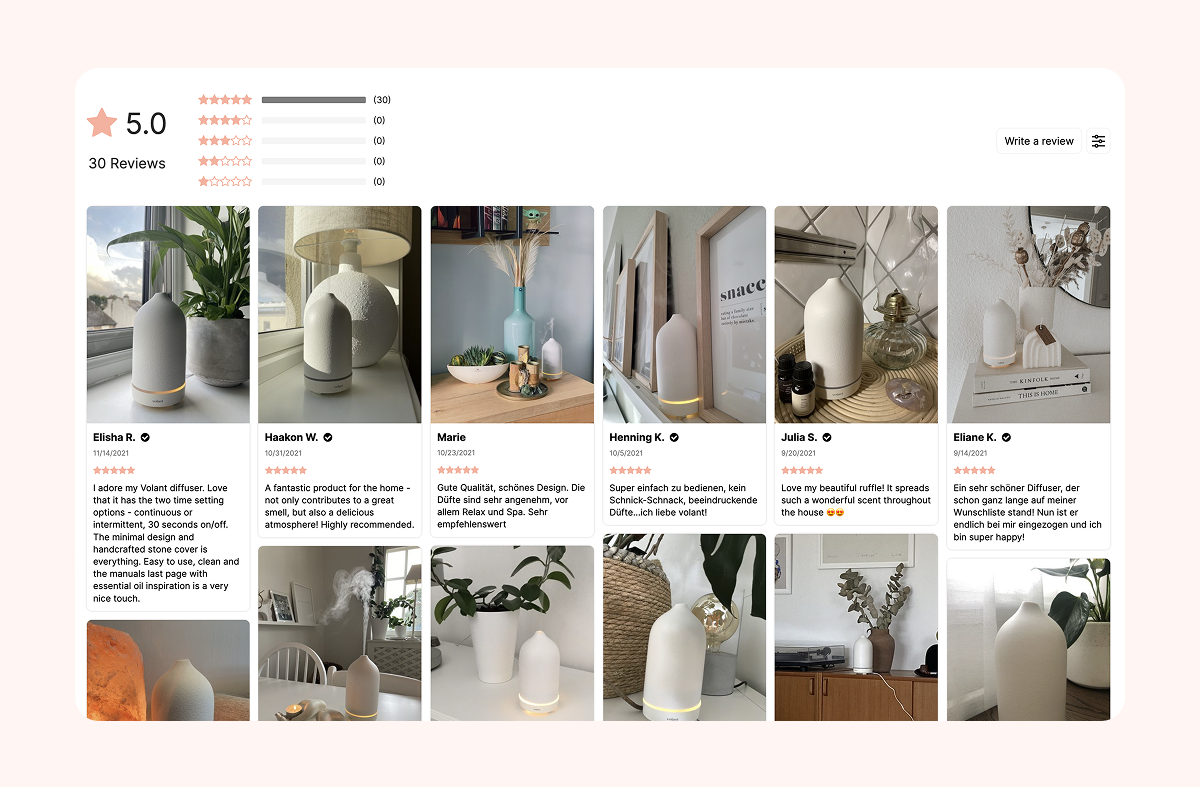
We offer three different layout options:
- Grid:
- List:

- Mosaic:
Header layout
Choose the appearance of the rating icons displayed on the widget’s header.
We offer three different header layout options:
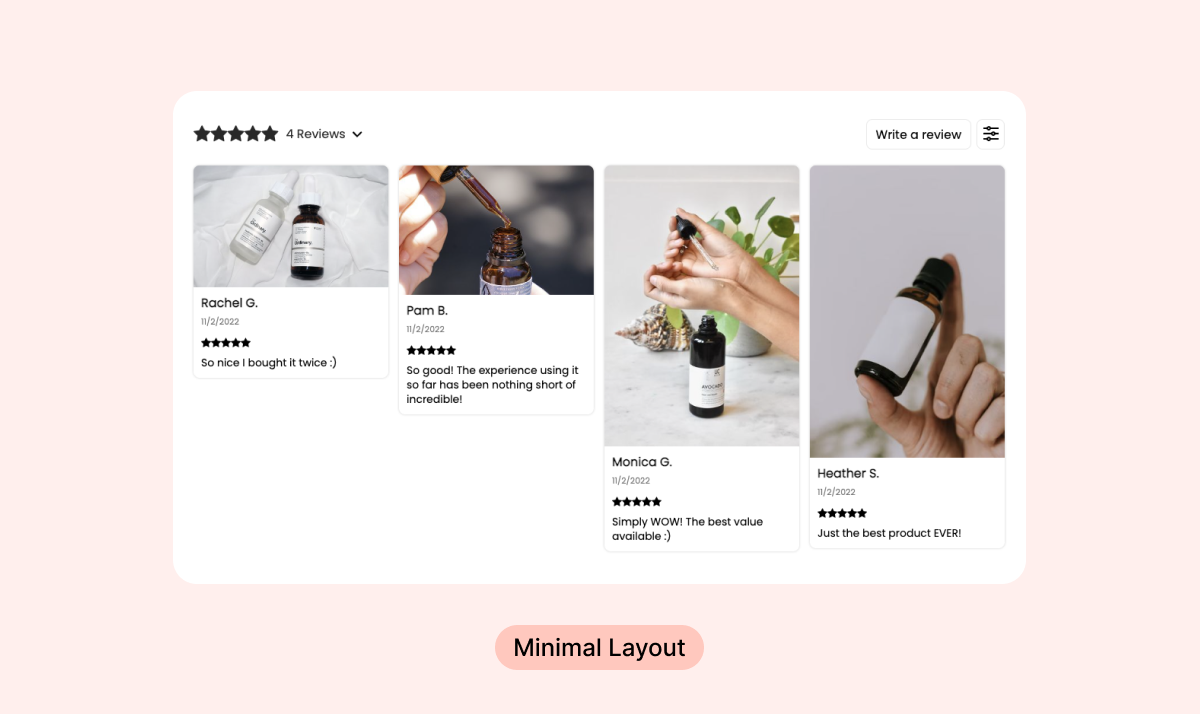
- Minimal layout:
For the minimal header layout, you can control what appears in the header content: The number of reviews, average rating, or stars only.
- Compact layout:

- Expanded layout:
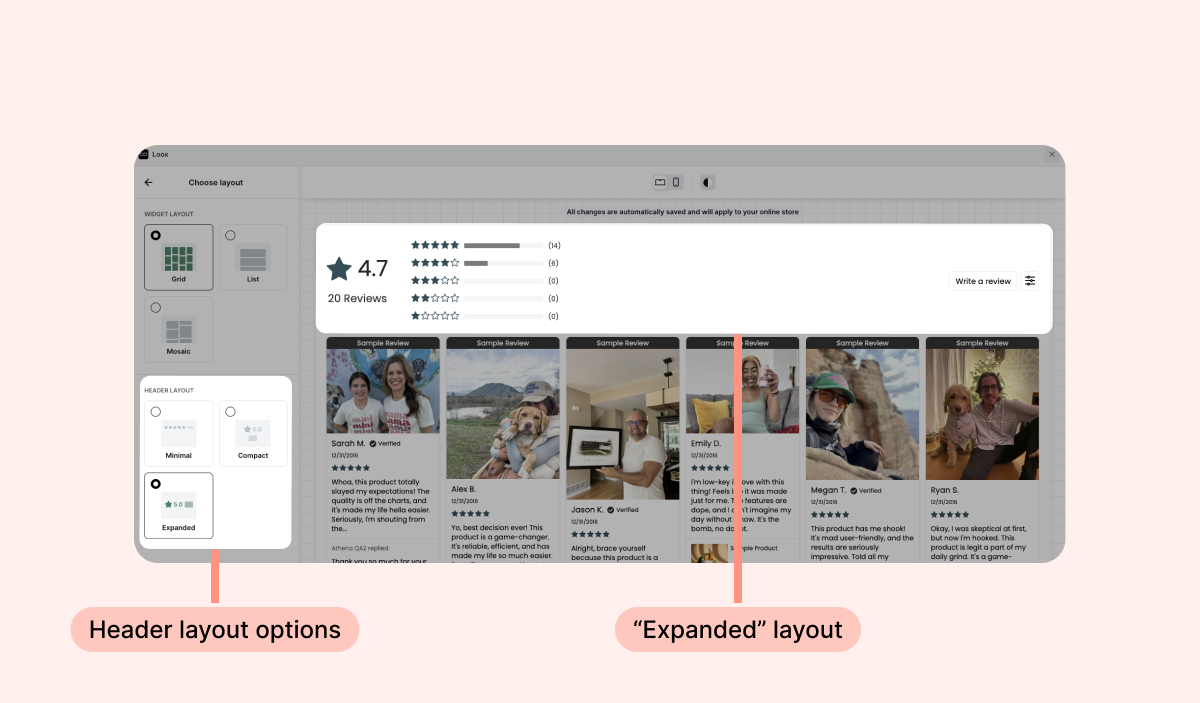
Reviews style
Review card shadow
Select your preferred shadow design that will appear on your widget’s Review Cards.
We offer 4 shadow designs: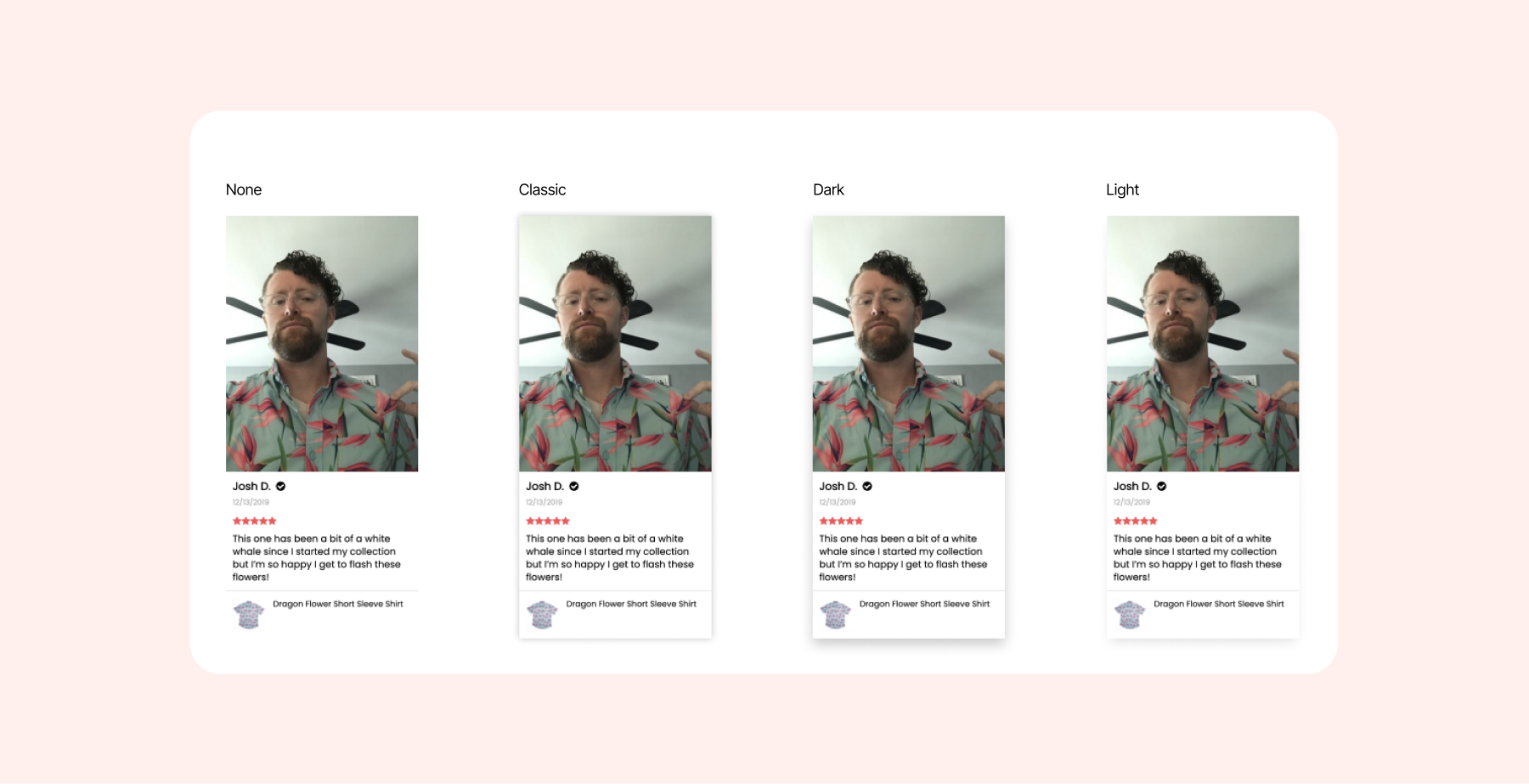
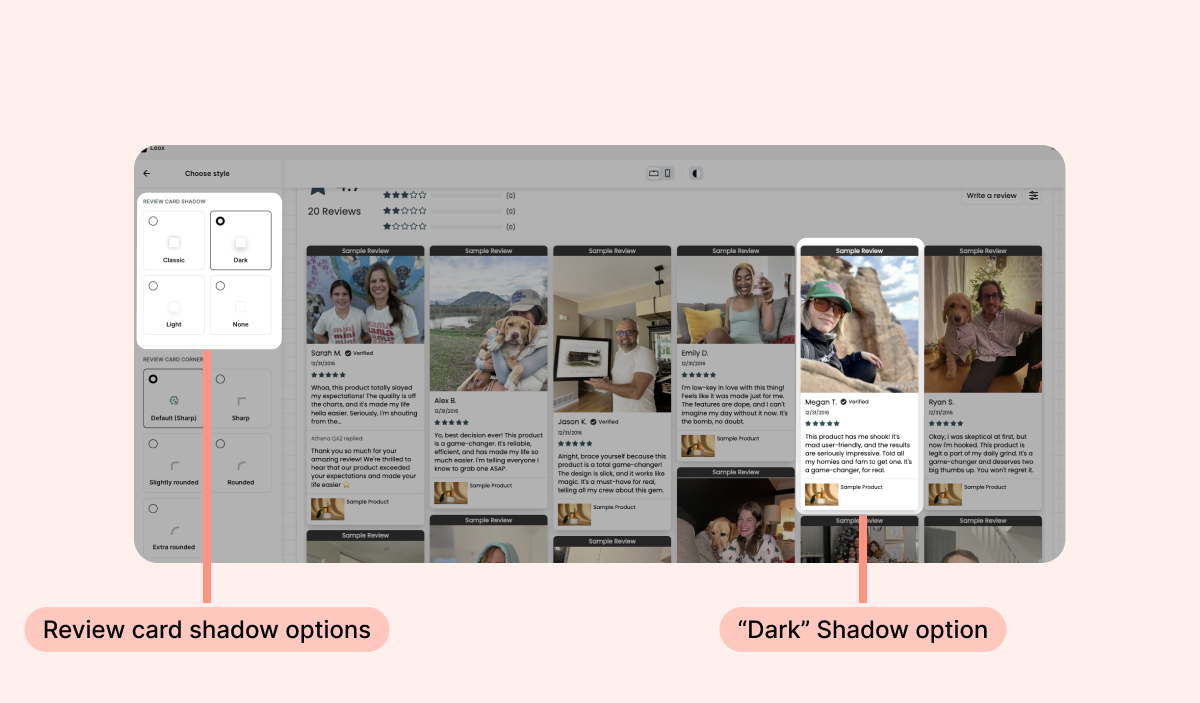
Review card corners
Choose your preferred border display on the corners of your widget’s Review Cards.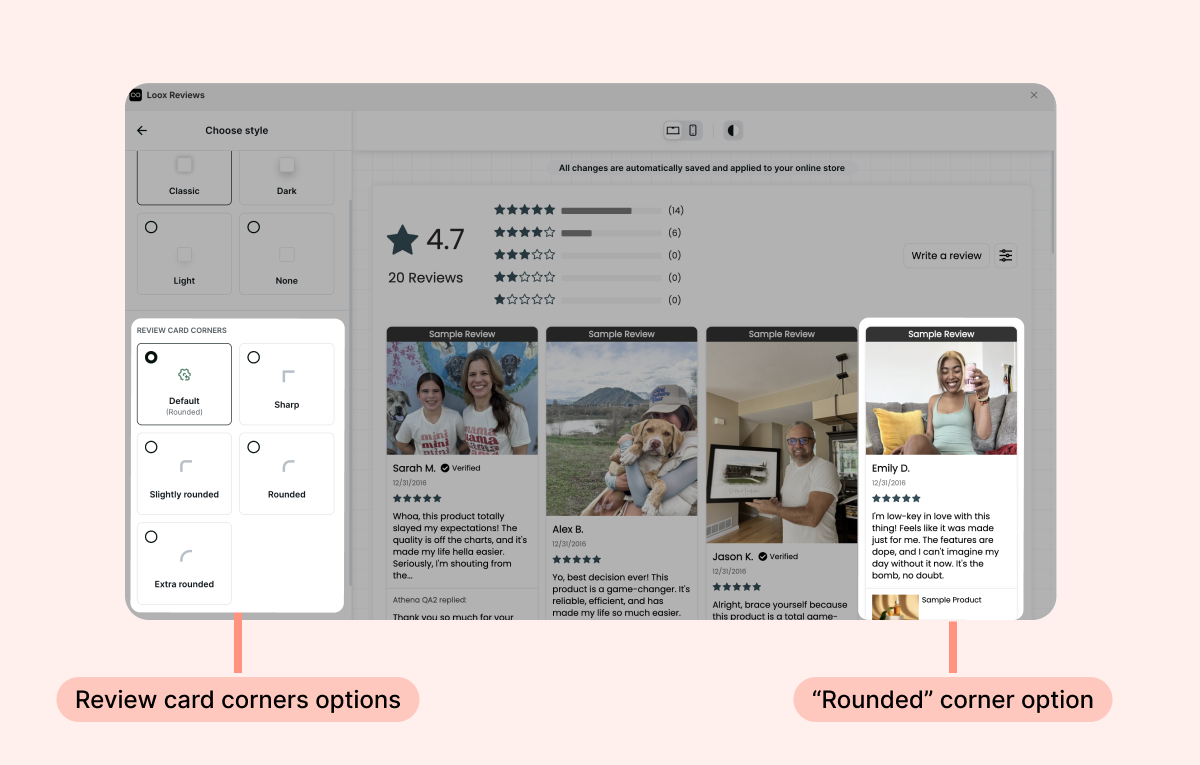
Choose how sharp or rounded your border corner will appear on your review cards.
We offer 4 corner styles:
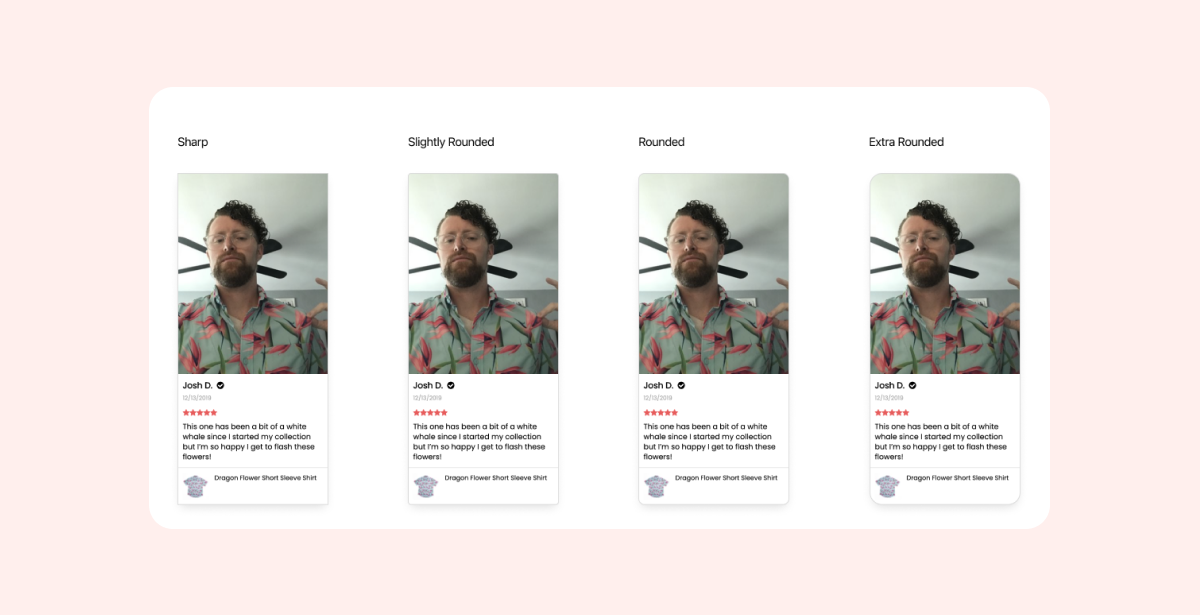
Note: The “Default” option is based on the default corner radius selected in your “Branding" Settings.
Font, Buttons, and Icons
On the "Style" menu, you can select your star rating icon and font for the Reviews Widget.
Note: your selection will override your Branding settings for this widget.
You can also control the size of the font and the "Show more reviews" button, and change the Sorting menu icon.
Colors customization
Widget colors
Customize your Reviews widget's look to match your brand’s design.
You can select one of our designed themes, or select “Custom” to customize every element of your widget.
When selecting “Custom”, you can customize the following:
Widget header
Change your Reviews Widget header’s colors to match your brand’s design.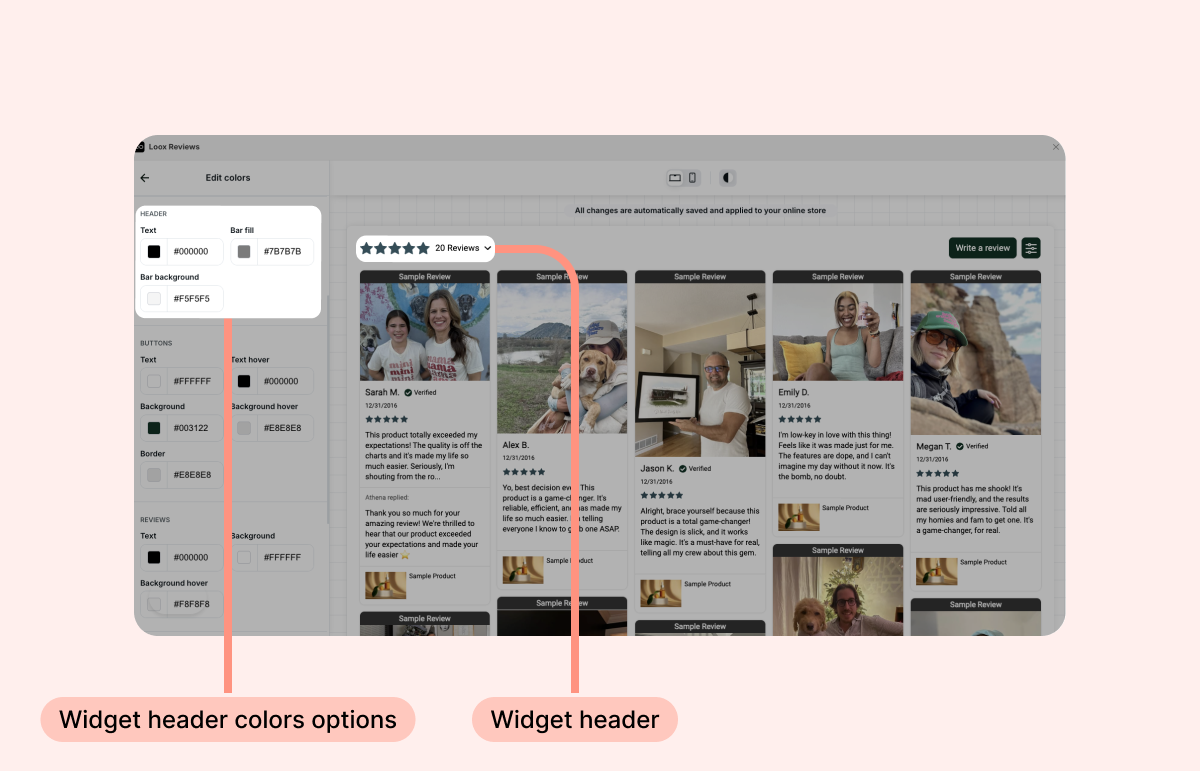
Review tabs
Customize the colors of "Product reviews" and "Store reviews" tabs that appear when Store reviews are enabled.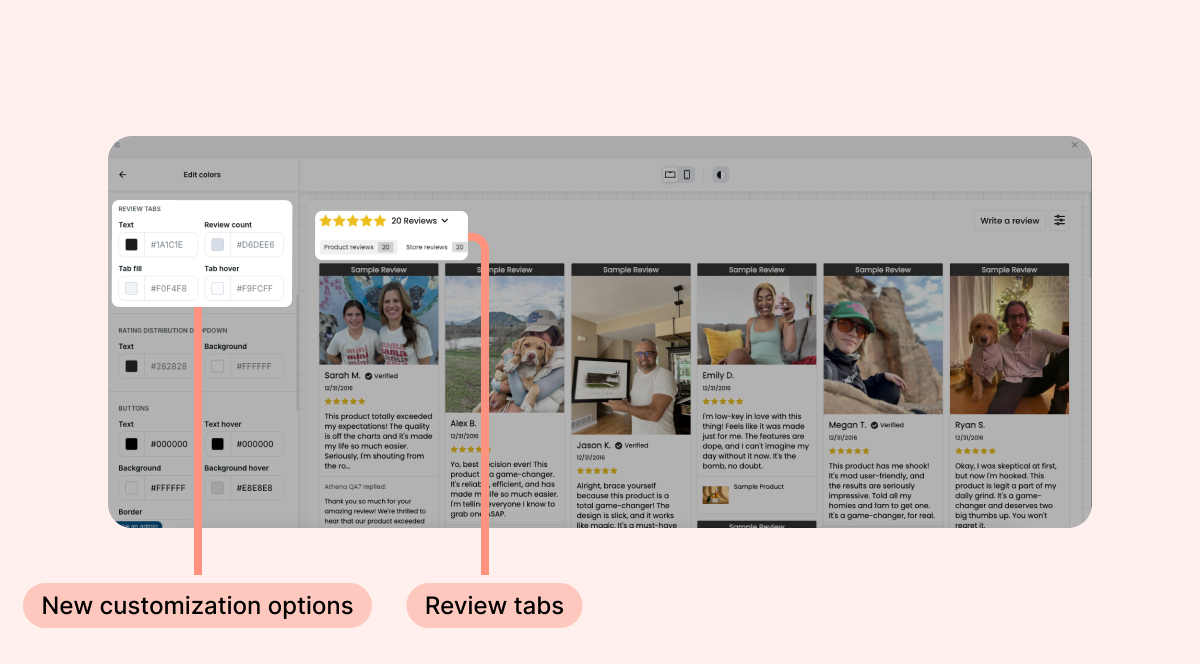
Buttons
Customize the widget’s “Write a review” button so that it blends seamlessly with your page.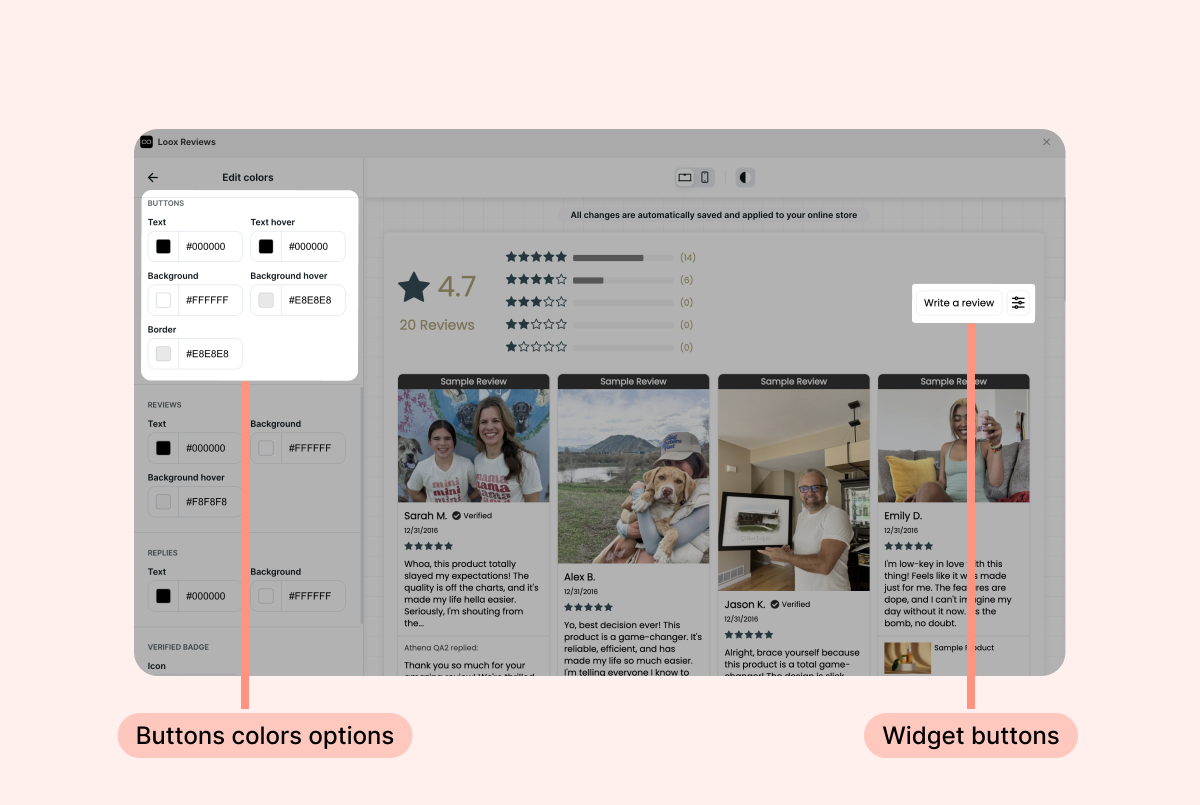
Review cards
Customize the text and background colors of your widget’s review cards, including replies, badges, translations, and the product thumbnail.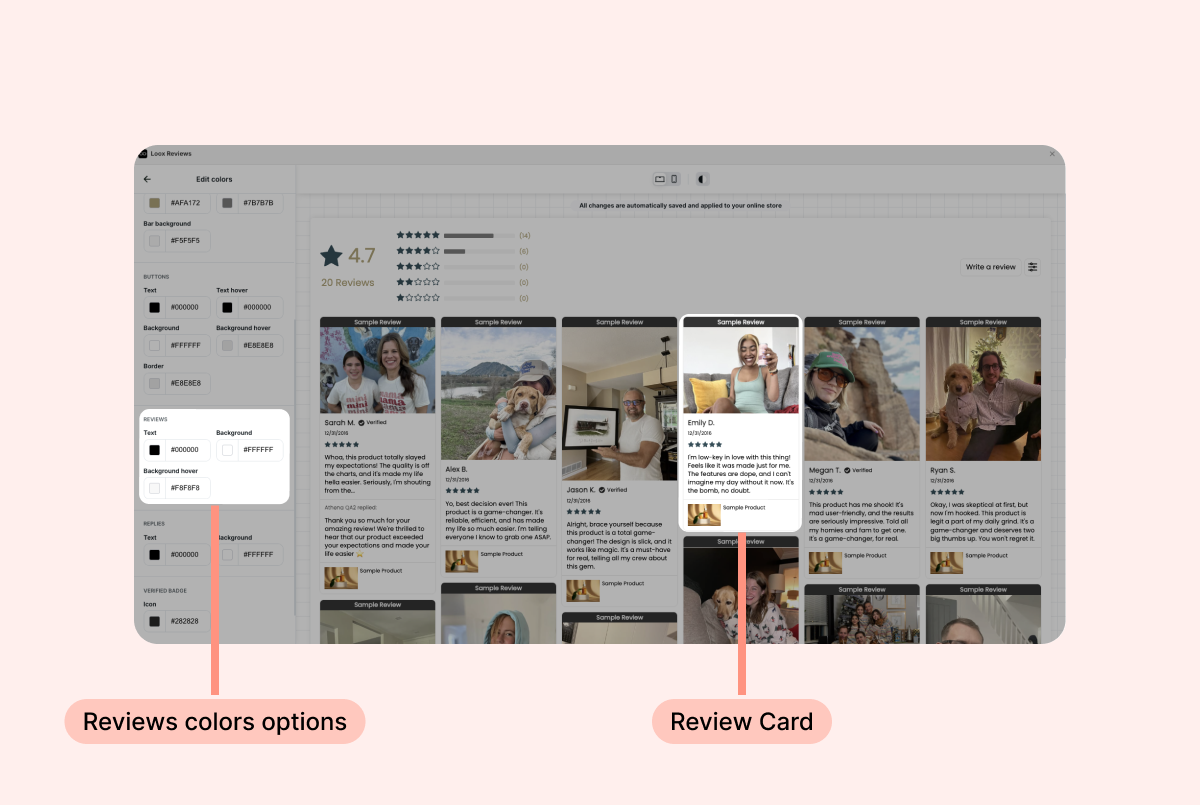
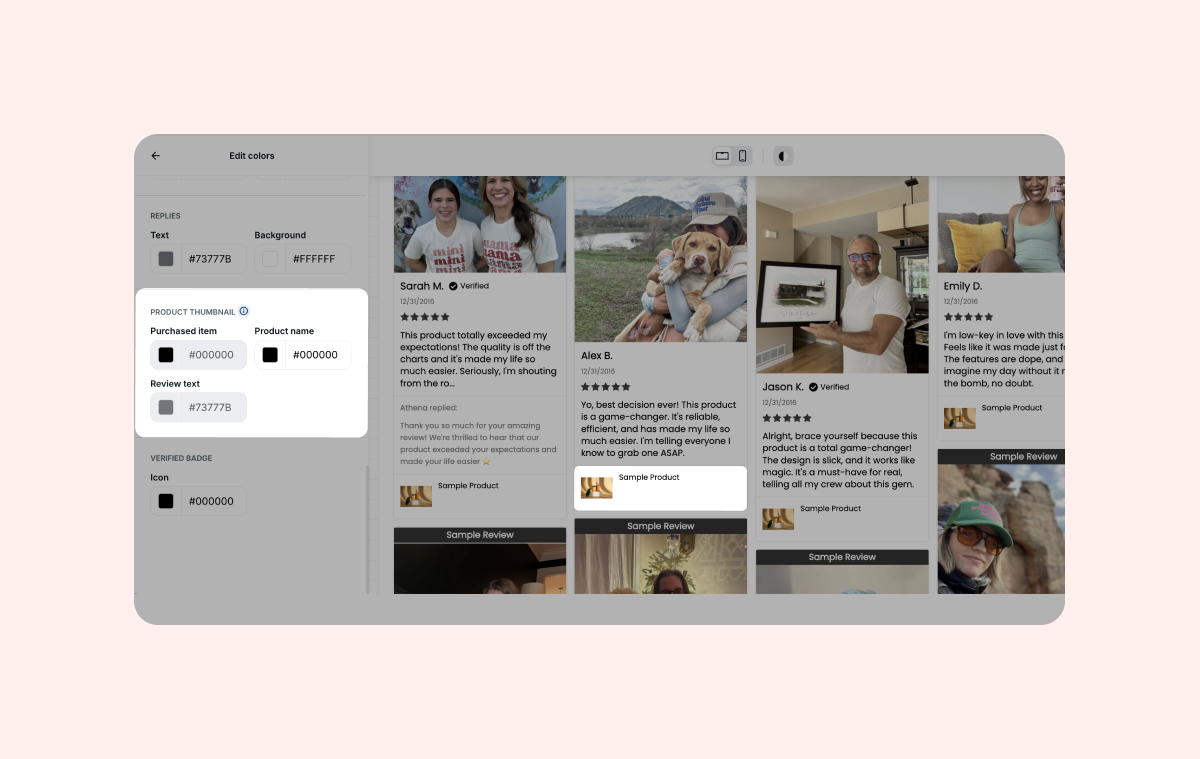
Product Thumbnail
Customize the color of the product name that appears on product thumbnails on aggregated widgets (showing all of your reviews). When Store reviews are enabled, you can also control the colors of the "Purchased item" title and the product review quote.
Text customization
Customize the text that appears on your widget’s button and elements to match your specific needs.
You can customize the text of the following widget elements:
- Review - Singular: Adjusts the word that appears next to the widget’s average rating counter if only one (single) review is collected for the product (“Review” by default).
- Reviews - Plural: Adjusts the word that appears next to the widget’s average rating counter if more than one review is collected for the product (“Reviews” by default).
- Write a review - Button text: Adjusts the text that appears on the ״Write a review” button that redirects customers to the Review form.
- Review tabs: Adjusts the text of the “Product reviews” tab and "Store reviews" tabs (if enabled).
- Show more reviews - Button text: Adjusts the text of the “Show more reviews” button that displays more reviews on the widget when clicked.
- Product page - Link text: Adjusts the text that is displayed on the review card that links to the product page attached to the review.
- Item type title: Adjusts the text that appears on the review card that shows the product variant the reviewer purchased.
- No reviews - Empty state text: Adjusts the text that appears on the widget when no reviews are collected for the product.
- No reviews - Empty state link: Adjusts the text that appears on the “Write a review” button that appears on the Reviews widget when no review is collected for the product.
Preferences
We offer multiple display settings for your Reviews Widget: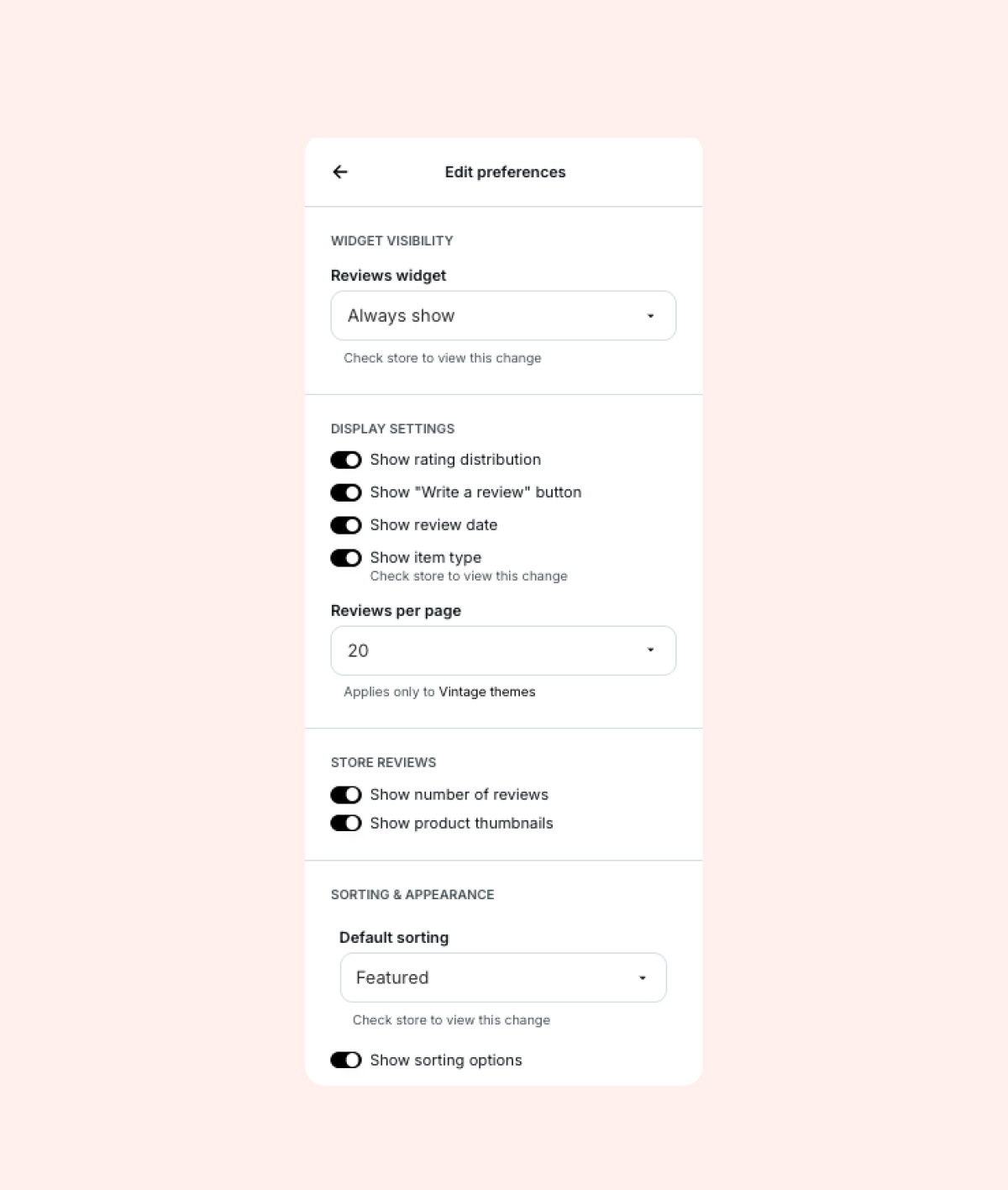
- Display - Reviews Widget: Select whether you would like the Reviews widget to be hidden based on different scenarios, for example, hiding the widget when no reviews are collected for the product (hiding an “empty” widget).
- Show rating distribution: When enabled, this displays the rating distribution in the header. (How many 5-star, 4-star, 1-star reviews etc.)
- Show "Write a review" button: When enabled, the “Write a review” button will be displayed on the Reviews widget, allowing store visitors to submit their reviews for your products.
- Show review date: When enabled, the date when the review was submitted by the customer will be displayed on the review card.
- Show item type: When enabled, the product type/variant the customer purchased will be displayed on the review card.
- Reviews per page: This setting only applies to vintage themes. On 2.0 themes, the number of reviews shown per page before the “show more reviews” button is controlled in the app block settings of each Reviews Widget.
- Store Reviews:
- Show number of reviews: Shows the total store review count in the “Store reviews” tab at the top of the widget.
- Show product thumbnails: When enabled, a thumbnail of the product itself will be displayed on each store review card.
- Default sorting: Choose whether to sort reviews by “featured” (the default, which shows higher rated photo/video reviews first and text reviews/lower ratings later) or “newest” to sort by review date.
- Show sorting options: When enabled, store visitors will have the option to select the sorting option they prefer when viewing the product's reviews.
“Style” section
The “Style” section controls lots of visual elements in the widget, like custom rating icon, font type and size, corner and shadow styles, and more:
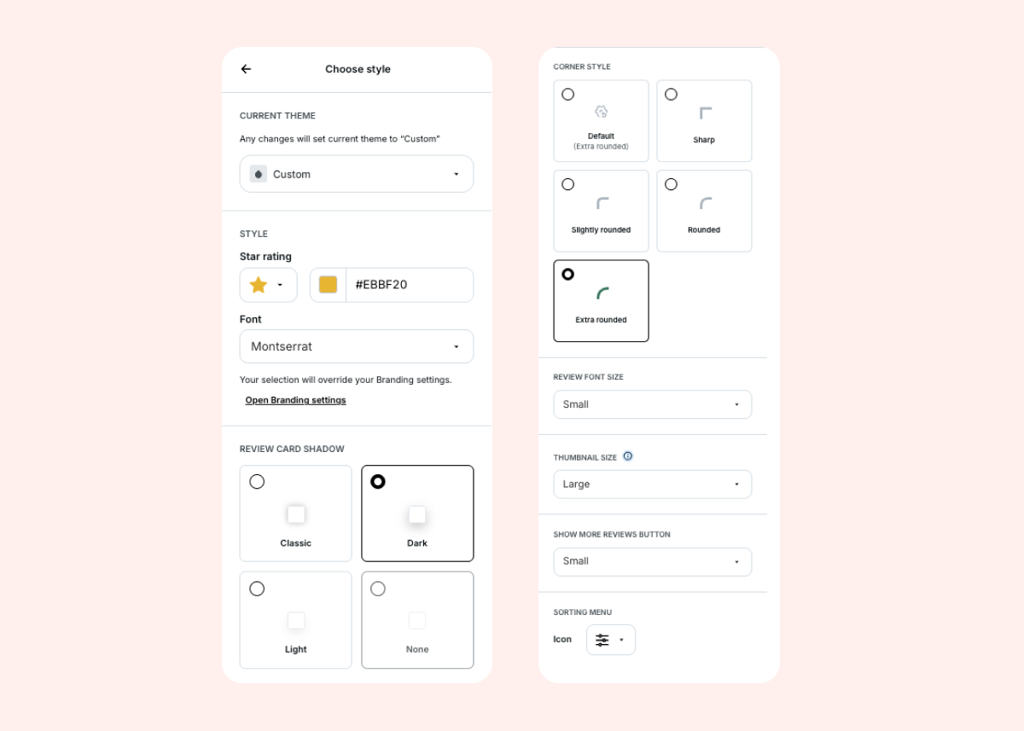
- Thumbnail size: Adjust the thumbnail size of the customers' photos and videos in the List or Mosaic layouts of the widget (this setting is not available on our default “Grid” option). Note that this setting does not refer to the product thumbnail- it refers to review media. We offer three different thumbnail layout options:
- Large (default):
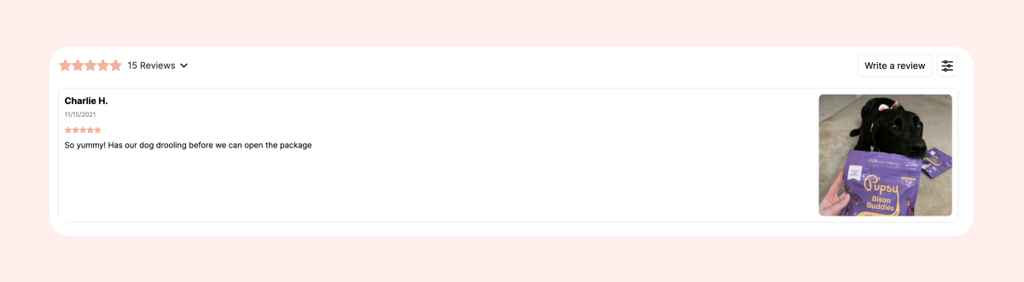
- Medium:
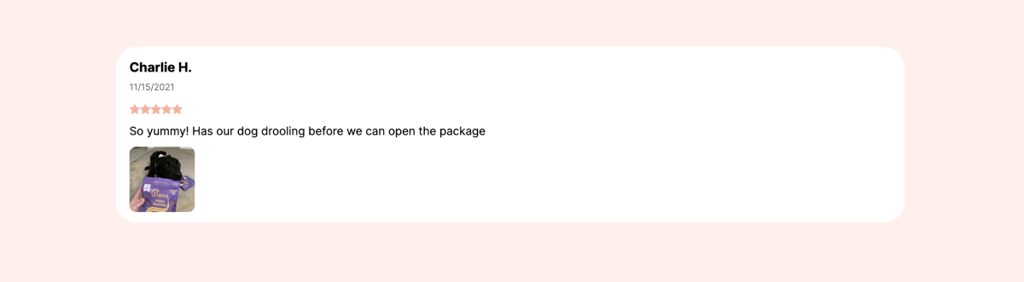
- Small:
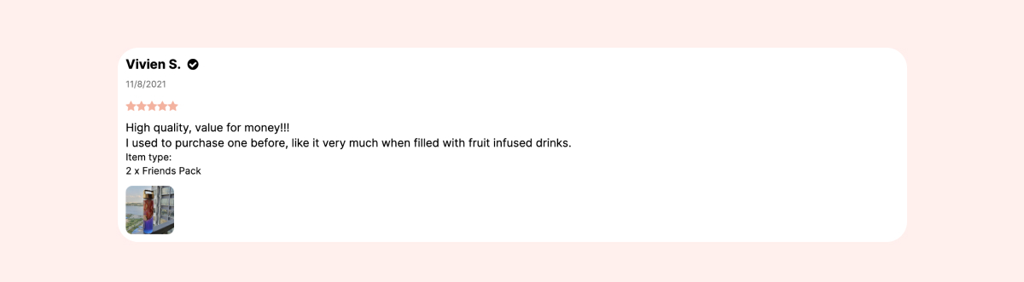
- Small:
- Note: The Reviews Widget will only display reviews with multiple photos if the thumbnail layout is set to small or medium.