
Build trust and credibility with your visitors using the Loox Trust Badge.
You can put your social proof front and center on your pages, providing your visitors with a snapshot of the number of reviews your store collected, as well as the total average rating in one visually compelling widget.
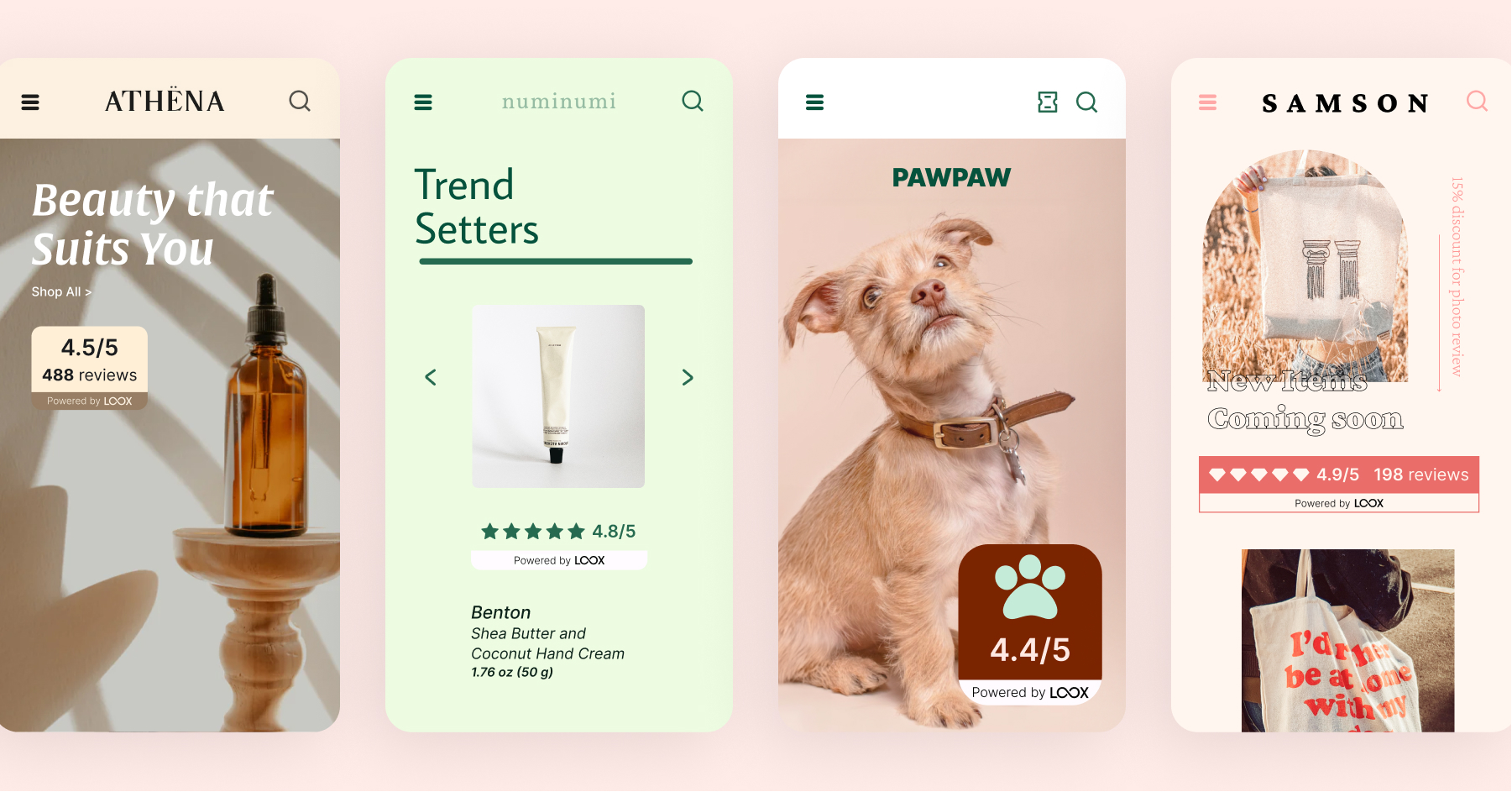
In this article, we will guide you through adding the Trust Badge to your homepage and all of its customization options.
Adding the Loox Trust Badge to your homepage
To add the Loox Trust Badge to your homepage:
-
Inside your Shopify Themes menu, click “Edit theme”:
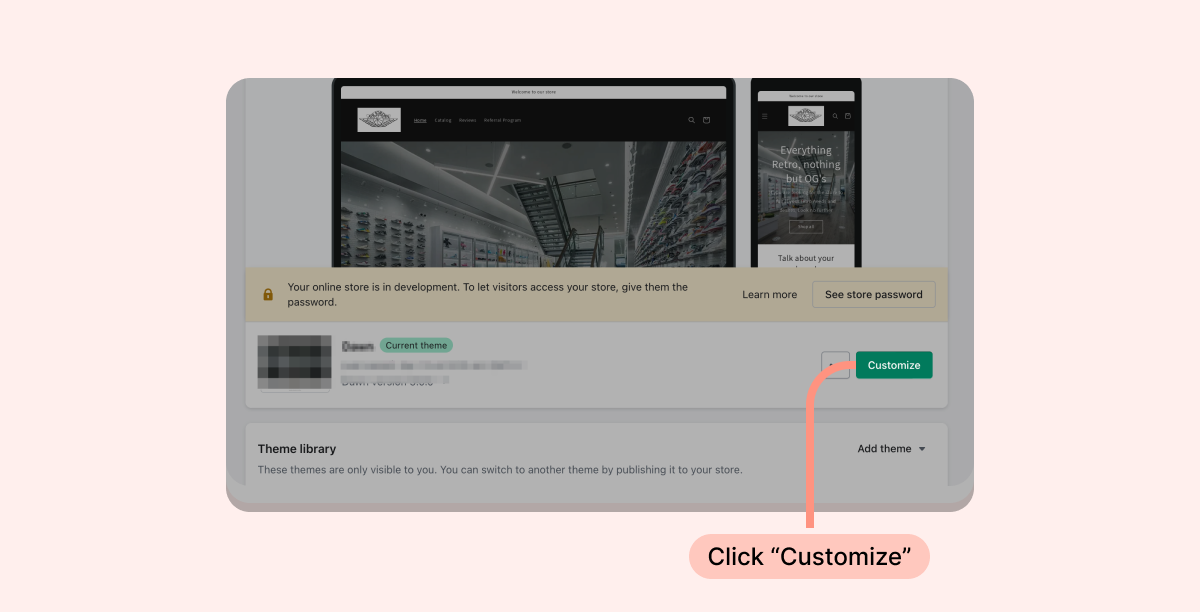
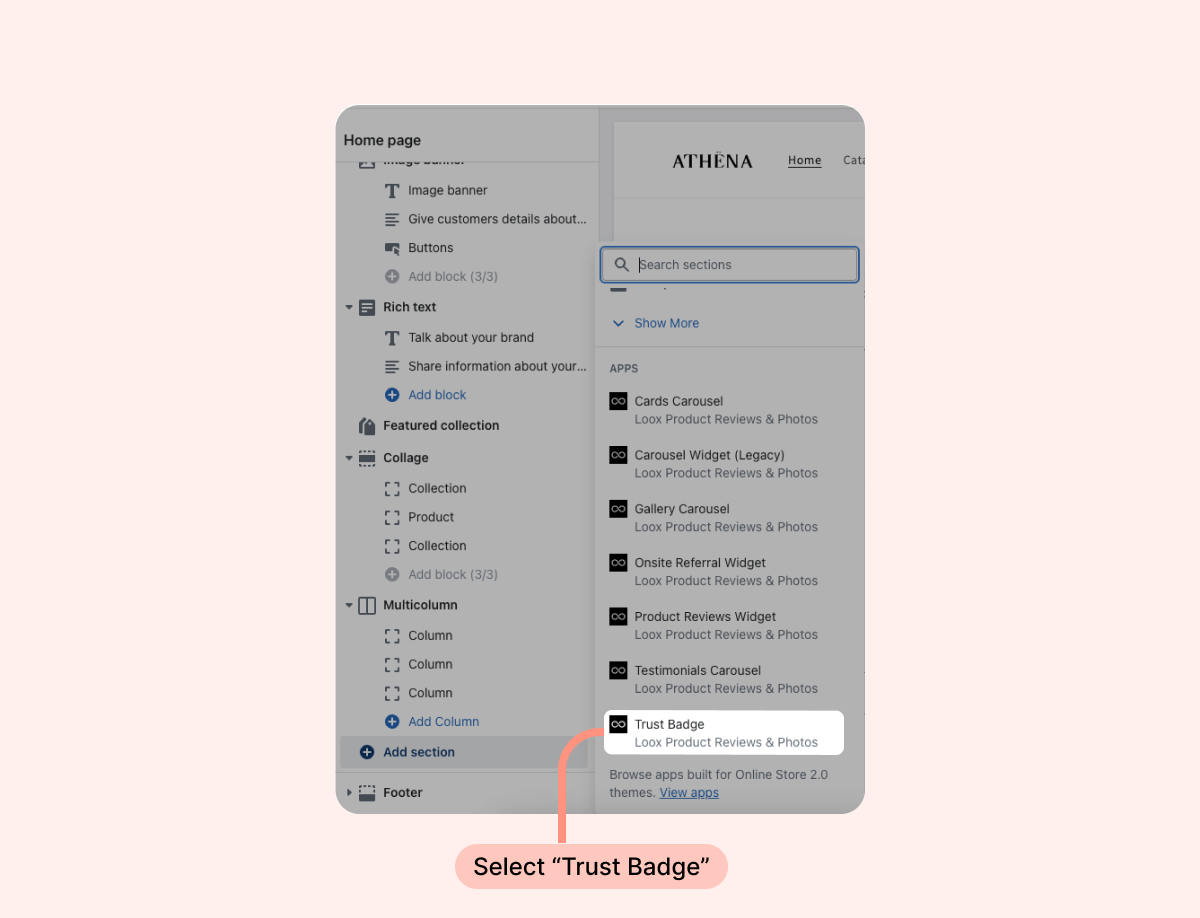
- Click “Add section” on the bottom-left corner.
-
Select “Trust Badge”:
-
Drag and drop the widget’s app block at the location would like it to be:
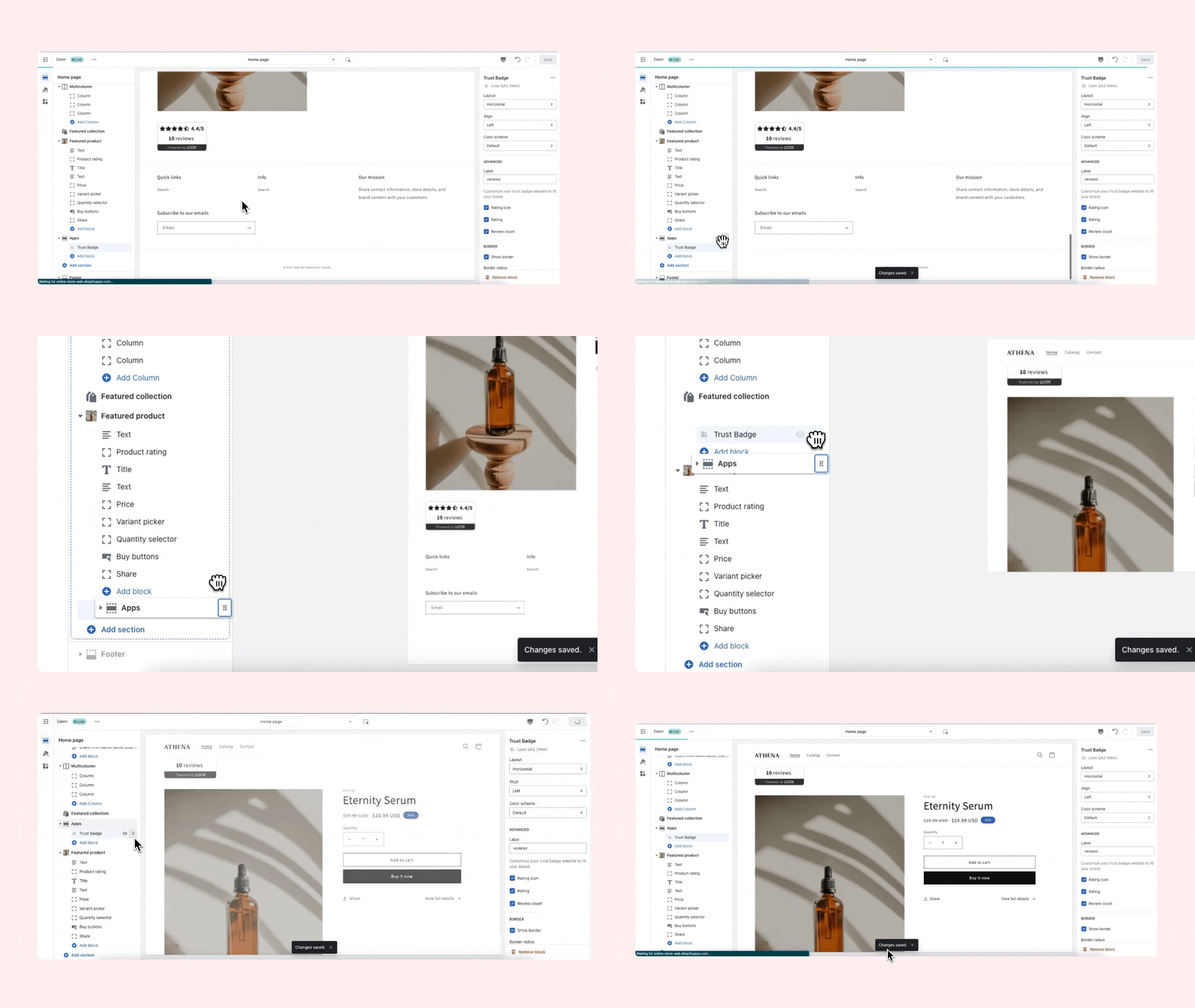
- Customize the widget’s appearance to match your brand’s design (learn more below).
- Click “Save”.
Tip: Click here to add the Trust Badge Widget to your homepage.
Customization options
Customize the Trust Badge appearance to match your brand’s unique look and feel.
The customization options available are:
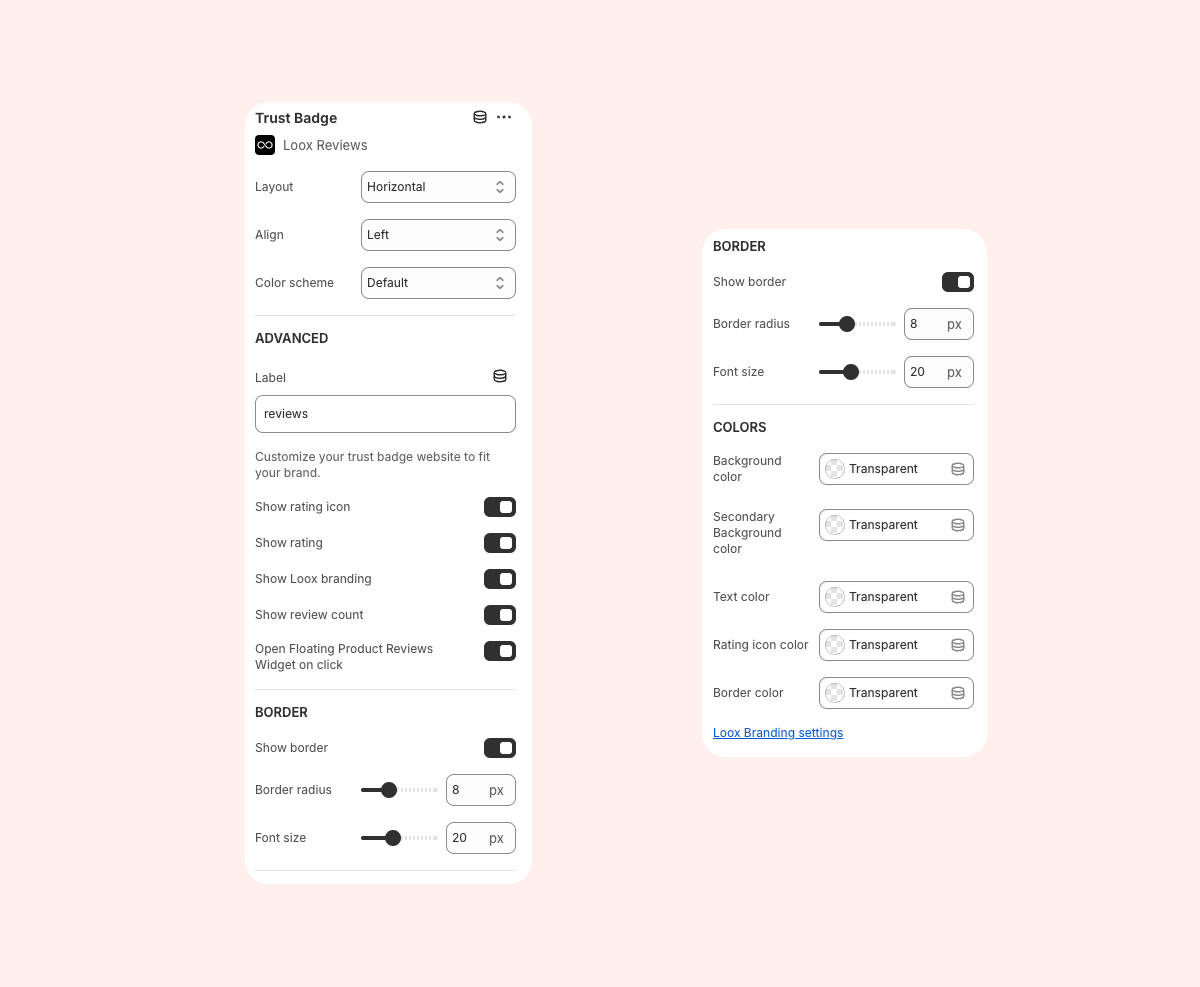
- Layout: Select your preferred widget layout out of six different options.
- Align: Adjust the location of the widget on your page.
- Color scheme: Select the color theme you would like to use for the widget.
Note: If a color element of the widget is “manually” customized through one of the setting options below, the “Color scheme” selected will be overridden.
- Label: Customize the text that appears next to the reviews counter.
- Show Rating Icon: When checked, your store's rating icons will display on the Trust Badge. The Rating Icons displayed on the widget will be based on the Icons selected in your Loox Admin's "Branding" settings section.
- Show Loox Branding: When checked, Loox's branding will be displayed at the bottom of the widget container.
- Show Rating: When checked, your store's average rating will be displayed.
- Show Review count: When checked, your store's total number of reviews collected will be displayed.
- Open Floating Reviews Widget on click: When checked, the Floating Reviews Widget will appear, displaying your store's entire collection of reviews.
Note: The Floating Reviews Widget will display only product-specific reviews when viewed on product pages.
- Show border: When checked, a border line will appear surrounding the widget.
- Border radius: Adjust the angle of the widget’s corners.
- Font size: Adjust the size of the widget's text.
- Background color: Choose the color of the widget’s background
- Secondary background color: Choose the color for the “Powered by Loox” footer.
- Text color: Choose the color of the widget’s text.
- Rating Icon color: Choose the color for the Rating Icons displayed on the widget.
- Border color: Choose the color of the widget’s border line.