
Boost trust and social proof on your store with our dedicated Happy Customers page.
Display all your product reviews on one dedicated page, highlighting all the positive experiences your customers have had.
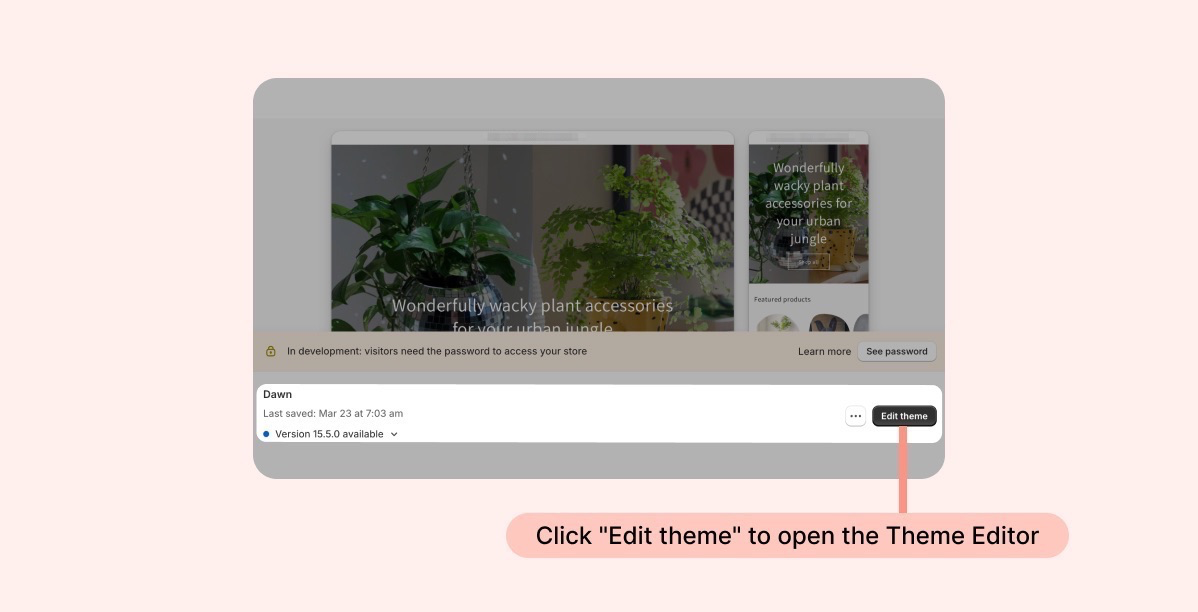
- Inside your Shopify Themes menu, click "Edit theme" to open the Theme Editor:
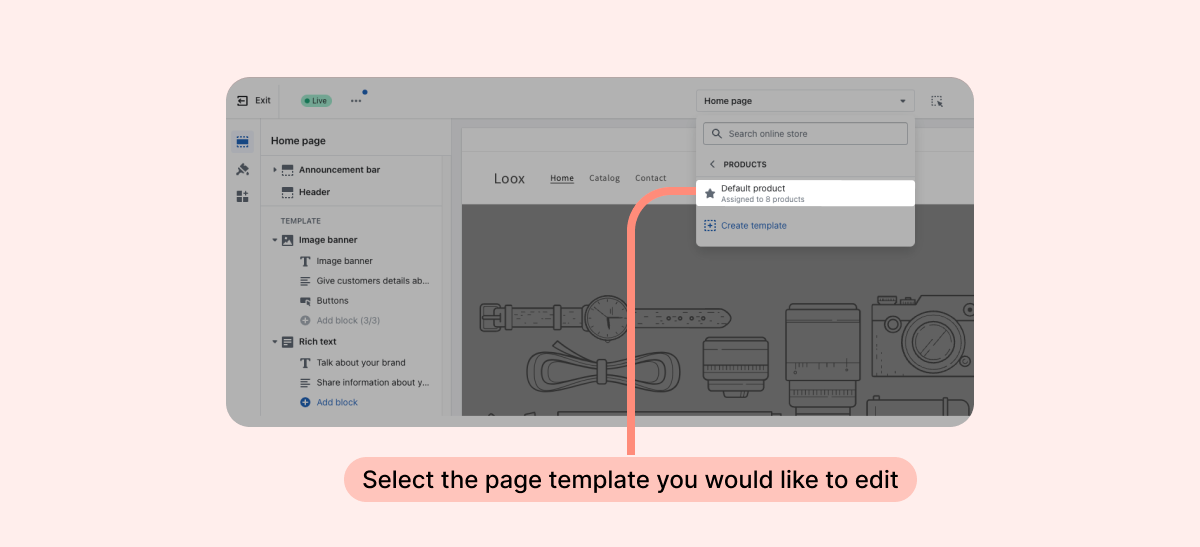
- Inside the Theme Editor, click on the page template dropdown menu:
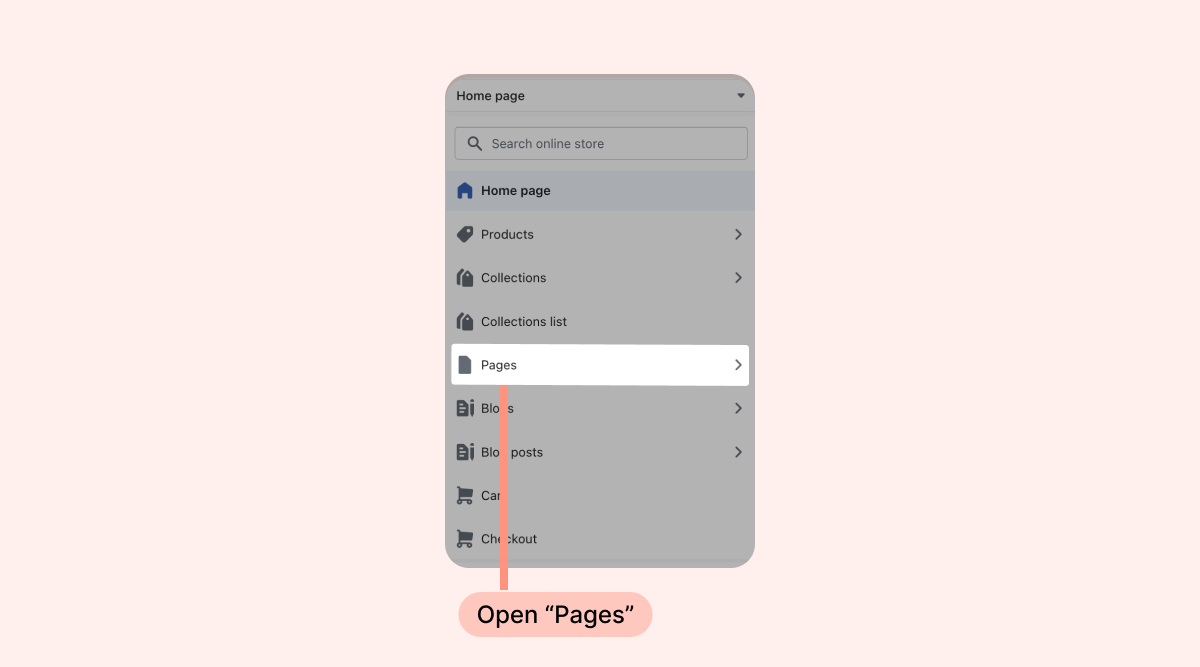
Open "Pages":
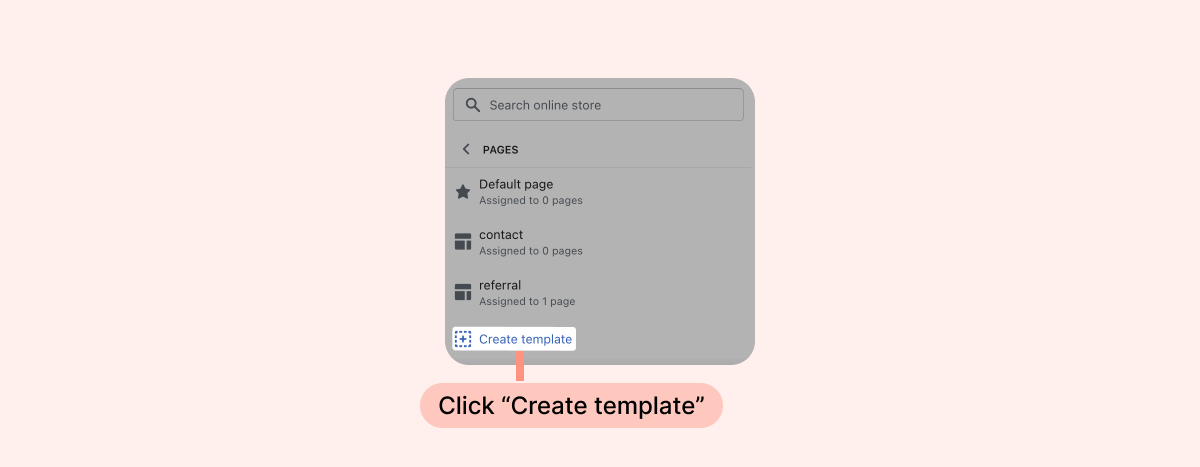
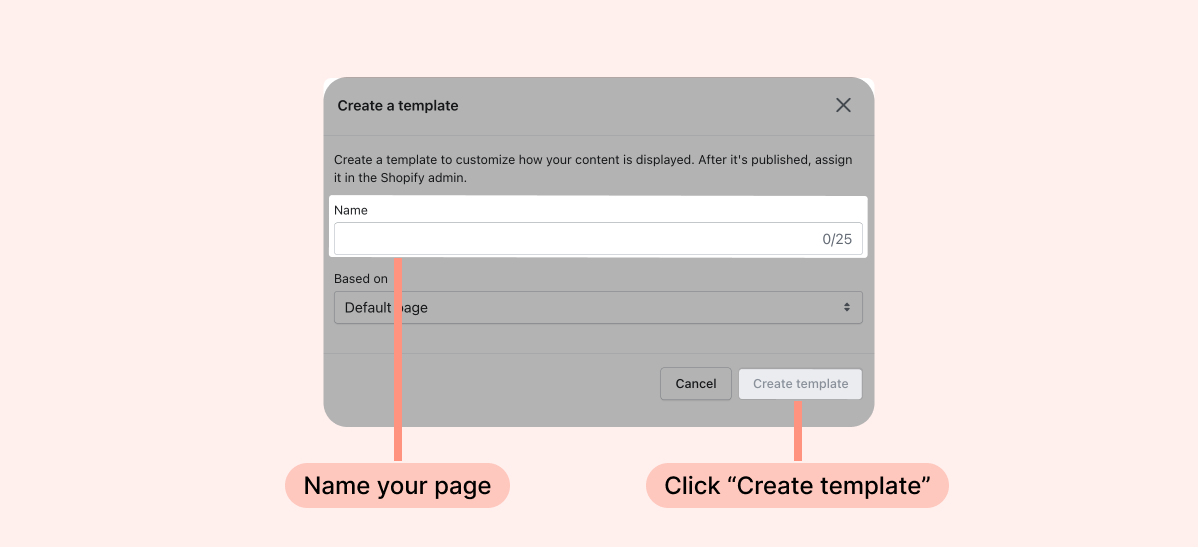
Click "Create template":
Give your page template a name (for example: 'Happy Customers') and click "Create template":
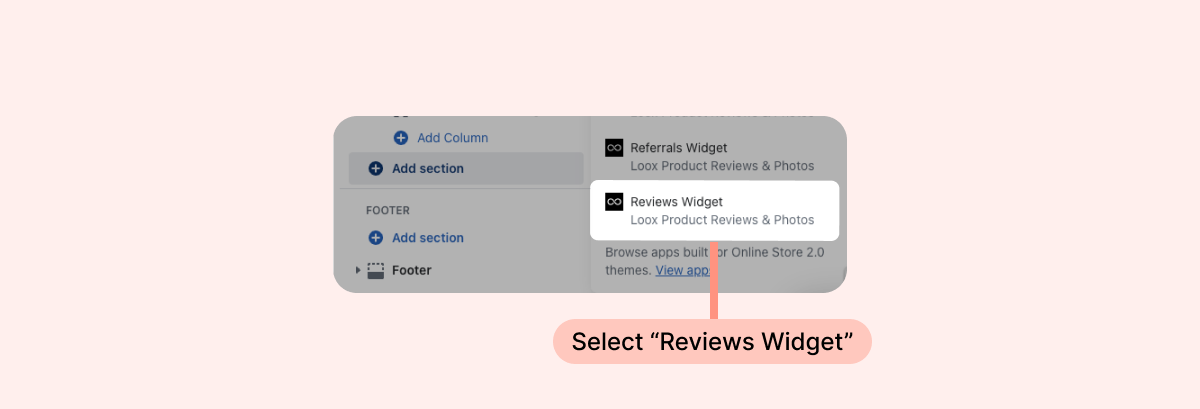
Inside your new page template, click "Add section" under "Template", and select "Reviews widget":
- Click "Save".
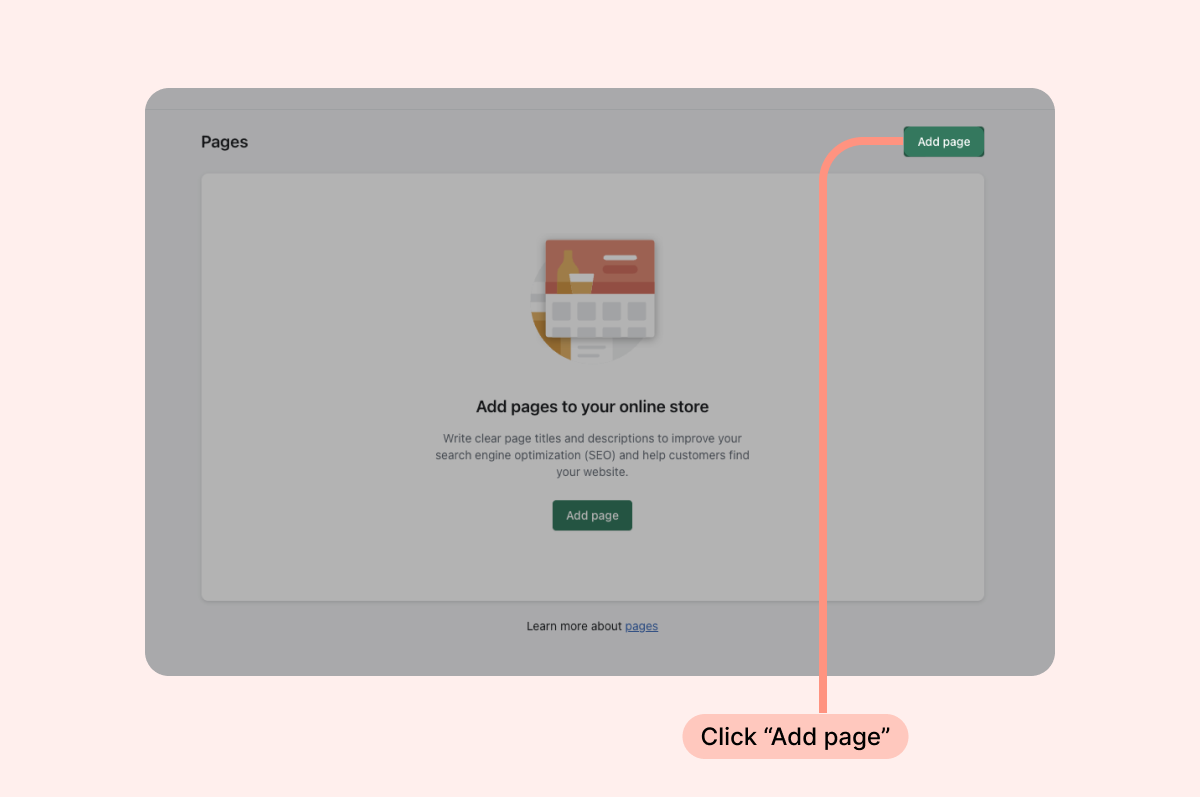
Inside your Shopify Admin's "Pages" menu, click "Add page":
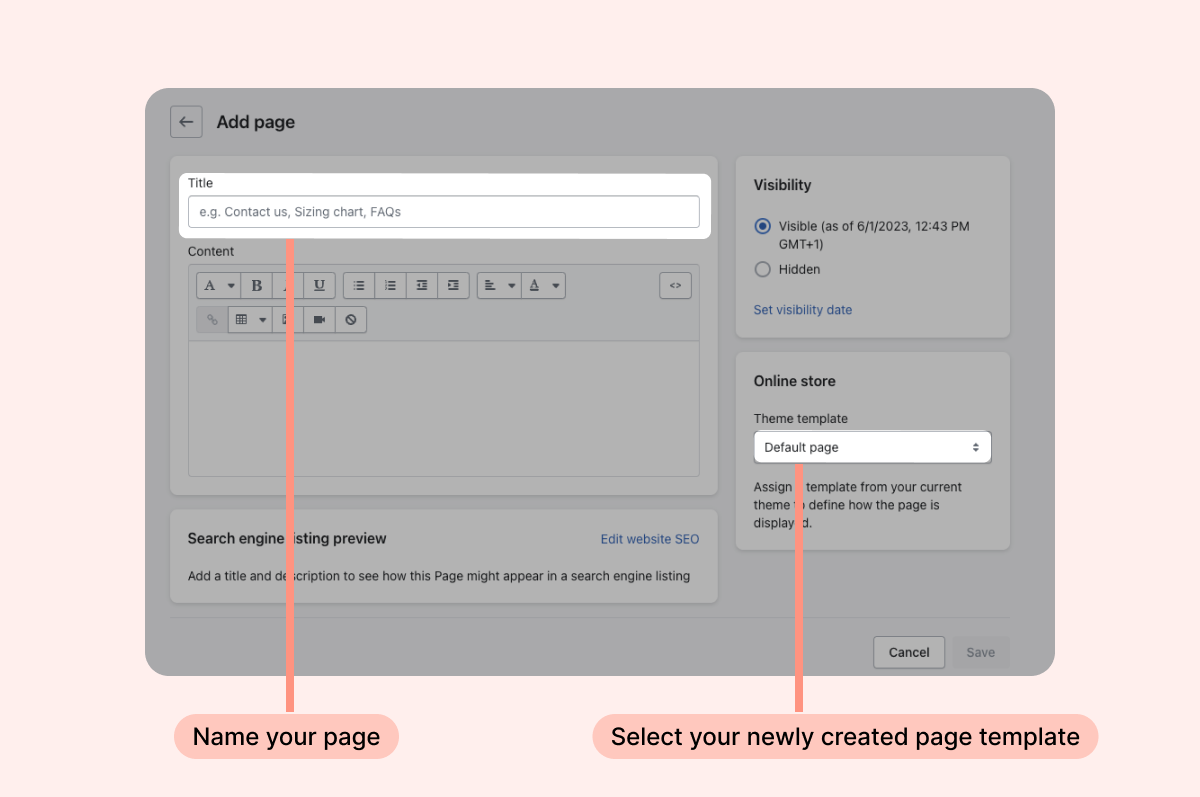
Give your page a name, and select your newly created page template:
- Click "save".
That's it! Your Dedicated Loox Happy Customers' page is now ready to go.
Note: Once created, add your dedicated 'Happy Customers' page to your store's navigation to display it on your store.
Customization options
Customize the Reviews Widget directly from the Theme Editor using our built-in integration with Shopify’s Online Store 2.0 themes.
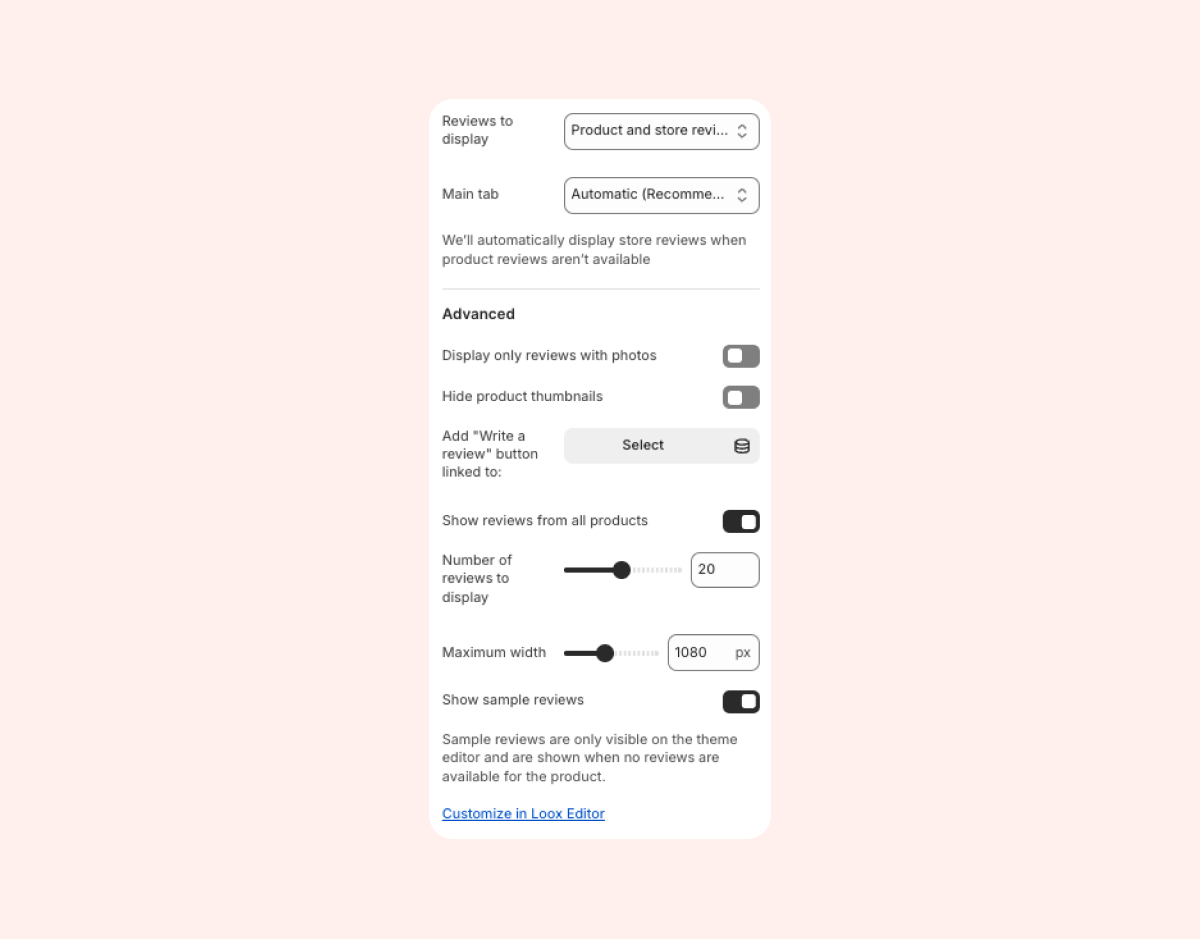
- Reviews to display: Select whether to display product reviews, store reviews, or both. This will affect the widget per app block.
- Main tab: Select which tab will be displayed first by default. When set to "Automatic", we will display product reviews first, but if no product reviews are available, we will automatically display store reviews instead.
- Display only reviews with photos: When checked, the widget will display only photo and video reviews. Text-only reviews will not be displayed.
- Hide product thumbnails: Remove the associated product’ picture and name below each review.
- Add "write a review" button linked to: Select a specific product to link a dedicated "Write a review" button to. Customers can submit reviews for that product on the homepage.
- Show reviews from all products (enabled by default): All approved reviews of all products will appear. If disabled, only the reviews of the selected product will appear. When the widget is displaying product-specific reviews, reviews you tag as featured will automatically be pinned to the top of the widget. When the widget is set to display aggregated reviews from all products, you can make sure that featured reviews still appear at the top of the widget by enabling Always show featured reviews in your Reviews Widget’s settings.
- Number of reviews to display: Choose how many reviews to display on the Reviews Widget before clicking on the “Show more reviews” button.
- Maximum width: Limit the width and the number of reviews displayed per row of the widget.