
Smart Filters are available on the Convert plan and up. Click here to upgrade your plan.
Answer shoppers' concerns in one tap.
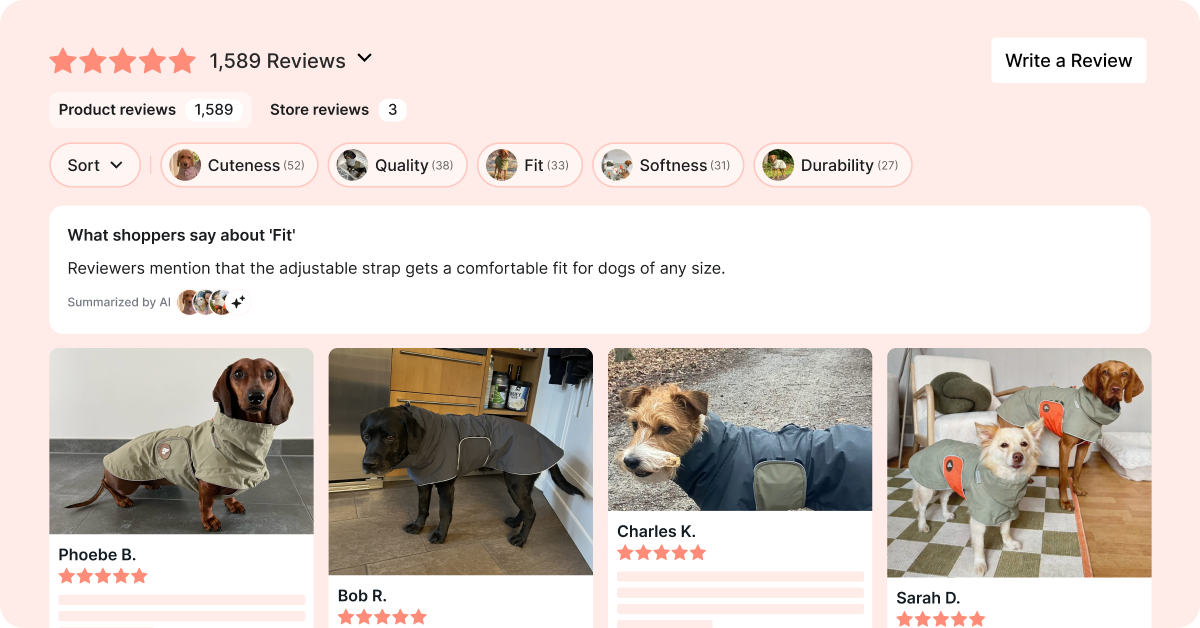
Smart Filters use AI to pull what your reviewers talk about most, like fit, scent or battery life, and turn it into tappable topics at the top of your Reviews Widget. A shopper taps a topic, sees only the reviews about it, and reads the bottom line in a short summary before scrolling.
This article covers how Smart Filters work, how to turn them on and customize them, and what shoppers see in your Reviews Widget.
Why use Smart Filters?
A product with dozens of reviews is hard to scan, and the answer a shopper needs is usually buried somewhere in the list. Smart Filters bring that answer to the top:
- Topics are pulled automatically from your own reviews, and new reviews join the right topic as they're published, so your filters grow with your store
- Shoppers find the reviews they care about most in one tap
- Each topic comes with a short summary of what customers say about it, so shoppers get the bottom line before needing to scroll through
For example, a shopper unsure about fit taps that topic and sees only the matching reviews, along with a summary: "A few shoppers say the shirts run true to size for both adults and kids. They suggest sizing up on the kid's shirt for room to grow."
How Smart Filters work
Loox reads a product's published reviews and creates topics based on what customers talk about. Each topic becomes a filter with its own short summary of what customers say about it.
- Smart Filters appear on products with at least 10 published reviews
- A topic needs at least 5 reviews that mention it
- Filters are ordered by number of reviews, with the most discussed topic first
- New reviews are added to the right topics automatically. As a product gets more reviews, new topics can appear, and topics with fewer than 5 reviews are hidden
- Smart Filters work for individual products, product groups (including groups created by Shopify tags), and product bundles
How to turn on Smart Filters
To turn on Smart Filters, open your Reviews Widget editor and go to AI features > Smart Filters:
- Turn on Show smart filters.
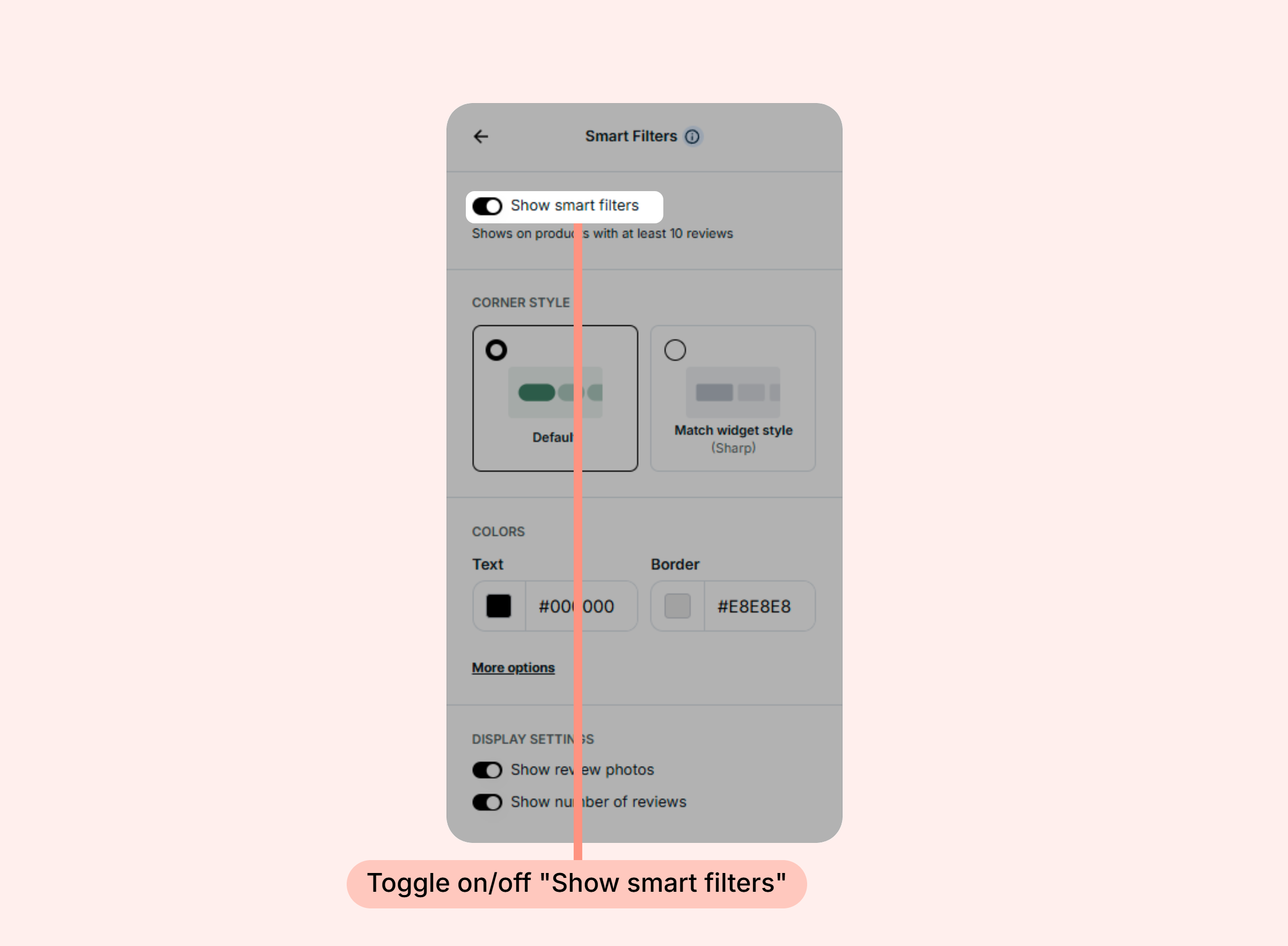
- Customize how your filters look:
- Corner style: Choose Default, or Match widget style to use the same corner style as the rest of your Reviews Widget
- Colors: Set the text and border colors of your filters. Click More options to also set a background color and the colors of a selected filter
- Display settings: Choose whether each filter shows a review photo (Show review photos) and its number of reviews (Show number of reviews). Both are on by default
- Save your changes.
Tip: To see your selected filter colors, click a filter in the editor preview.
Once Smart Filters are on, Loox creates topics for each eligible product, and filters appear in your store as each product's topics are ready.
What shoppers see
Smart Filters appear in your Reviews Widget, between the widget header and the review summary:
- The row starts with a Sort dropdown, followed by your filters. Depending on your display settings, each filter shows a review photo and its number of reviews
- When a shopper taps a filter, the widget shows only the reviews about that topic, and the review summary switches to a summary of that topic. For example, tapping "Fit" changes the summary title to "What shoppers say about 'fit'"
- Shoppers can select one filter at a time. Tapping the selected filter again clears it
- Shoppers can still sort the reviews while a filter is selected
Good to know
- Where filters appear: Smart Filters appear on the Product reviews tab. When a shopper switches to the Store reviews tab, the selected filter is cleared
- Aggregated widgets: Widgets that show reviews from all of your products or a whole collection, like a "Happy Customers" page or the Collection Reviews Widget, won't display filters
- Languages: Topics and their summaries are created in your primary language
- If AI Summary is off: Shoppers can still filter your reviews, but no topic summary appears. Learn more about AI Review Summaries
FAQs
Q: Can I choose or edit the topics?
A: No. Loox creates topics automatically from your published reviews, so they reflect what your customers write about.
Q: Why don't I see Smart Filters on a product?
A: Check that Show smart filters is turned on in your Reviews Widget editor. If it is, the product may have fewer than 10 published reviews, or no topic may be mentioned in at least 5 reviews. Smart Filters also show only when your store is viewed in your primary language. Right after you turn them on, filters can take some time to appear while Loox creates topics for your products.
Q: What happens to the star rating and review count when a shopper selects a filter?
A: The star rating, review count and ratings distribution in your Reviews Widget update to show only the data from reviews about the selected topic. When the shopper clears the filter, they go back to showing data from all of the product's reviews.
Q: What happens to Smart Filters if I downgrade my plan?
A: Smart Filters stop appearing in your store right away. Your topics are saved, so if you upgrade again, check that Show smart filters is on to display them.
If you have more questions, contact our Support team. We're available 24/7 and happy to help!