Use our eye-catching Video Slider Widget to show off your visual reviews on your store. In this article, we'll walk you through how to add the widget via code to any spot on your store where Loox app blocks can't be added.
When to add the Video Slider Widget via code vs. via app block
You might need to add the widget via code if:
1. you're on a vintage (1.0) Shopify theme.
2. you're on a 2.0 theme but want to add the widget in a location where you can't use the Loox app block. For example- if you want to add the widget to a custom snippet or on a page-building app like GemPages, PageFly, or Replo.
If you're on a 2.0 theme and have the option to do so in the location you want, use the Loox widget app block instead - it's easier to customize with our native settings. Read more about adding widgets via app block.
Note: Settings like "Layout" and "Text" in your Shopify theme editor only apply to the Loox app block. They do not affect the liquid code shown below.
Adding the widget via custom liquid block
Before adding the widget via liquid code, check if your theme supports custom liquid blocks in the location where you're looking to add the widget. This will make it easier for you to access and customize the code.
- Inside the Shopify Themes menu, click Edit theme:

- Head to the page you're looking to work on and click the + in your desired location on the left-hand sidebar to add a new section. Under Sections, search for "Custom Liquid." If it appears, select this option.

- Next, add one of the following code snippets to the section's Liquid Code:
To display aggregated reviews from all of your products:
<loox-video-slider-widget show-rating show-reviewer-name hide-arrows-mobile auto-play></loox-video-slider-widget>
To display reviews from a single product:
<loox-video-slider-widget show-rating show-reviewer-name hide-arrows-mobile auto-play product-id='{{ product.id }}'></loox-video-slider-widget>If you don't have the option to use a custom liquid section in the spot you're looking to add the widget, follow the instructions below on how to add the widget via liquid code.
To manually add the Video Slider Widget to your store via code:
- Inside the Shopify Themes menu, click the “... ” button next to “Edit theme” and select "Edit code":

- Open the template or section where you'd like to add the widget (the homepage is usually called theme.liquid).
- Copy your desired line of code from the two options below and paste it where you would like the widget to appear:
To display aggregated reviews from all of your products:
<loox-video-slider-widget show-rating show-reviewer-name hide-arrows-mobile auto-play></loox-video-slider-widget>
To display reviews from a single product:
<loox-video-slider-widget show-rating show-reviewer-name hide-arrows-mobile auto-play product-id='{{ product.id }}'></loox-video-slider-widget>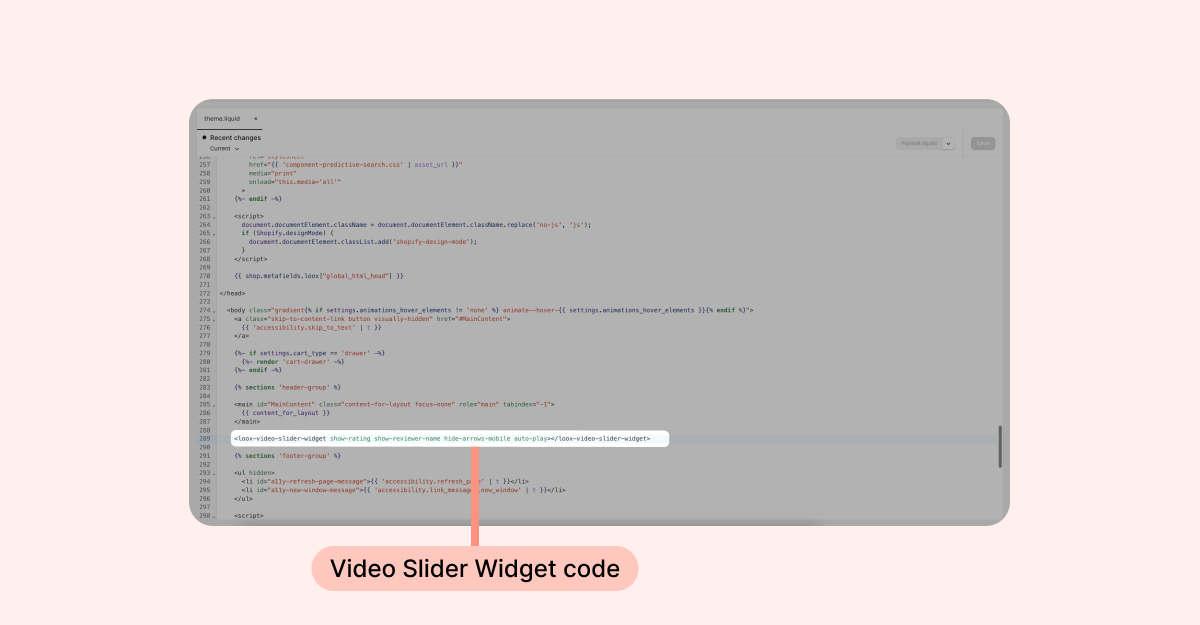
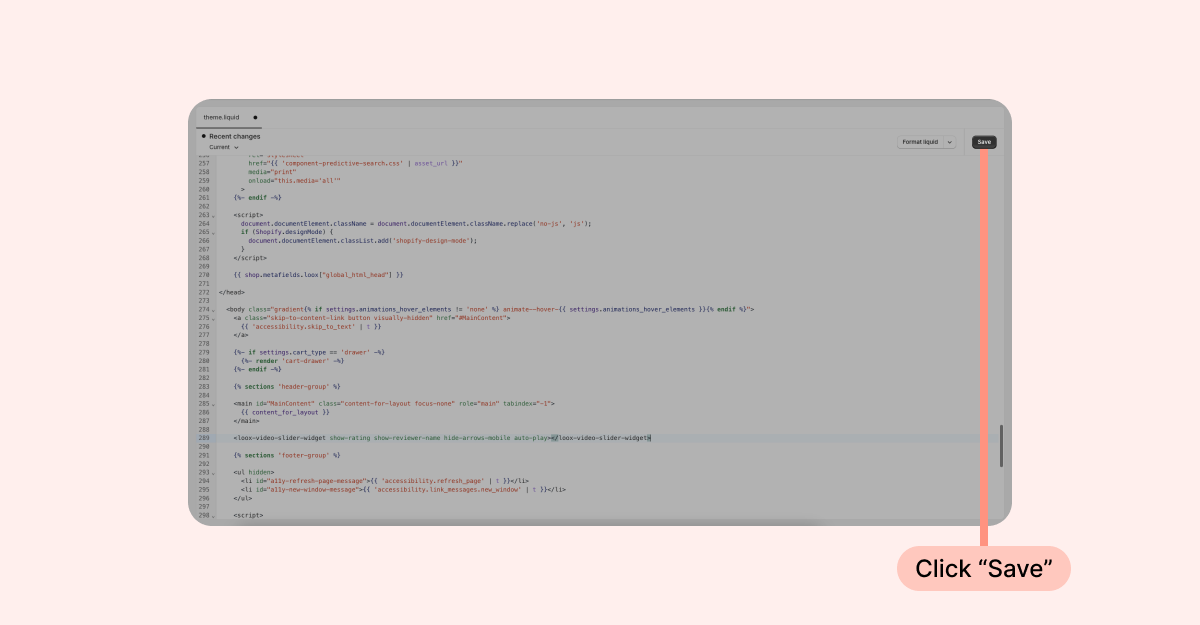
- Click “Save”: