
Optimize review collection by encouraging customers to share feedback on their recent purchases.
Review Request Reminder Emails are automated follow-ups sent to customers who have not responded to the initial review request.
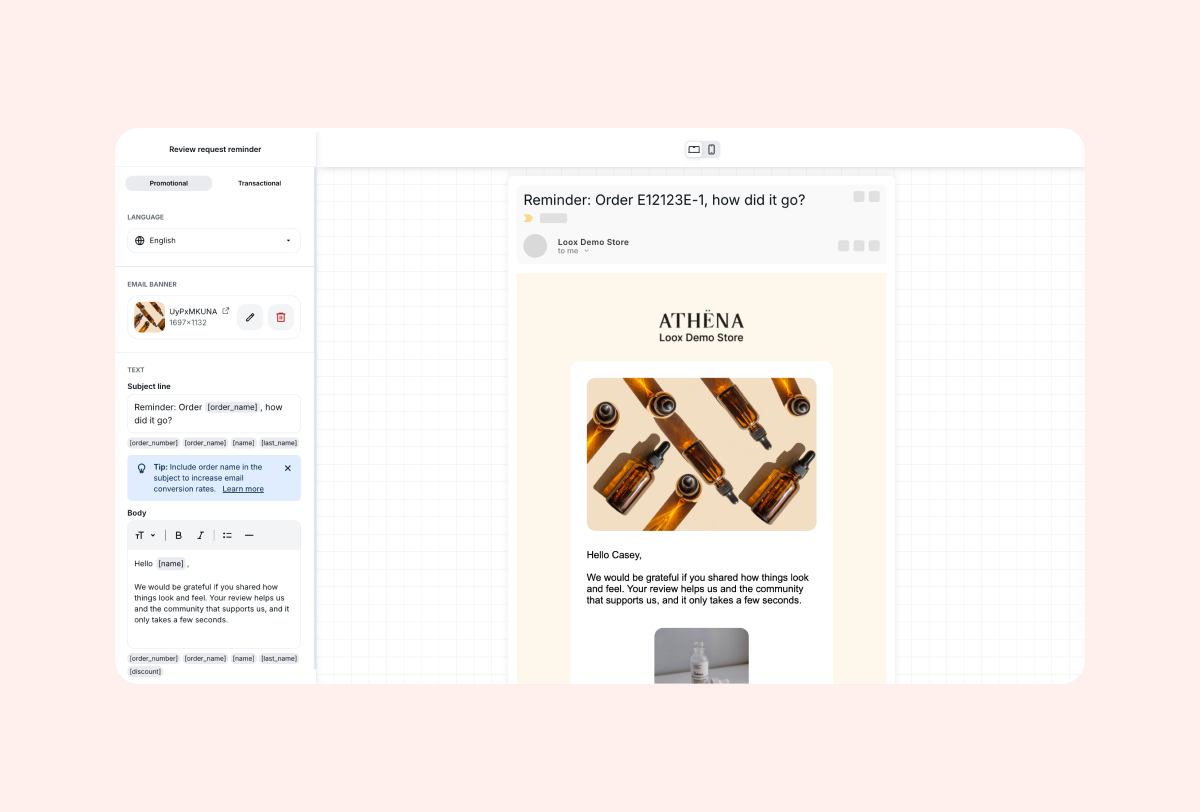
How to set up your review request reminders
Choose how many reminders your customers receive, and how many days Loox waits before sending each one.
- In your Loox admin, go to Collect reviews > Emails & Scheduling.
- Next to Review request reminder, click Edit, then open Preferences.
- Under Set reminders, choose Send 2 reminders (Recommended), Send 1 reminder, or Don't send reminders.
- Under Send first reminder after, choose how many days after the review request email the first reminder is sent.
- Under Send second reminder after, choose how many days after the first reminder the second reminder is sent.
- Click Save.
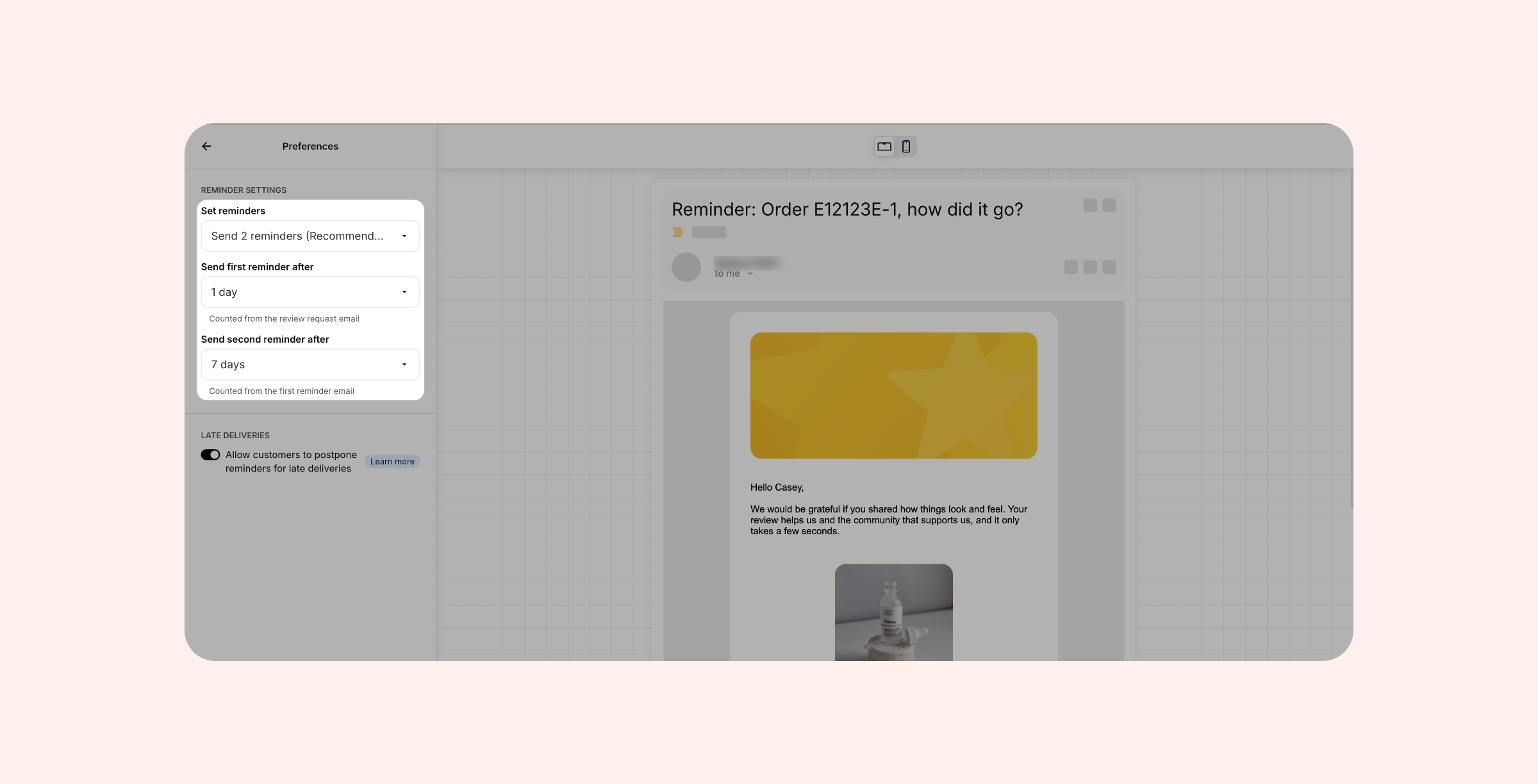
You can set each reminder anywhere from 1 to 30 days. By default, the first reminder is sent 1 day after the review request email, and the second reminder 7 days after the first reminder.
Tip: We recommend sending 2 reminders to maximize your review collection.
Note: If your review requests are sent via Klaviyo, Loox sends a trigger event to Klaviyo for each reminder instead of sending the reminder email itself. The triggers follow the number of reminders and the timing you set here.
How reminder timing works
- Each reminder counts from the previous email. The first reminder counts from the day the review request email was sent, and the second from the day the first reminder was sent
- Changes apply to reminders that are already scheduled. When you change the timing, Loox updates every reminder that hasn't been sent yet. Reminders that were already sent won’t be sent again
- Reminders arrive at the same time of day. Reminders are still sent within your customers' local work hours
- Reminders follow your review request timing. If your review request timing is set to "Never", no reminders are sent until you set a timing again
See your email timing at a glance
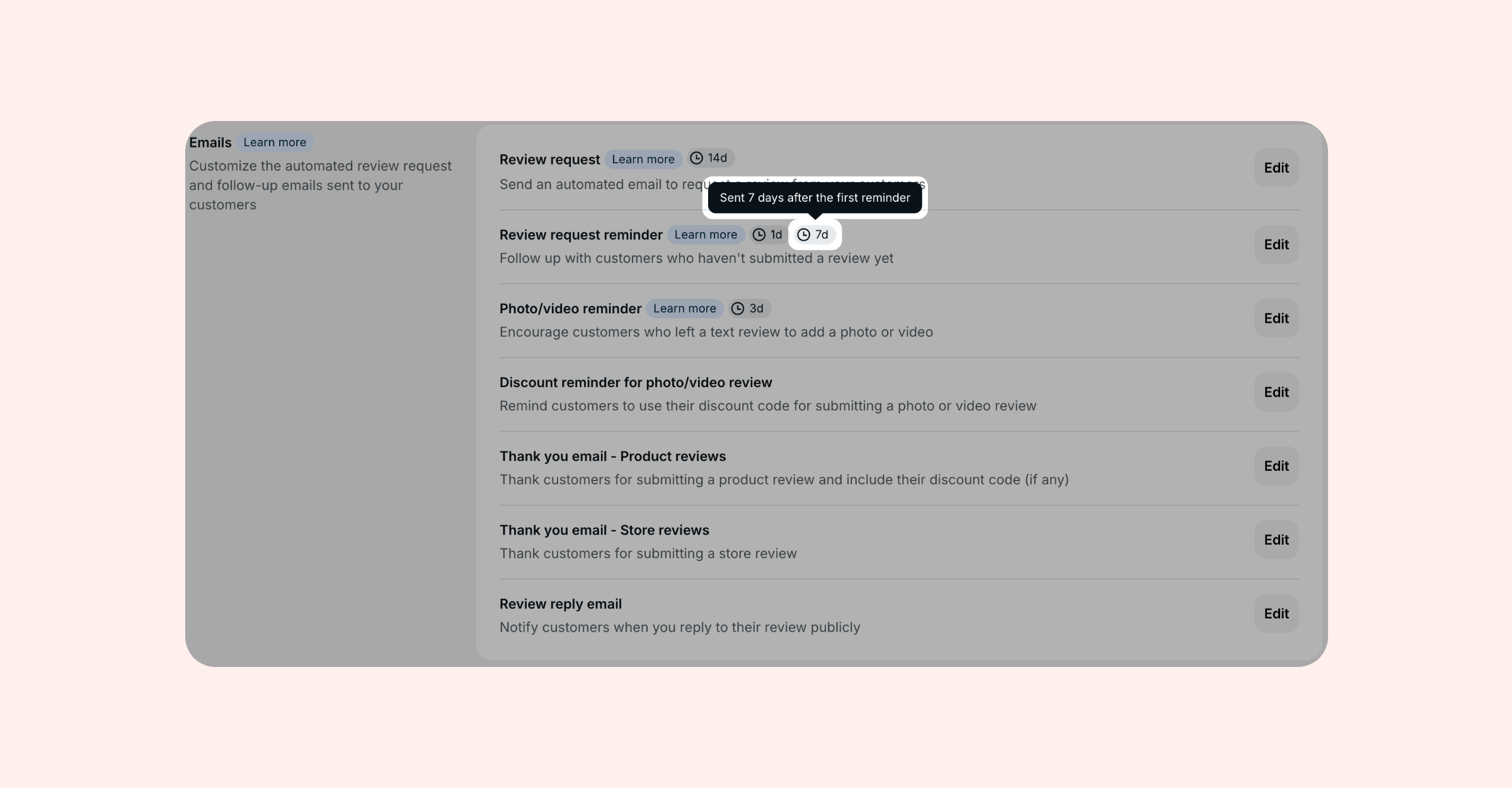
On Collect reviews > Emails & Scheduling, each email shows its current timing next to its name. For example, your reminders show 1d and 7d. Hover over the timing to see it in full, or click it to open that email's timing settings.
When an email isn't being sent, its timing shows Off.
Let customers postpone their reminder email if their order hasn’t arrived yet
Negative reviews often happen when customers are asked to review before their order arrives.
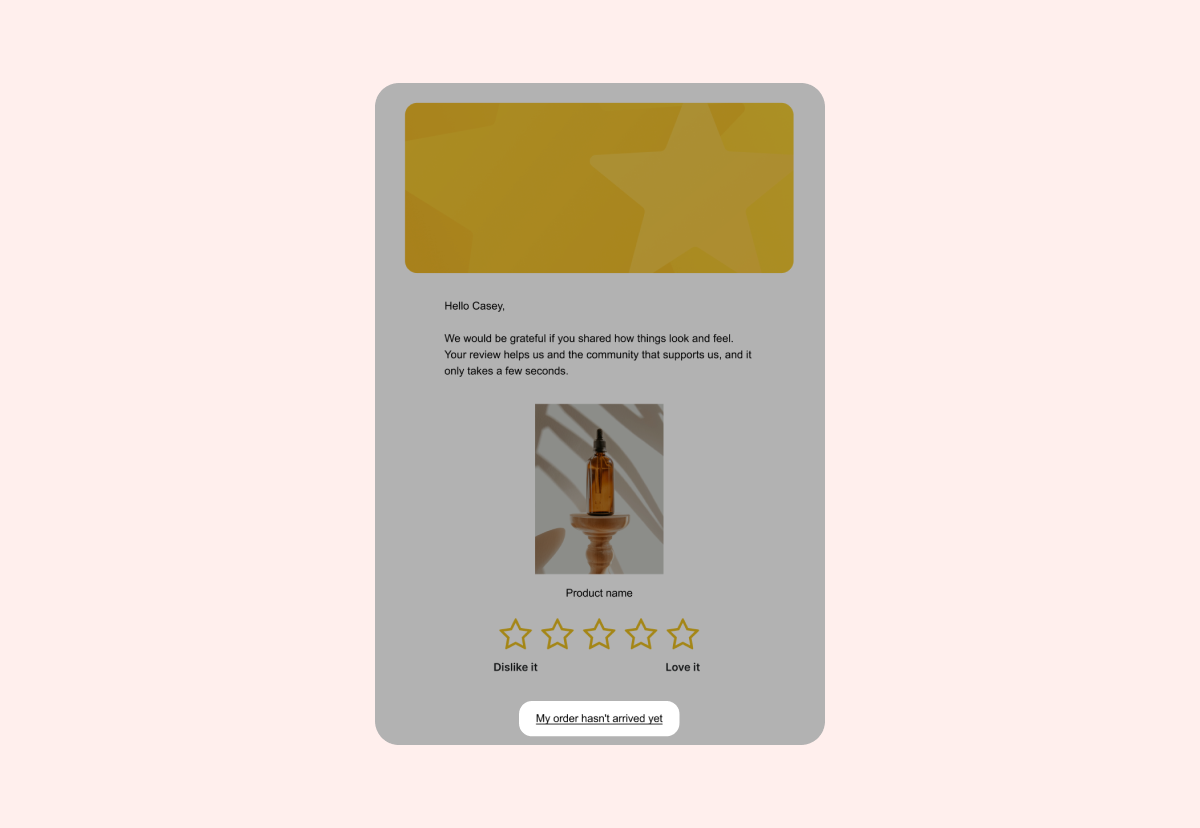
To help you reduce low ratings caused by late deliveries, customers who haven’t received their order yet can postpone the next review reminder from the review request email or from the review form.
When they choose this option, Loox reschedules the next reminder for 7 days from that moment. This gives deliveries time to arrive before you ask for feedback. Read more here.
To toggle this, open the Preferences page for the Review request reminder email and use the Allow customers to postpone reminders for late deliveries toggle under Late deliveries.
Note: This option is only available when your reminders are turned on. If Set reminders is set to Don't send reminders, the toggle is greyed out.
You can edit the button's text in your Review request email editor, under the Postpone review request button.
Customization options
You can edit the email's appearance and content on the Text & Style page of its dedicated editor. Use the rich text toolbar to format your email body with headers, font sizes, bold and italics, bulleted lists, and dividers.
All available placeholders for Review Request Reminder Emails:
- [name] - The customer's first name.
- [last_name] - The customer's last name.
- [order_number] - The customer's order number.
- [order_name] - The customer's order name (including its prefix and suffix if added).
- [product] - The name of the product purchased.
- [discount] - The discount incentive offered.
If you have more questions, contact our Support team. We’re available 24/7 and happy to help!