
The Review Request Email is the most important email in your review collection strategy. It is the first request sent to customers, prompting them to share feedback about their purchase.
Why send review request emails?
Review request emails help you collect customer feedback by automatically prompting buyers to leave reviews after purchasing from your store. Automating the process with Loox ensures consistency and efficiency, helping you maximize the number of reviews you collect.
Types of review request emails
Loox offers two types of review request emails:
Promotional emails
These emails can include a discount or incentive to encourage reviews.
Transactional Emails
A non-promotional email option that does not include discounts or incentives. This is ideal for reaching customers who have unsubscribed from marketing emails.
Note: If you are sending emails via Klaviyo or Omnisend, transactional emails are not available.
Learn more about Loox email compliance.
How to customize your review request email content
You can customize your email's subject line, body text and appearance, and footer to fit your brand's style and voice while keeping the focus on getting more reviews.
Note: You can customize the email content for both Promotional and Transactional emails in the Review Request Email Editor.
Editing the subject line & email body
Loox provides a default subject line and body optimized for high response rates, but you can customize them as needed.
Default subject line:
Order [order_name], how did it go?
To edit the subject line and email body:
- Within Collect Reviews, go to Emails and scheduling.
- Under Emails, click "Edit" next to Review request.
- Edit the subject line and email body.
- Use placeholders to personalize the message:
- [name] → Inserts the customer's first name
- [last_name] → Inserts the customer's last name
- [order_number] → Inserts the customer's order number
- [order_name] → Inserts the customer's order name (including its prefix and suffix if added)
- The email editor includes a rich text toolbar that lets you format and style your email body's content. You can use the following formatting options:
- Headers - Add section headings to organize your email content and create visual hierarchy.
- Font sizes - Adjust the size of your text to emphasize key messages or create contrast between sections.
- Bold and italics - Highlight important words or phrases to draw attention to them.
- Bulleted lists - Break down information into scannable, organized lists.
- Dividers - Add horizontal lines to separate different sections of your email for a cleaner layout.
- Center align - Align text to the center of your email to highlight key messages or calls to action.
Note: To customize the banner, footer, colors, and font of all your emails, use the Global email style designer. Learn more about global email styling here.
Selecting your preferred review request button type
Customize the button your customers click to submit a review in your Review Request Email.
We offer two button options:
- Rating Stars: Display a rating scale of 5 stars (from "Dislike it" to "Love it") located at the bottom of your email.
- “Write a review” button: If you prefer a physical button, select the "Write a review" button option.
To select your review request button type:
- In your Review Request Email editor, open the dropdown menu under "Review request button type" and select your preferred button type.
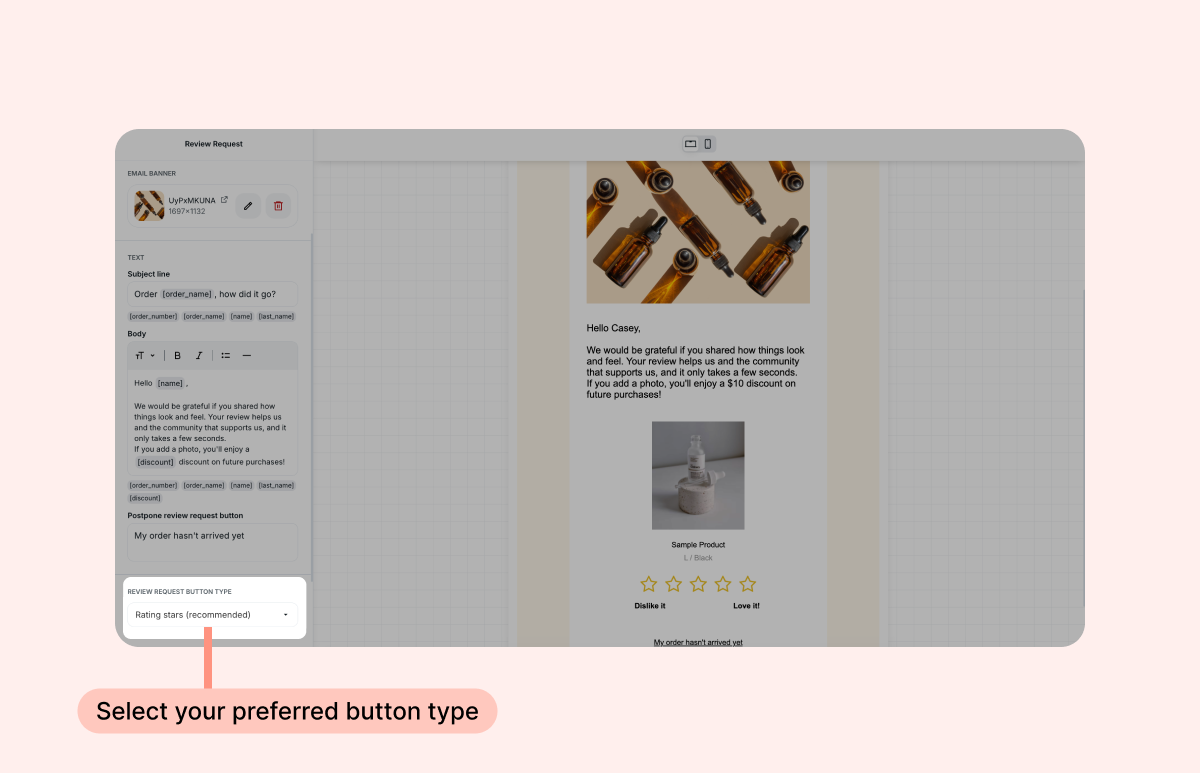 If you selected the "Write a review" button, you can customize the text under the "Button" text field.
How to customize your email timing and design
To get the best engagement with your email, you may also want to customize the following:
- Timing – Control when emails are sent based on purchase, fulfillment, or delivery. Learn more
- Branding & Design – Adjust colors, logos, and layout to match your store's look. Learn more
For our best practices on collecting more reviews, check out 5 Essentials for Collecting More Reviews.
FAQs
Q: Can I set up an automated reminder email?
A: Yes. You can send up to 2 automated reminders and choose when each one is sent. Learn more