
Loox Carousel Widgets help you showcase your best customer reviews in a sleek, interactive display that enhances trust and boosts conversions. Perfect for high-traffic store sections like homepages, these scrolling widgets highlight top-rated reviews, customer photos, and testimonials in a visually engaging format.
Why use Loox Carousel Widgets?
Loox Carousel Widgets turn customer reviews into compelling, high-converting content. These interactive displays help merchants:
- Highlight your best reviews – Showcase only top-rated reviews and user-generated content (UGC)
- Enhance store aesthetics – The sleek, scrolling design fits seamlessly into any store layout
Types of Loox Carousel Widgets
Loox offers four different Carousel Widget types, each designed to highlight a different aspect of your reviews. Whether you want to focus on detailed testimonials, eye-catching UGC, or streamlined social proof, you can choose the right widget for your store.
Dynamic Carousel

The Dynamic Carousel turns user-generated content into a seamless experience that encourages shoppers to click, swipe, and explore.
Use it on your homepage, product pages, or promotional landing pages to drive confidence and conversions.
Cards Carousel
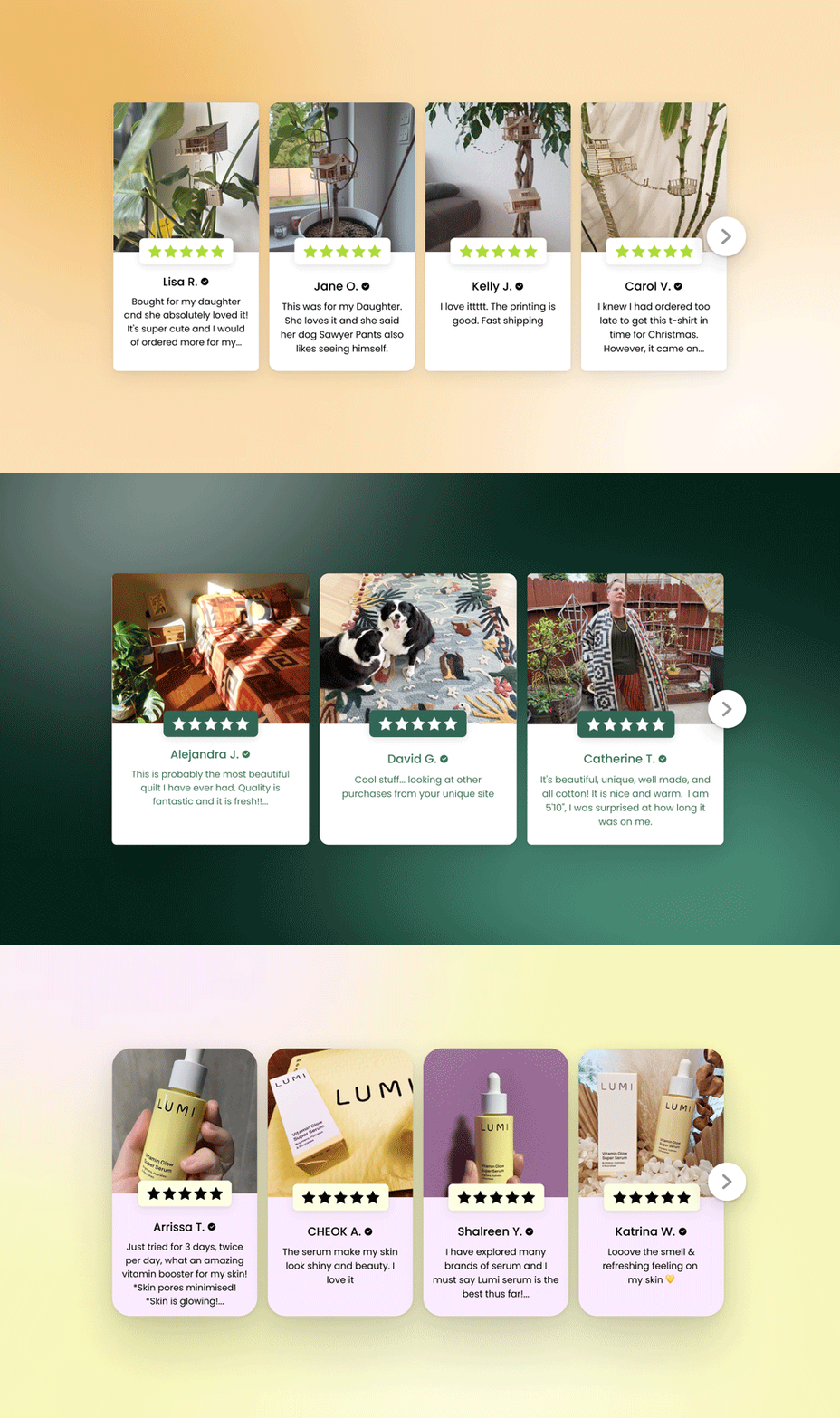
- Displays reviews in a card-style layout with review text and images
- Best for highlighting detailed customer testimonials while keeping the design clean
- Works well on homepages and product pages
Tip: Click here to add the Cards Carousel widget to your homepage.
Gallery Carousel
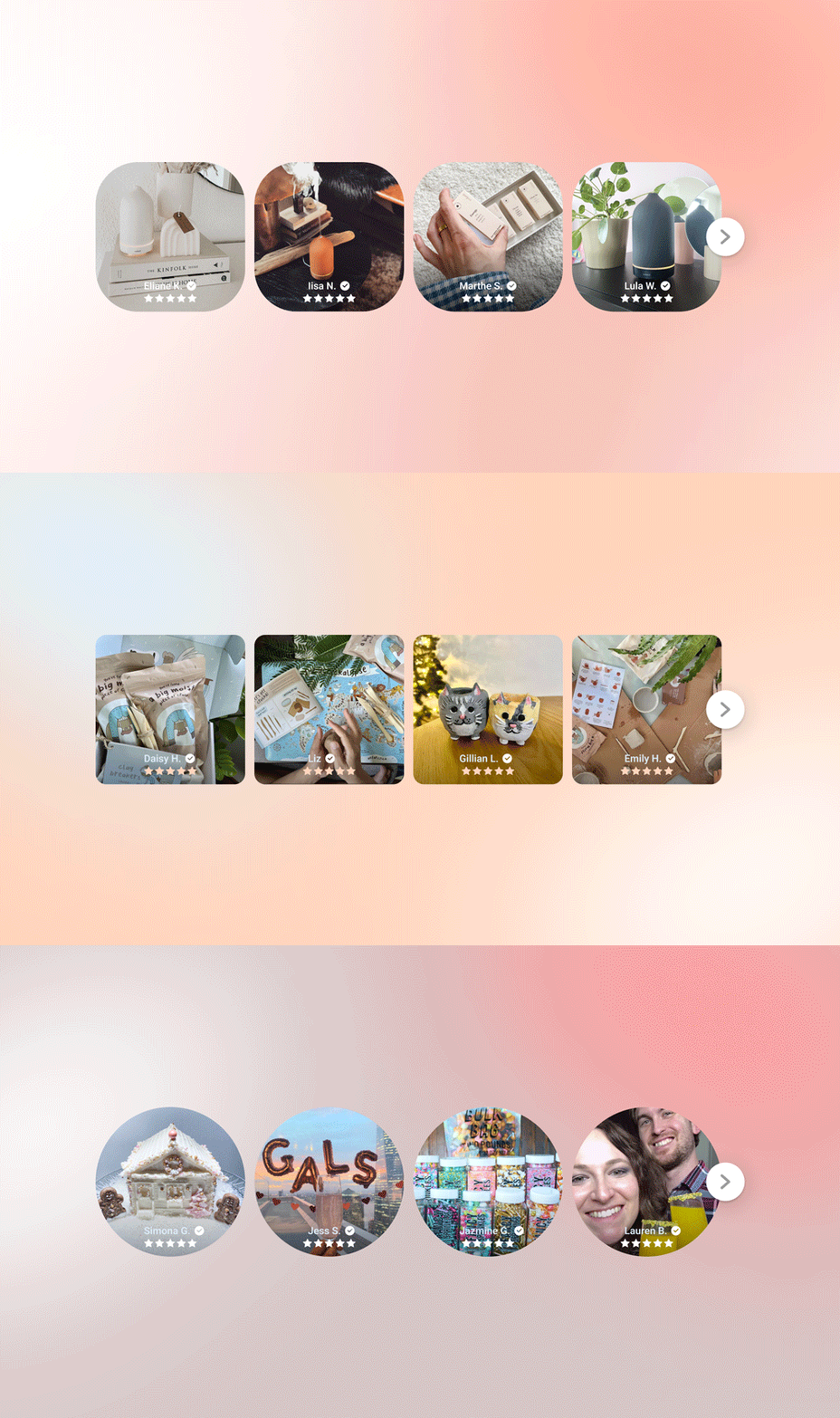
- A visually focused layout that shows only the photo or video of a review
- Great for stores that rely on high-quality UGC to showcase their products
- Ideal for brands with strong aesthetics, such as fashion or home decor
Tip: Click here to add the Gallery Carousel widget to your homepage.
Notes:
- Text-only reviews will not be visible on the Gallery or Cards Carousel widgets.
- For reviews with multiple photos, only the cover photo will appear on the Gallery or Cards Carousel widgets.
Testimonial Carousel

- A sleek, text-first design that shows only the text of a review
- Best for brands looking to emphasize storytelling and long-form feedback
- Works well on landing pages or sections where detailed customer opinions matter
Tip: Click here to add the Testimonial Carousel widget to your homepage.
How to add a Loox Carousel Widget to your store
Follow these steps to add a Loox Carousel Widget to your Shopify store:
Step 1: Add the widget block
- Inside the Shopify Themes menu, click the "Customize" button on the theme you'd like to add the widget to.
- Navigate to the page you would like to add the Carousel widget.
- Click "Add section" and choose the Carousel widget (Cards, Gallery, or Testimonial) you'd like to use.
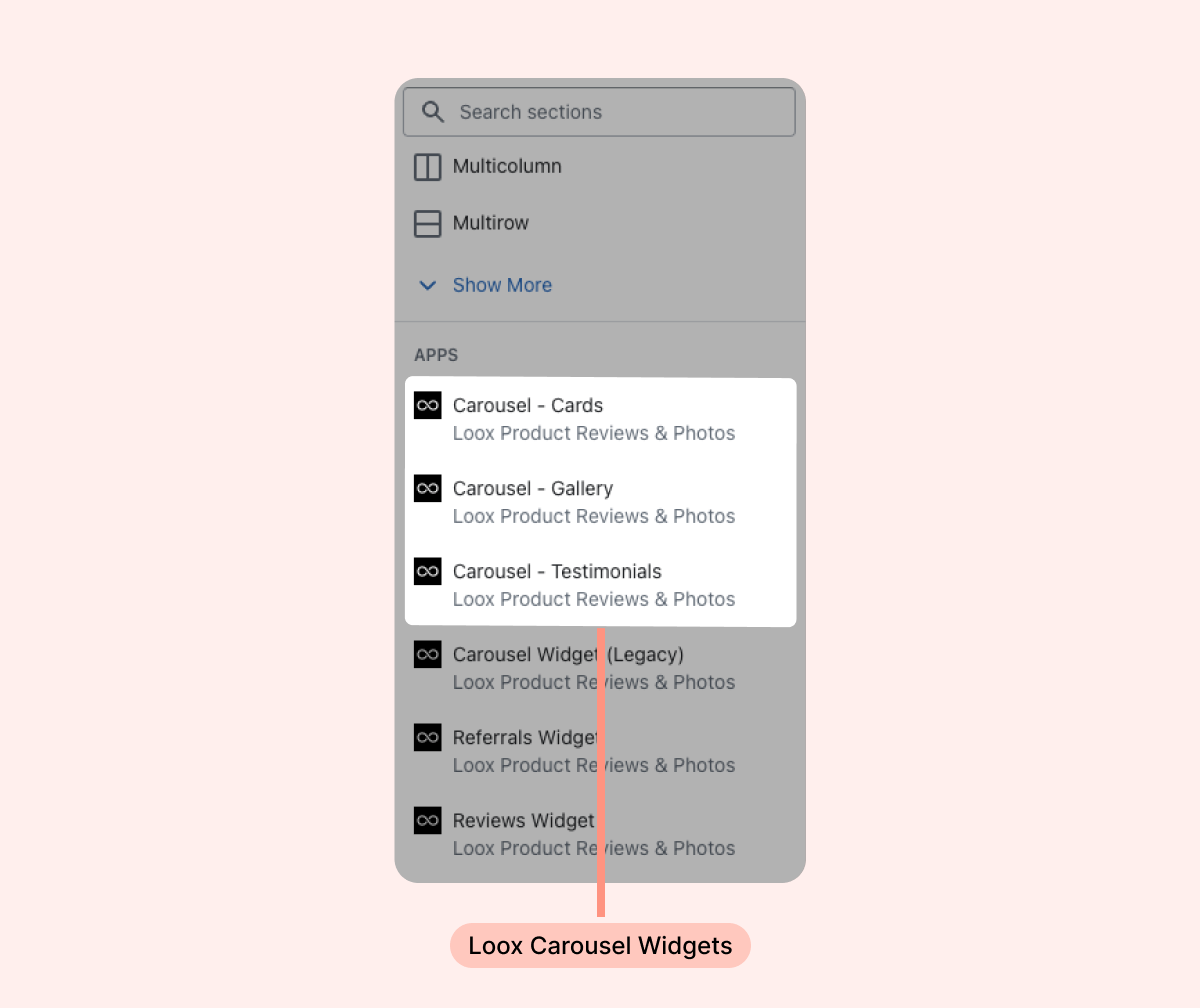
Note: If you do not see all three Carousel widgets, re-integrate Loox with your theme.
- Position the widget where you'd like it to appear by dragging it up or down.
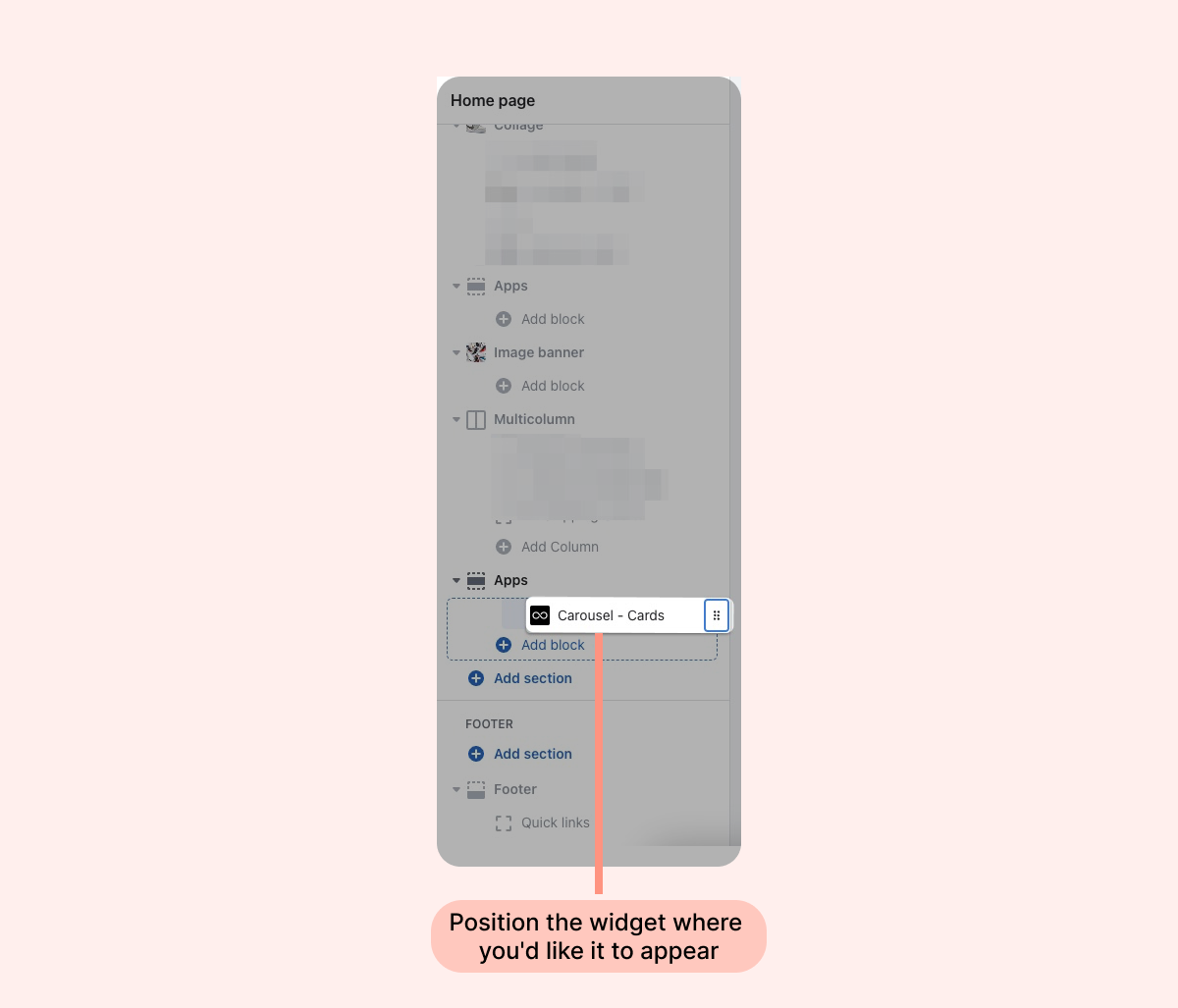
Step 2: Customize the widget in the Theme Editor
Once you've added a Loox Carousel Widget, you can fine-tune its appearance and behavior in Shopify Theme Editor.
Key settings to adjust:
- Number of reviews (desktop and mobile) – Set how many reviews are displayed in the carousel on desktop and mobile
- Reviews Selection – Show reviews for all products or limit to a specific product
- Styling options – Adjust colors (and font size on the Testimonial Carousel)
For additional customization, explore the full range of layout and design settings in your Shopify Theme Editor.
Step 3: Add or remove reviews from your carousel
Once added to your pages, the Carousel Widgets will display your 20 highest-rated reviews, newest first.
To manually select which reviews appear in your carousel, follow these steps:
- Go to "Manage reviews" and find the relevant review.
- Open the "More actions" menu (...), and click "Add to Widgets" > "Add to Carousels".
- To remove the review, click "Remove from Carousels".
Note: Your selected reviews will appear on all Carousel widgets on your site. If you adjust the widget to display a specific product’s reviews, it will override the reviews selected in your admin.
FAQs
Q: Can I add multiple carousel widgets to different pages?
A: Yes, you can add multiple carousels in different locations (e.g., homepage, product pages, landing pages).
Q: How do I make my carousel only show photo reviews?
A: Use the Gallery Carousel Widget.
Q: Does the carousel update automatically with new reviews?
A: Yes, Loox Carousels dynamically pulls in new approved reviews, ensuring your content stays fresh, unless you manually select reviews.
Q: Can I make the Carousel Widget show reviews for only a specific product?
A: Yes, within the widget settings in your Shopify Theme Editor under "Reviews Selection," you can select a specific product and the Carousel will only show reviews for that product.
Q: What happens if an image is larger than the ratio defined in the widget settings?
A: Any image larger than the image ratio defined will be automatically cropped and centered to fit.