
Out-of-the-box, Loox will inject the code for the Star Rating Widget on your store pages. These include the product page, collections pages, and homepage featured product (if you have one). The Star Rating Widget will display the average rating (rounded up) and the number of reviews for the relevant product.
There are several ways to customize the Star Rating Widget to fit your brand's tone and store's design. You can do so via the Loox admin, by adding a custom liquid block on your theme editor, or by editing the code within your liquid files.
In this article, we'll go over the different ways to customize the Loox Star Rating widget on your store.
Customizing your store's rating icons
To customize the rating icons displayed on your store, head to your Loox admin to your Branding settings.
The changes are automatically applied to all of your Reviews Widgets, Star Rating Widgets, and Carousel widgets, as well as to the Star Rating Widget that appears on your Upsell offer.
To change the color of the rating icons:
- In your Loox admin, head to Settings > Branding > Style.
Under "Star rating," click on the star icon to open the dropdown menu and select your desired rating icon:
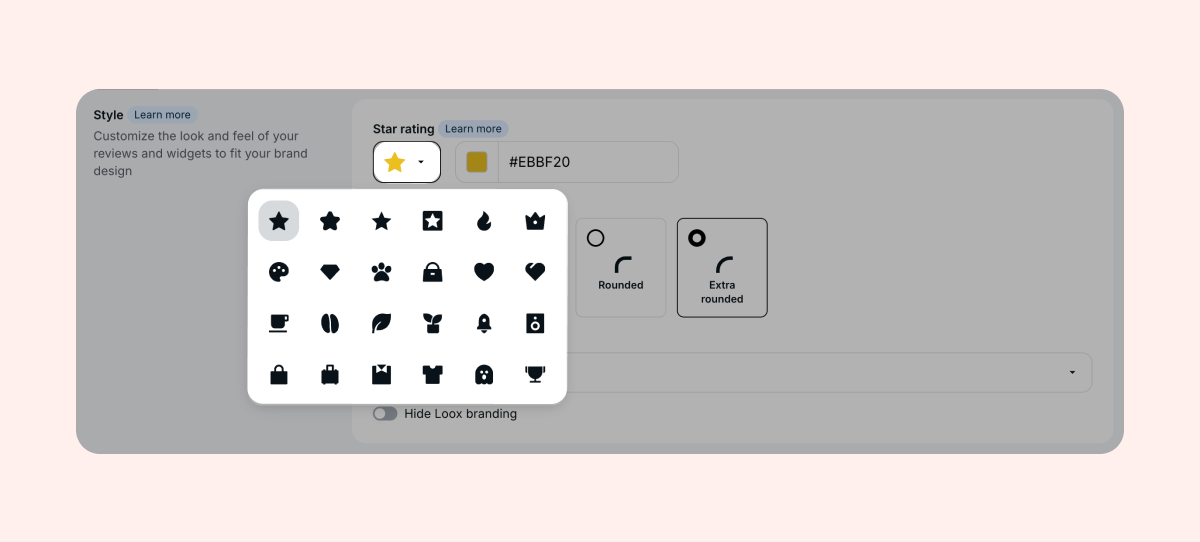
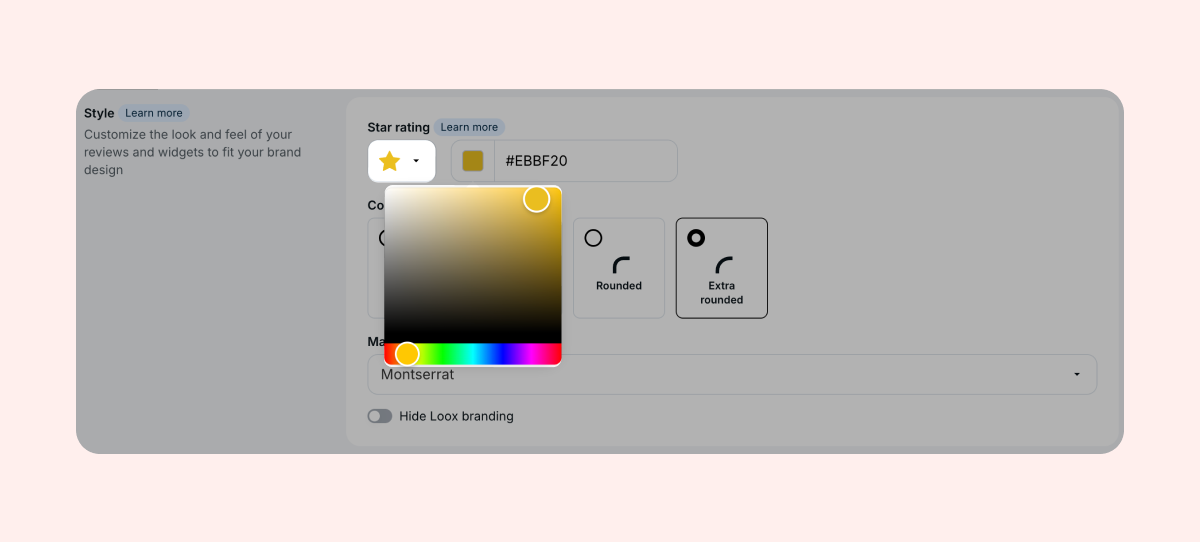
Once you have selected your rating icon, you can change its color by using the color selector tool next to the dropdown menu or by inserting your the color’s hex code:
Customizing the Star Rating Widget from the theme editor
Customize the Star Rating Widget’s appearance without leaving the Shopify Theme Editor and without any code.
The widget’s app block offers multiple customization options.
The options available are:
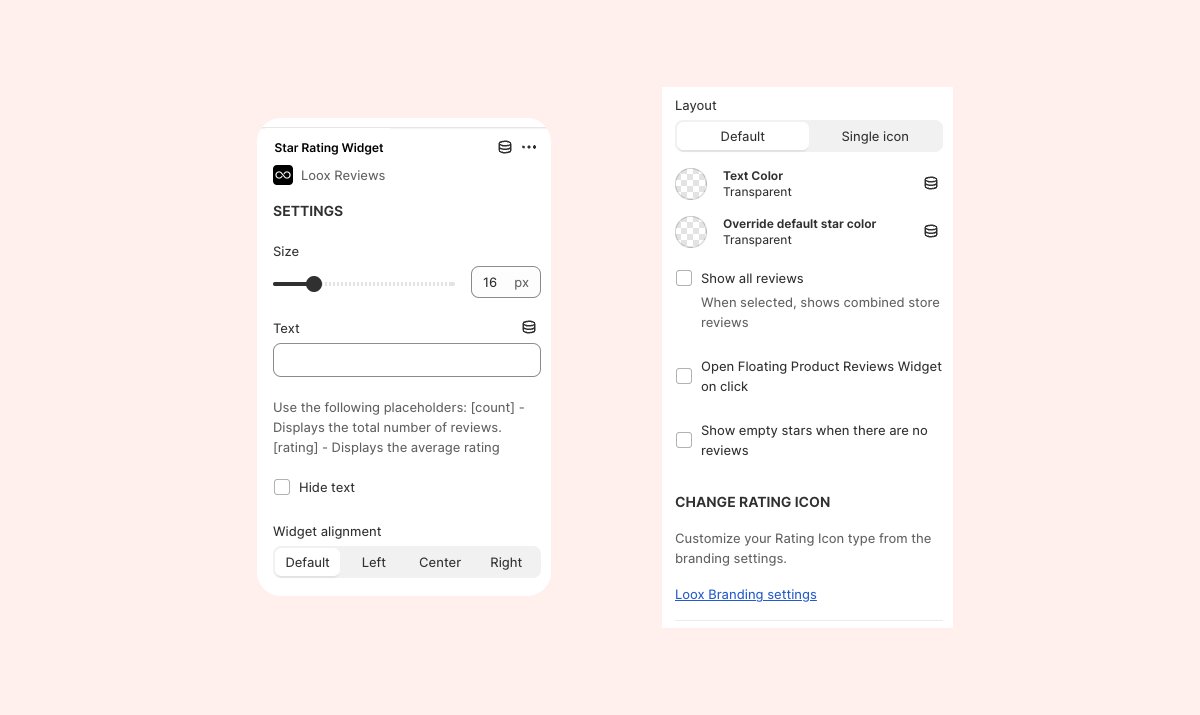
- Size: Adjust the size of the Star Rating Widget's text and icons.
- Text: Insert custom text to appear next to your rating icons. Overrides the default "([rating])" text placeholder.
- Hide text: No text will appear next to the widget's rating icons when enabled.
- Widget alignment: Adjust the location of the Star Rating Widget on your product page.
- Layout - "Default": When selected, the Star Rating Widget will display up to 5 stars next to the product's average rating matching it average rating.
- Layout - "Single Icon": When selected, the Star Rating Widget will display a single rating next to the product's average rating.
- Text Color: Select your desired color used for the widget's text appearing next to the rating icons.
- Override default star color: Override the default rating icons color selected in your Loox "Branding" settings section, and choose your desired color.
- Show all reviews: When enabled, the widget will showcase your store's aggregated average rating and the total number of reviews collected instead of showing each product's respective numbers.
- Change Rating Icon: Redirects you to your Loox "Branding" settings section, allowing you to change your selected rating icon.
- Open Floating Reviews Widget on click: When enabled, clicking on the widget's Rating icons will open the Floating Reviews Widget.
- Show empty stars when there are no reviews: When enabled, the Star Rating Widget will display "empty" Rating icons on products with no reviews collected.
Changing the color of the text next to the Star Rating widget via code
By default, Loox will display the number of reviews with the same color you set for the rating icons. However, you can use styling rules in your store's code to change only the color of the text.
To change the color of the Star Rating Widget's text, follow the steps below:
1. If your theme supports custom liquid blocks:
- Go to your Shopify Themes menu.
- Click "Edit theme" and head to your product page.
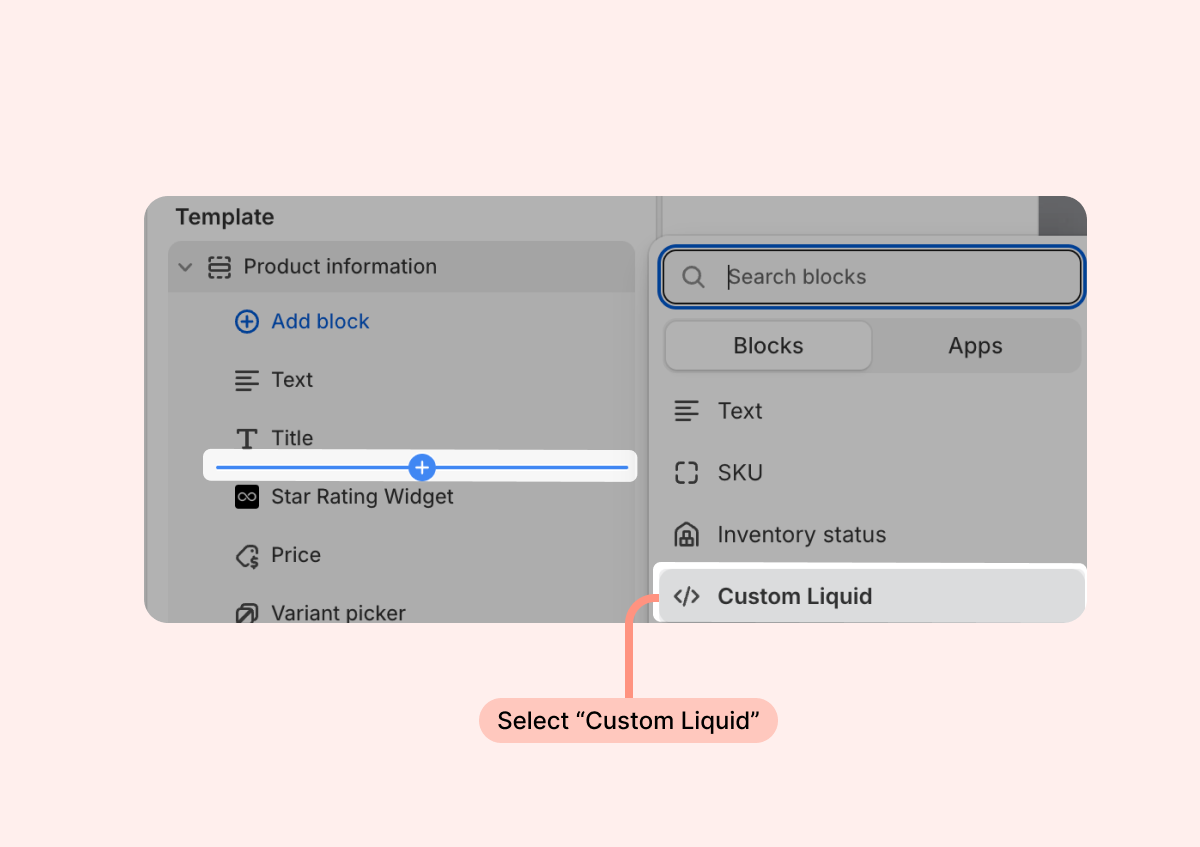
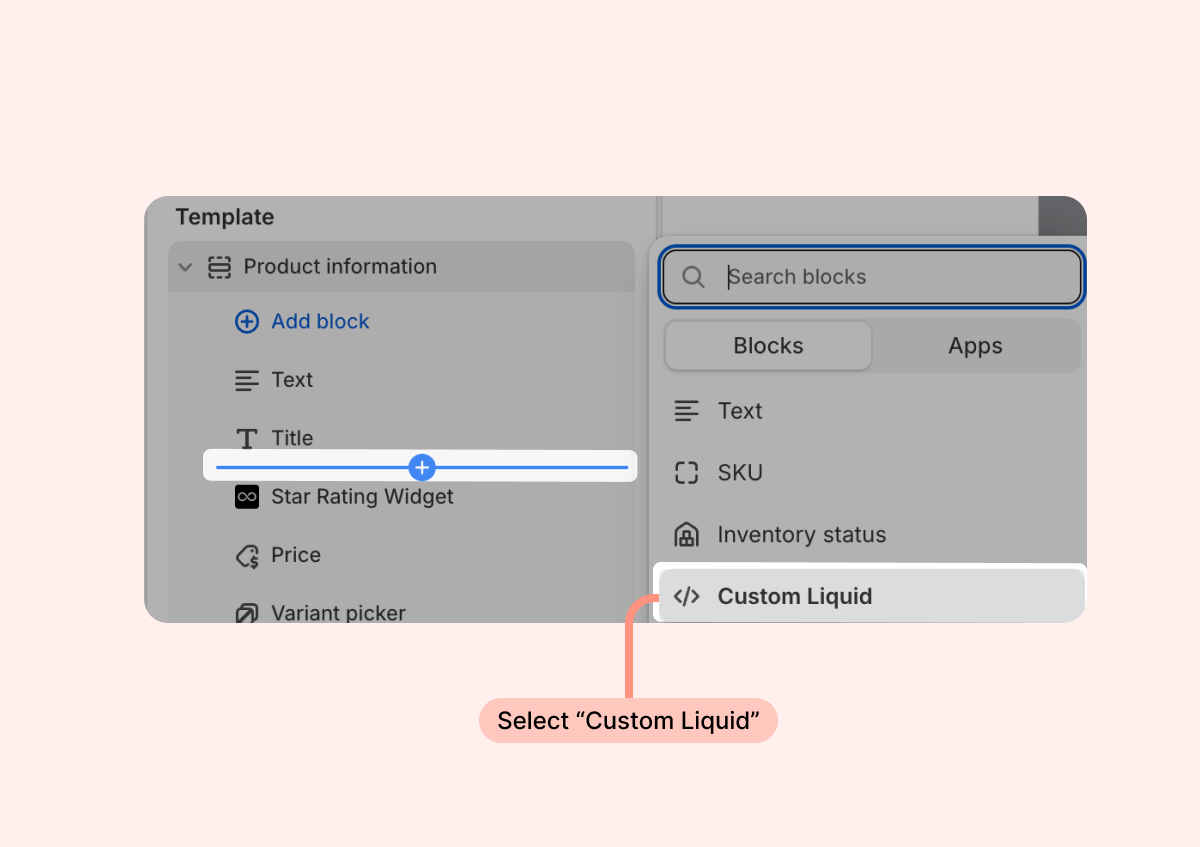
- In the desired spot between your app blocks (we recommend placing it under the product title), click + and select "Custom Liquid:"
- Next, in the custom liquid app block that opens, paste in the following code. Make sure to change the {color:black;} to the color or hex color code of your choice:
<style> .loox-rating span {color:black;} </style><a href="#looxReviews"><div class="loox-rating" data-id="{{ product.id }}" data-rating="{{ product.metafields.loox.avg_rating }}" data-raters="{{ product.metafields.loox.num_reviews }}"></div></a>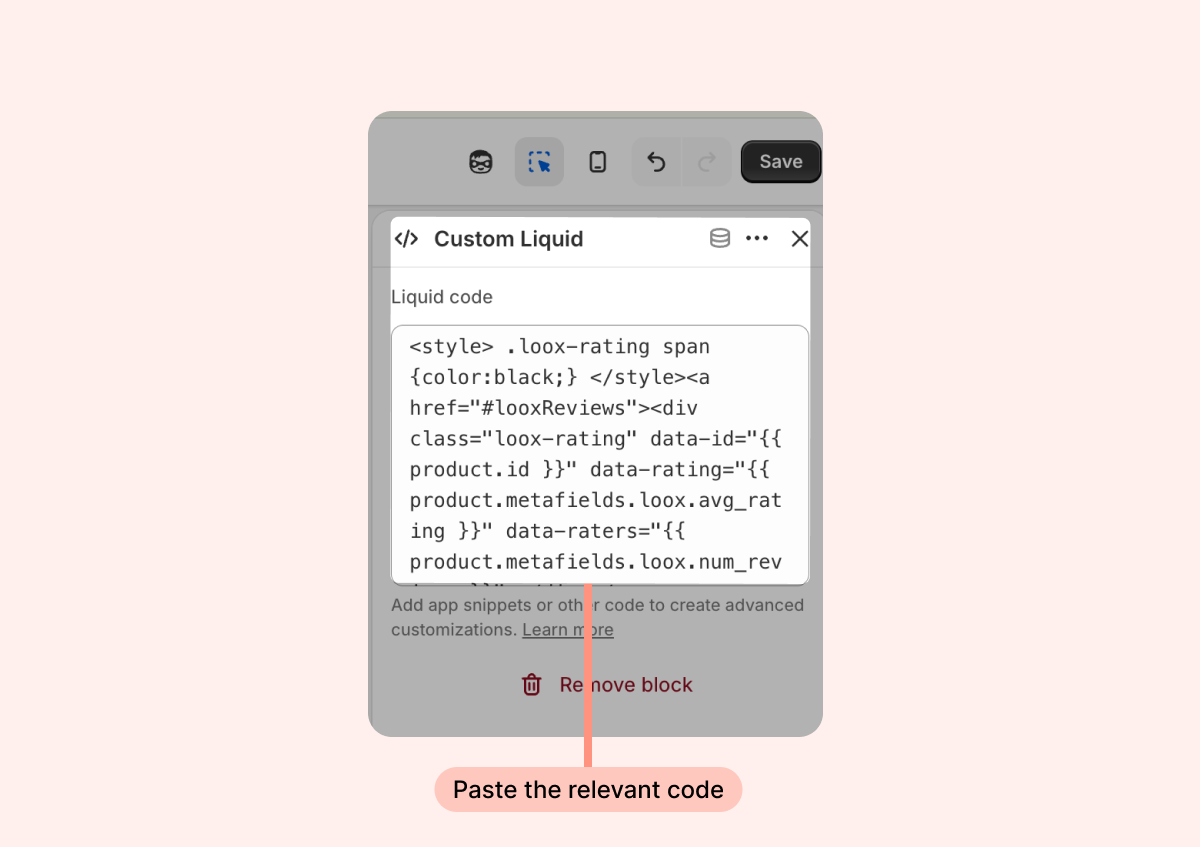
- Save your changes. If you already had a Star Rating Widget app block on your page, you can remove it now to make sure you won't have a duplicated widget.
2. If you don't see the option to add a custom liquid block on your theme:
- Go to your Shopify Themes menu.
- Click the "Actions" menu and then select "Edit code."
- Open the template or section you use for product pages (usually it's called product.liquid, main-product.liquid or product-template.liquid, but some themes work differently)
- Find the code below if you've already added the widget via code:
<a href="#looxReviews"><div class="loox-rating" data-id="{{ product.id }}" data-rating="{{ product.metafields.loox.avg_rating }}" data-raters="{{ product.metafields.loox.num_reviews }}"></div></a>- Above the widget's code mentioned above, paste the following code:
<style> .loox-rating span {color:black;} </style>- Change the "black" to the color/ hex color code you wish, and this should change the color of the font of the Star Rating Widget.
Customize the text next to the rating icons
Out-of-the-box, Loox will display the number of reviews in parentheses next to the Star Rating Widget. If the widget was added via app block, you can change this text to include more information in the app block settings: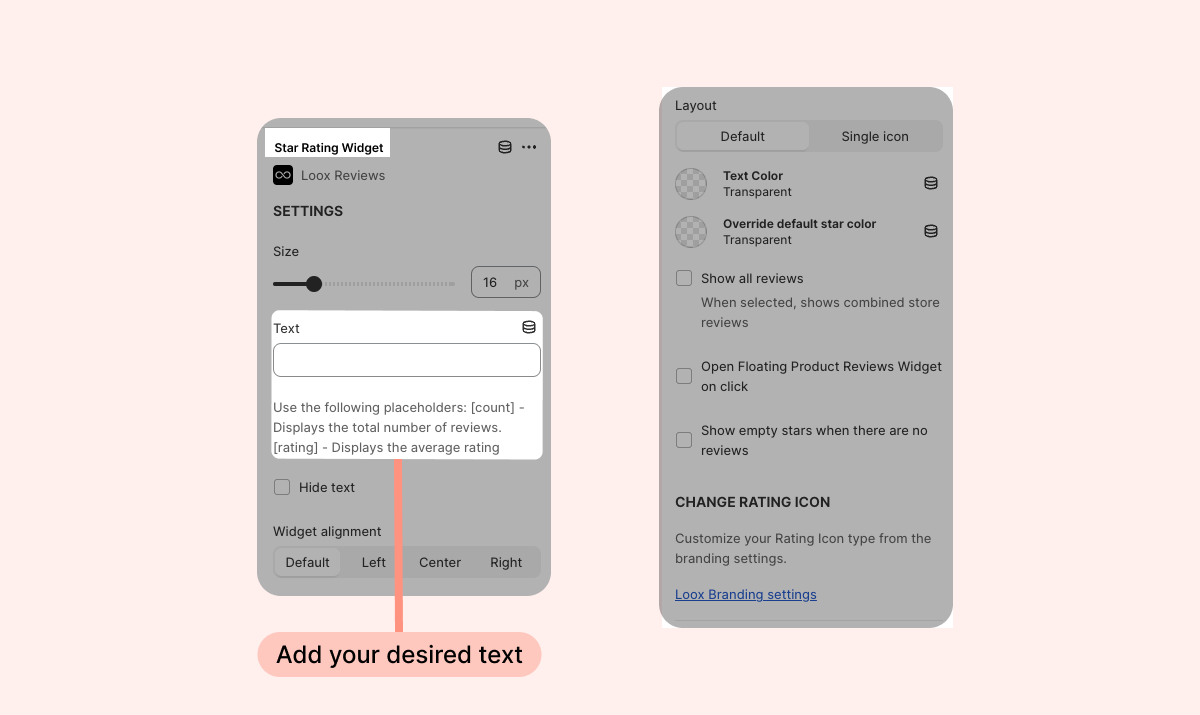
If you don't have the option to add the Loox Star Rating Widget via app block, you still have two ways to add the widget and customize the text.
1. If your theme supports custom liquid blocks:
- Go to your Shopify Themes menu.
- Click "Edit theme" and head to your product page.
- In the desired spot between your app blocks (we recommend placing it under the product title), click + and select "Custom Liquid:"
- Next, in the custom liquid app block that opens, copy the following code and make your desired text customizations.
<a href="#looxReviews">
<div class="loox-rating" data-id="{{ product.id }}" data-rating="{{ product.metafields.loox.avg_rating }}" data-raters="{{ product.metafields.loox.num_reviews }}" data-pattern="XXX"></div>
</a>
Make sure to replace the XXX with the text of your choice, for example:- To add the word "Reviews" to the Star Rating Widget after the review count, add the following to the widget's code:
data-pattern="[count] Reviews"- To display a product's average rating, add the following to the widget's code:
data-pattern="[rating]/5"- To display both, add the following to the widget's code:
data-pattern="[rating]/5, [count] Reviews"You may edit the text within the data-pattern attribute to include anything you'd like, such as brackets or additional words (in English or any other language).
Make sure to paste your customized code into the custom liquid block that opens.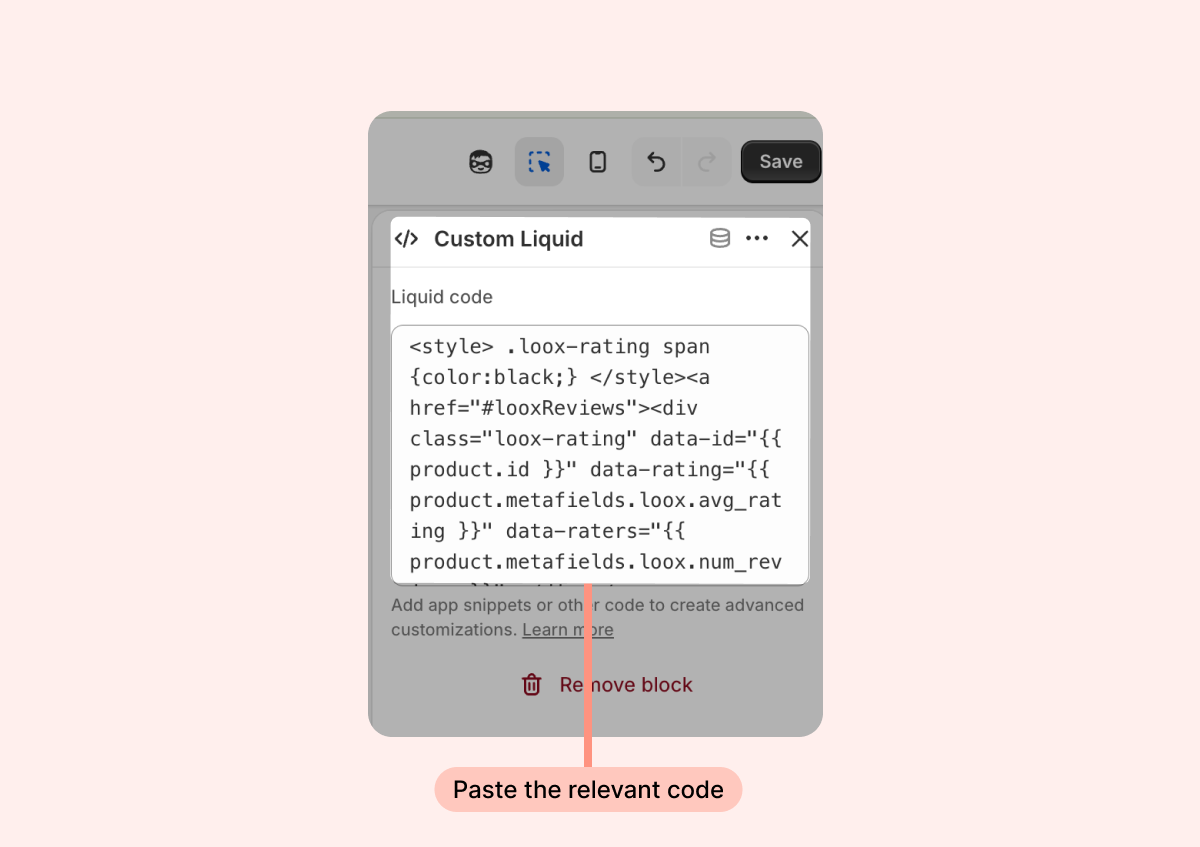
- Save your changes. If you already had a Star Rating Widget app block on your page, you can remove it now to make sure you won't have a duplicated widget.
2. If your theme doesn't support custom liquid blocks:
- Go to your Shopify Themes menu
- Click the "Actions" menu and then select "Edit code"
- Open the liquid file where you added the Star Rating Widget:
- Product pages - usually product.liquid, main-product.liquid or product-template.liquid
- Collection pages - usually under snippets: product-grid-item.liquid / product-loop.liquid / product-info.liquid
- Cart page - usually cart.liquid or cart-template.liquid
- Find the code below:
<a href="#looxReviews">
<div class="loox-rating" data-id="{{ product.id }}" data-rating="{{ product.metafields.loox.avg_rating }}" data-raters="{{ product.metafields.loox.num_reviews }}"></div>
</a>
By adding a new attribute named data-pattern, you'll be able to customize the text that appears next to the icons (see examples below). In addition to static text, you can also add dynamic values by using the following parameters:
- [count] - displays the number of reviews the product has
[rating] - displays the average rating of the product
Here are a few examples you can use to customize the text that appears by the Rating Icons:
- To add the word "Review(s) to the Star Rating Widget, add the following to the widget's code:
<data-pattern="[count] Review(s)">- To display the product's average rating, add the following to the widget's code:
<data-pattern="[rating]/5">- To display both, add the following to the widget's code:
<data-pattern="[rating]/5, [count] Review(s)">