
Boost trust using our Star Rating Widget, designed to show your product's average rating and review count. In this article, we'll walk you through how to manually add the Star Rating Widget to your store if you can't add it via app block.
When to add the Star Rating Widget via Code vs. via app block
You might need to add the widget via code if:
1. you're on a vintage (non 2.0) theme.
2. you're on a 2.0 theme but want to add the widget in a location where you can't use the Loox app block. For example- if you want to add the widget to a custom snippet, a collection card, or the cart drawer.
If you're on a 2.0 theme and have the option to do so in the location you want, use the Loox Star Rating Widget app block instead - it's easier to customize. Read more about adding widgets via app block.
Note: Settings like "Layout" and "Text" in your Shopify theme editor only apply to the Loox app block. They do not affect the code shown below. To customize the code version, use the data attributes listed in the "Customization" section.
Before you start
To add the Star Rating Widget to your store's pages via code, you must have the Loox core script enabled on your theme.
For 2.0 Shopify themes: Click here to learn how to check if your core script is enabled.
For vintage Shopify themes: If widgets aren't appearing after you paste the widget's code, contact Loox support at [email protected] so we can check the script setup on your store.
Adding the widget via custom liquid block
Before adding the widget via liquid code, check if your theme supports custom liquid blocks in the location where you're looking to add the widget. This will make it easier for you to access and customize the code.
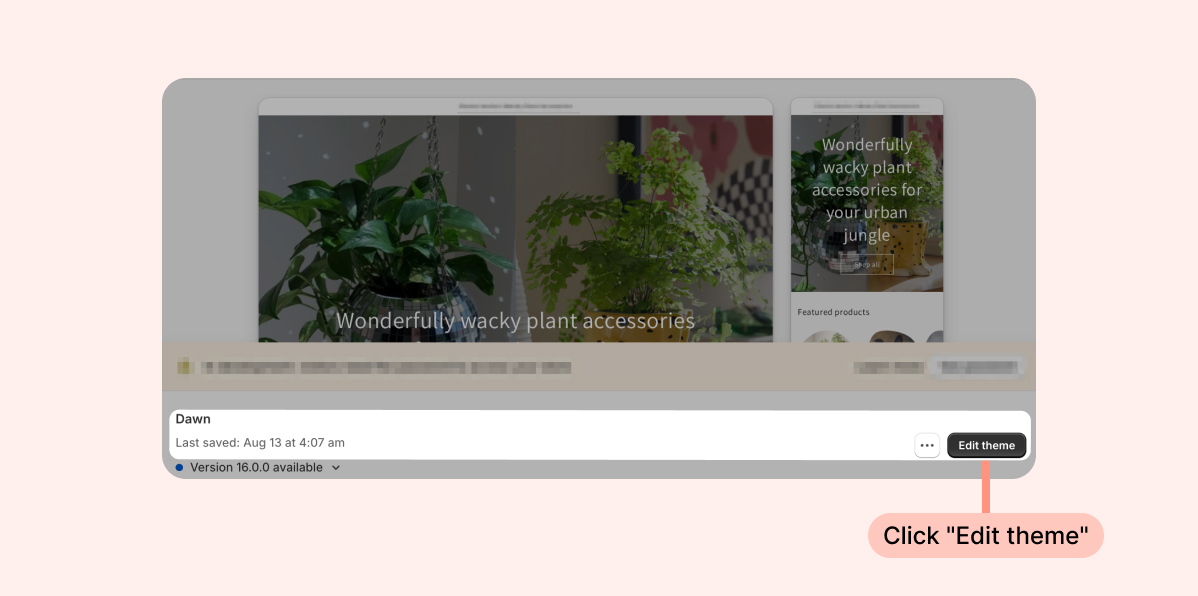
- Inside the Shopify Themes menu, click Edit theme:
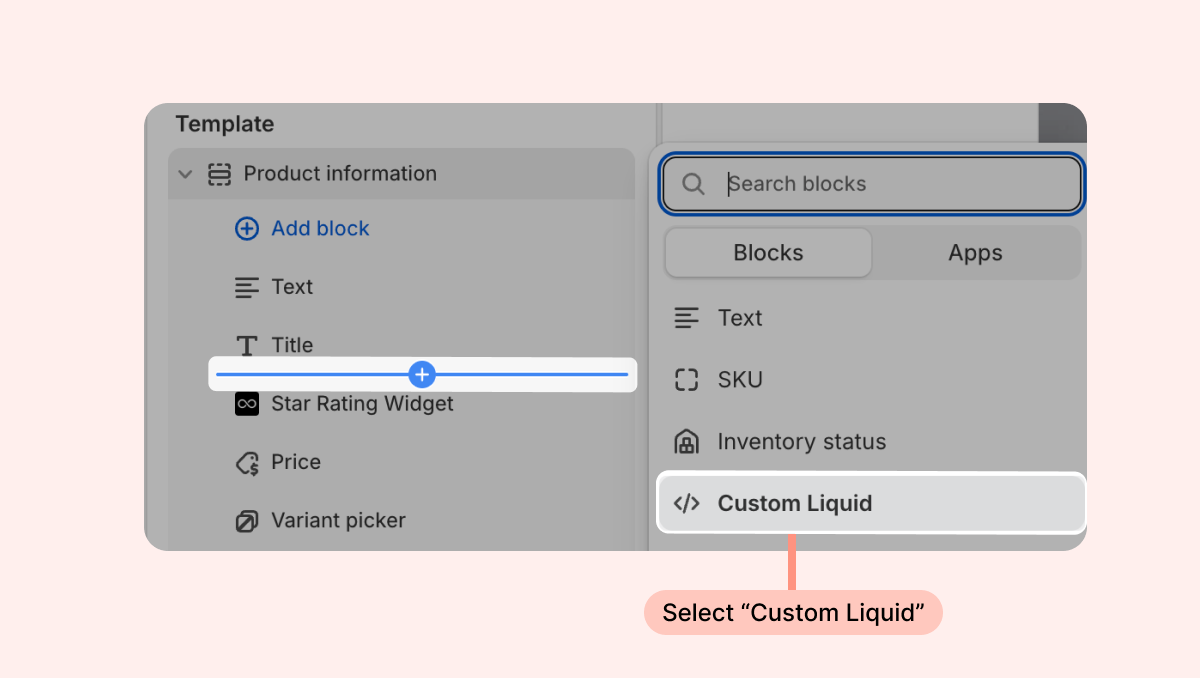
- Head to the page you're looking to work on and click the + in your desired location on the left-hand sidebar to add a new section. Under Sections, search for "Custom Liquid." If it appears, select this option.
- Next, add one of the following code snippets to the section's Liquid Code.
If you're adding the Star Rating Widget to a page where you're also displaying the Reviews Widget, use the following code snippet so that the Star Rating Widget auto-scrolls down to your Reviews Widget when clicked: <a href="#looxReviewsFrame" aria-label="Scroll to reviews"> <div class="loox-rating" data-id="{{ product.id }}" data-rating="{{ product.metafields.loox.avg_rating }}" data-raters="{{ product.metafields.loox.num_reviews }}"></div> </a>If you're adding the Star Rating Widget to a page where the Reviews Widget doesn't appear, use the following code snippet:
<div class="loox-rating" data-id="{{ product.id }}" data-rating="{{ product.metafields.loox.avg_rating }}" data-raters="{{ product.metafields.loox.num_reviews }}"></div>- If you don't have the option to use a custom liquid section in the spot you're looking to add the widget, follow the instructions below on how to add the widget via liquid code.
Product pages
To display the Star Rating Widget via liquid code on your product pages:
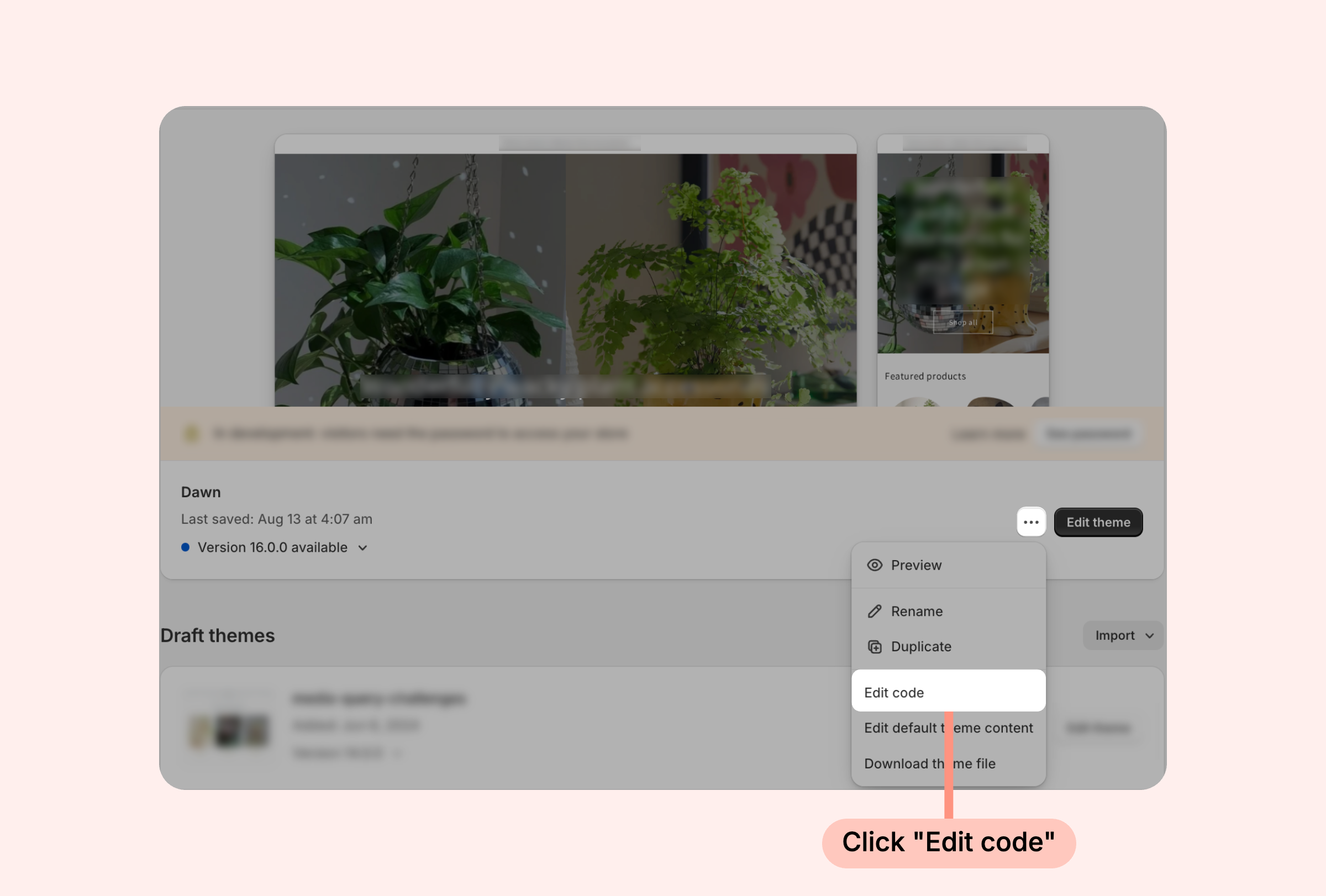
- Inside the Shopify Themes menu, click the "... " button, and select "Edit code":
- Open the template or section you use for product pages (usually it's called product-template.liquid or product.liquid, but some themes work differently).
- Copy the code below:
<a href="#looxReviewsFrame" aria-label="Scroll to reviews">
<div class="loox-rating" data-id="{{ product.id }}" data-rating="{{ product.metafields.loox.avg_rating }}" data-raters="{{ product.metafields.loox.num_reviews }}"></div>
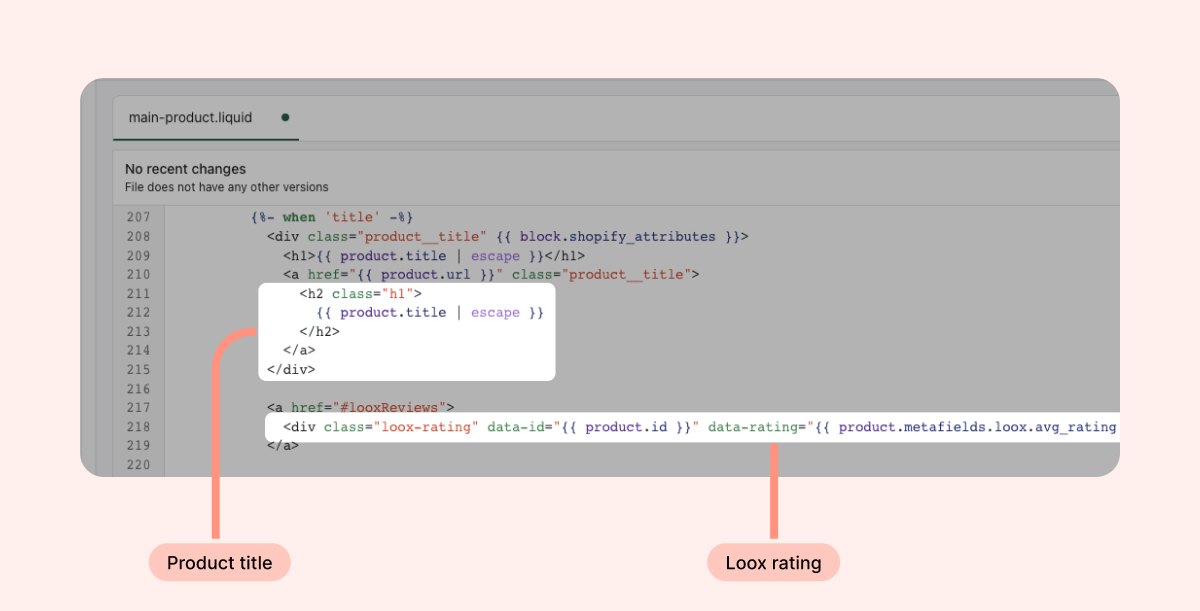
</a>- Paste it where you want the rating icons to appear on the product page (we recommend below the product's title), and save your file.
- Make sure you paste the code inside the part of the file that renders a single product - i.e. where {{ product.id }} is valid. If you paste it outside that scope, the widget will render empty.
For example (Debut theme):
Collection pages
To display the Star Rating Widget via liquid code on your collection pages:
- Inside the Shopify Themes menu, click the "... " button, and select "Edit code":
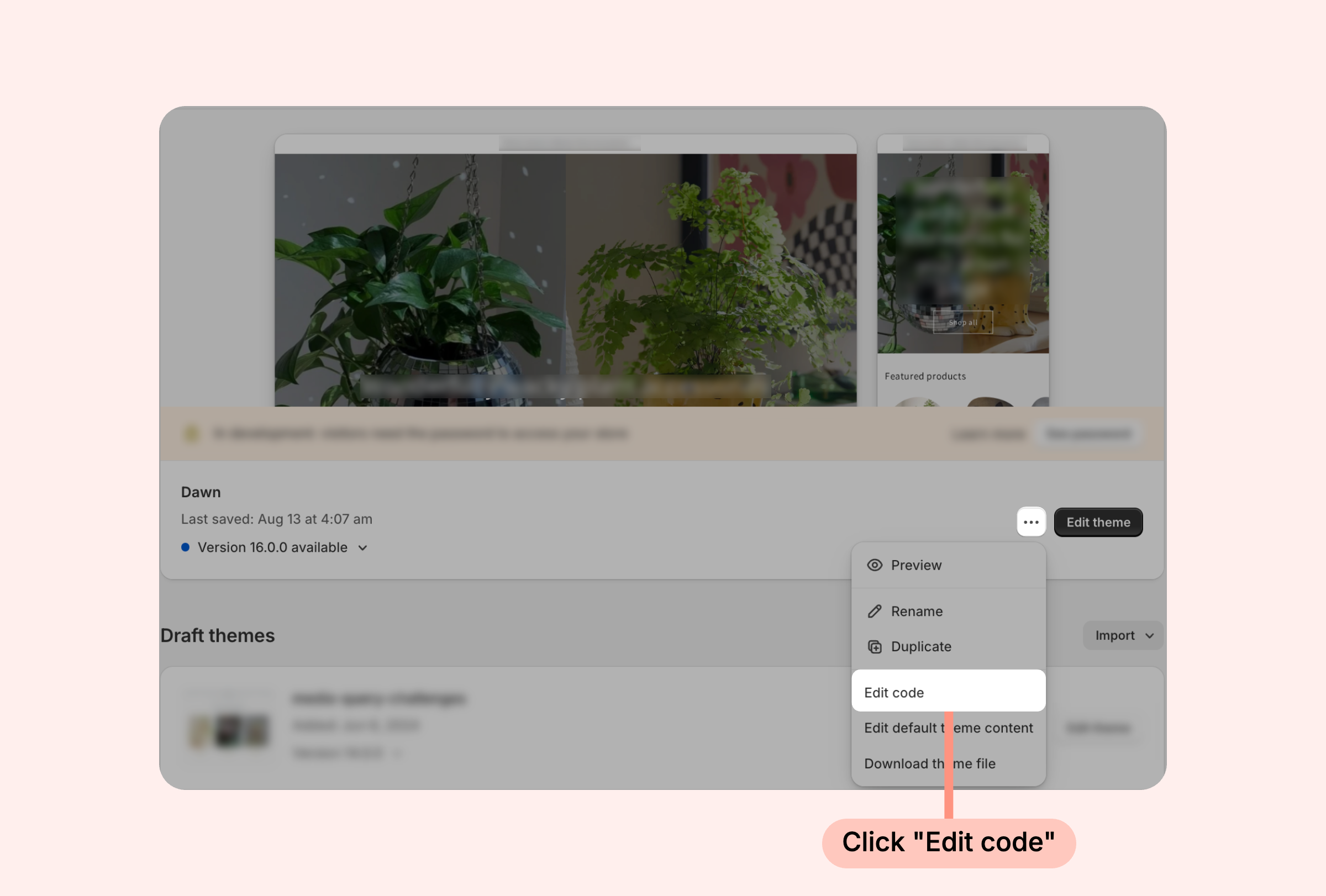
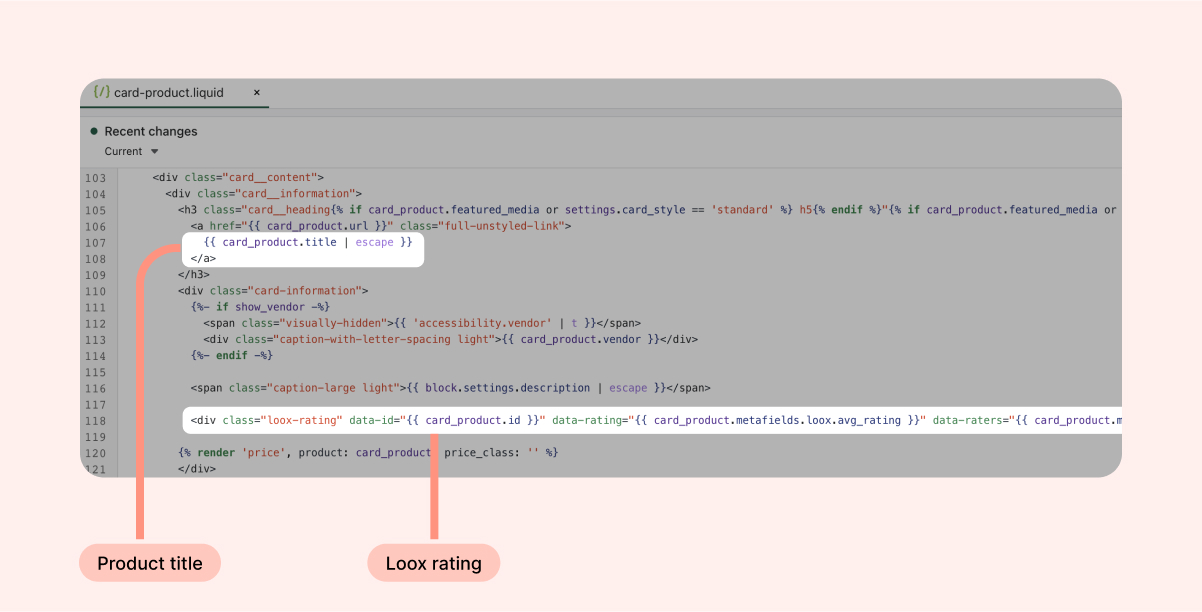
- Open the template or section you use for the product in your collections (under snippets, product-card.liquid / product-grid-item.liquid / product-loop.liquid / product-info.liquid / product-card-grid.liquid / card-product.liquid but some themes work differently).
- Copy the code below:
<div class="loox-rating" data-id="{{ product.id }}" data-rating="{{ product.metafields.loox.avg_rating }}" data-raters="{{ product.metafields.loox.num_reviews }}"></div>- Paste it where you want the rating icons to appear on your collection listing (we recommend below the product's title), and save your file.
- Make sure you paste the code inside the part of the file that renders a single product - i.e. where {{ product.id }} is valid. If you paste it outside that scope, the widget will render empty.
For example (Debut theme):
Tip: Thanks to Loox's integration with Shopify's native review metafields, you may be able to display your Loox ratings on the product cards on your collection pages using your theme's native review stars instead of adding the Loox Star Rating Widget via code- you'll just have to define Loox as your review app.
Homepage featured product
To display the Star Rating Widget via liquid code on your homepage featured product section:
- Inside the Shopify Themes menu, click the "... " button and select "Edit code":
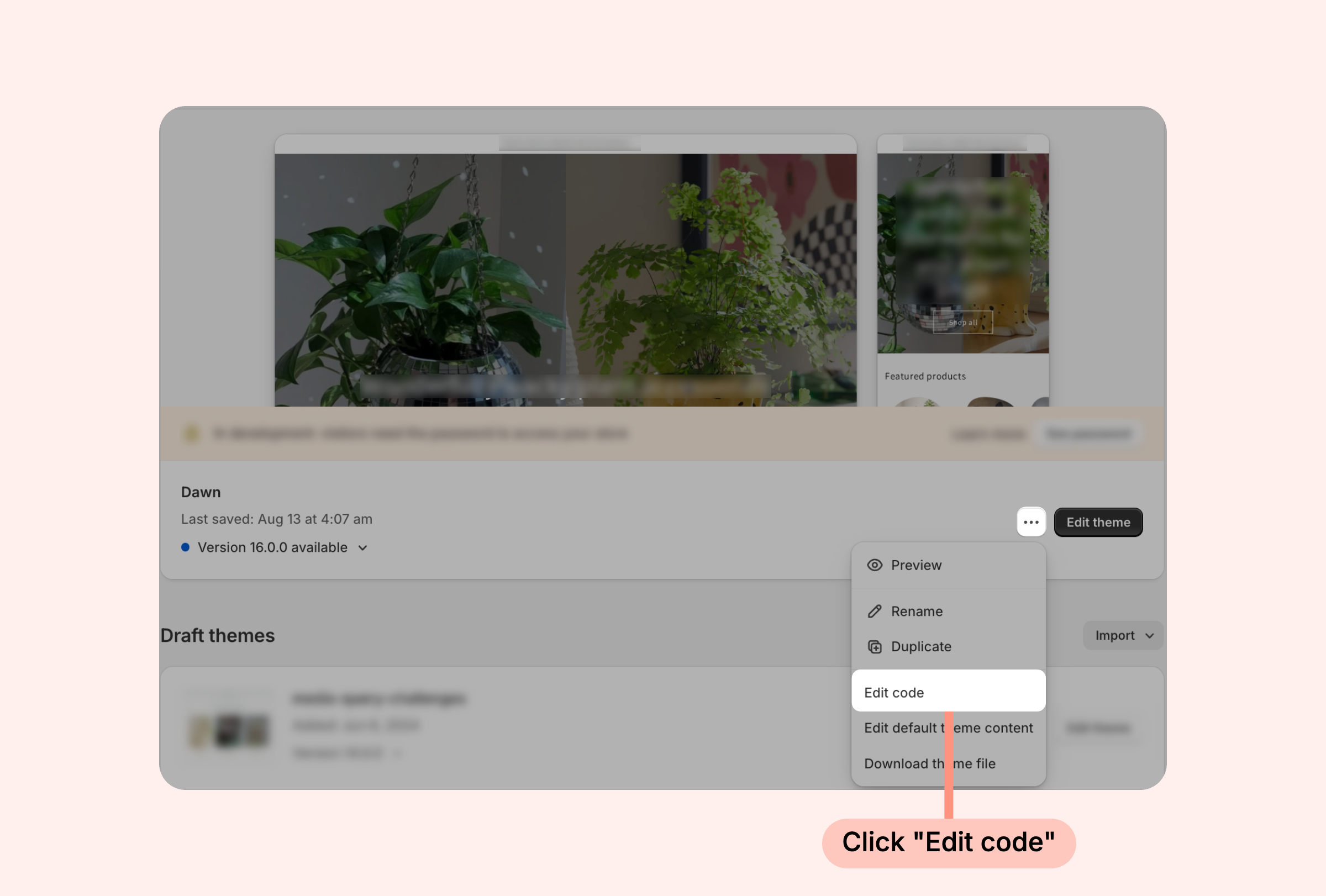
- Open the template or section you use for the homepage featured product (usually called featured-product.liquid or homepage-product.liquid, but each theme varies).
- Copy the code below:
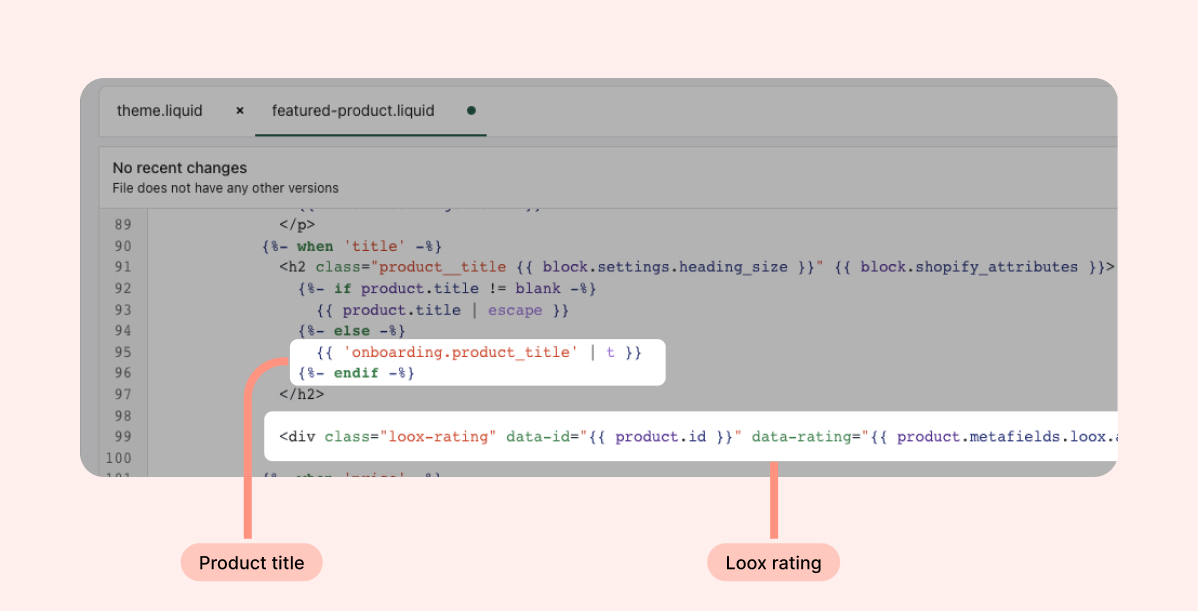
<div class="loox-rating" data-id="{{ product.id }}" data-rating="{{ product.metafields.loox.avg_rating }}" data-raters="{{ product.metafields.loox.num_reviews }}"></div>- Paste it where you want the rating icons to appear (we recommend below the product's title), and save your file.
- Make sure you paste the code inside the part of the file that renders a single product - i.e. where {{ product.id }} is valid. If you paste it outside that scope, the widget will render empty.
For example (Debut theme):
Cart page
To display the Star Rating Widget on your Cart page via liquid code:
- Inside the Shopify Themes menu, click the "... " button and then select "Edit code":
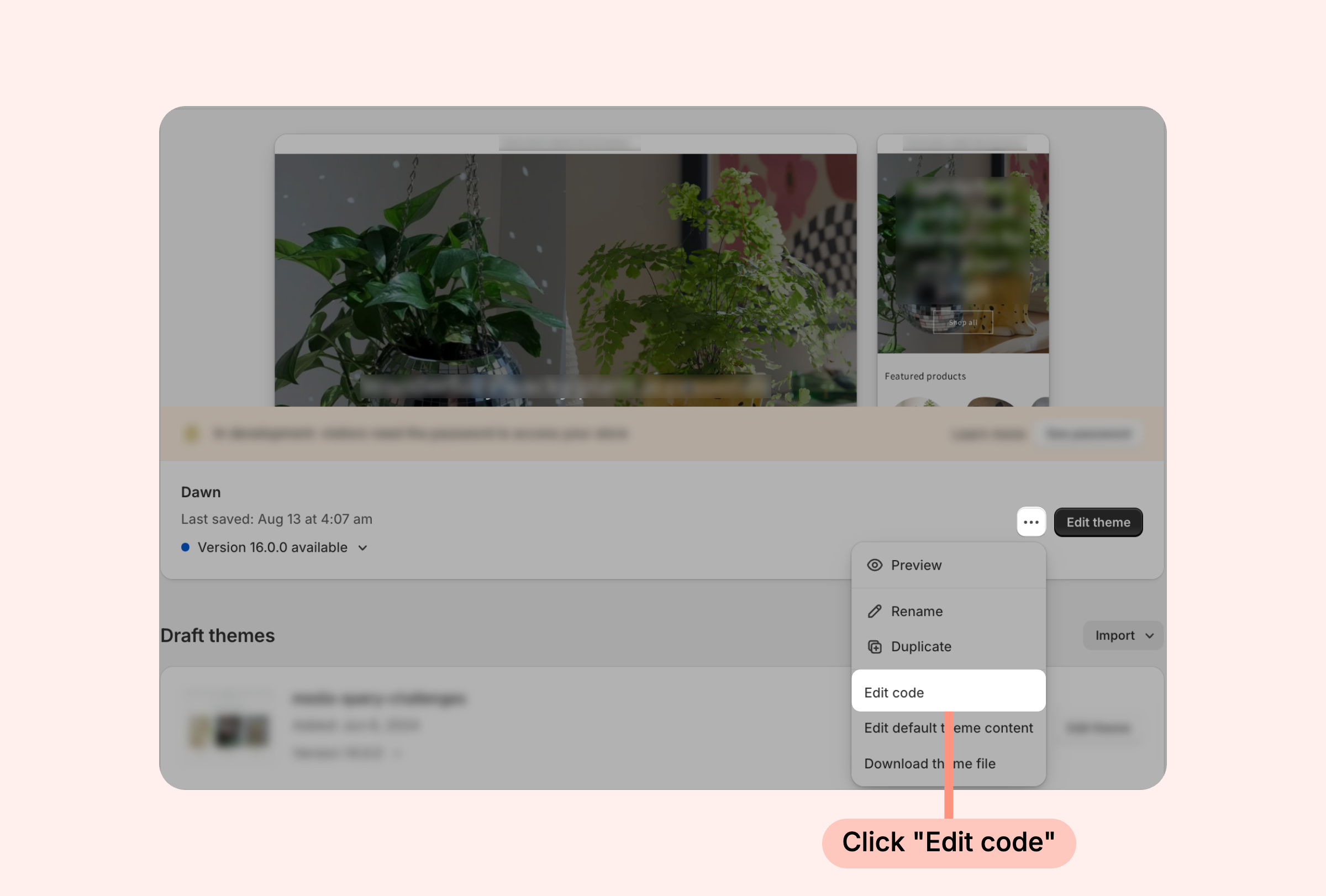
- Open the template or section you use for cart pages (usually called cart.liquid or cart-template.liquid, but themes by vary)
- Copy the code below:
<div class="loox-rating" data-id="{{ product.id }}" data-rating="{{ product.metafields.loox.avg_rating }}" data-raters="{{ product.metafields.loox.num_reviews }}"></div>- Paste it where you want the rating icons to appear on the cart page, and save your file.
- Make sure you paste the code inside the part of the file that renders a single product - i.e. where {{ product.id }} is valid. If you paste it outside that scope, the widget will render empty.
For example (Debut theme):
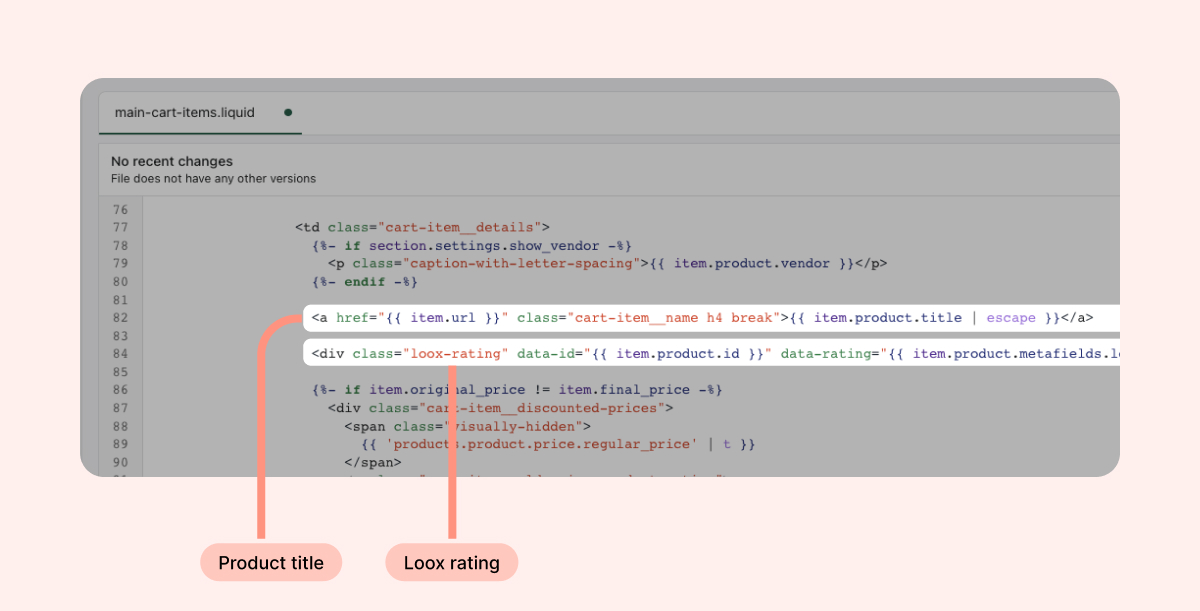
Displaying your store's total rating
To display your store's total average rating and the total number of reviews for all of your store's products:
- Inside the Shopify Themes menu, click the "... " button and then select "Edit code":
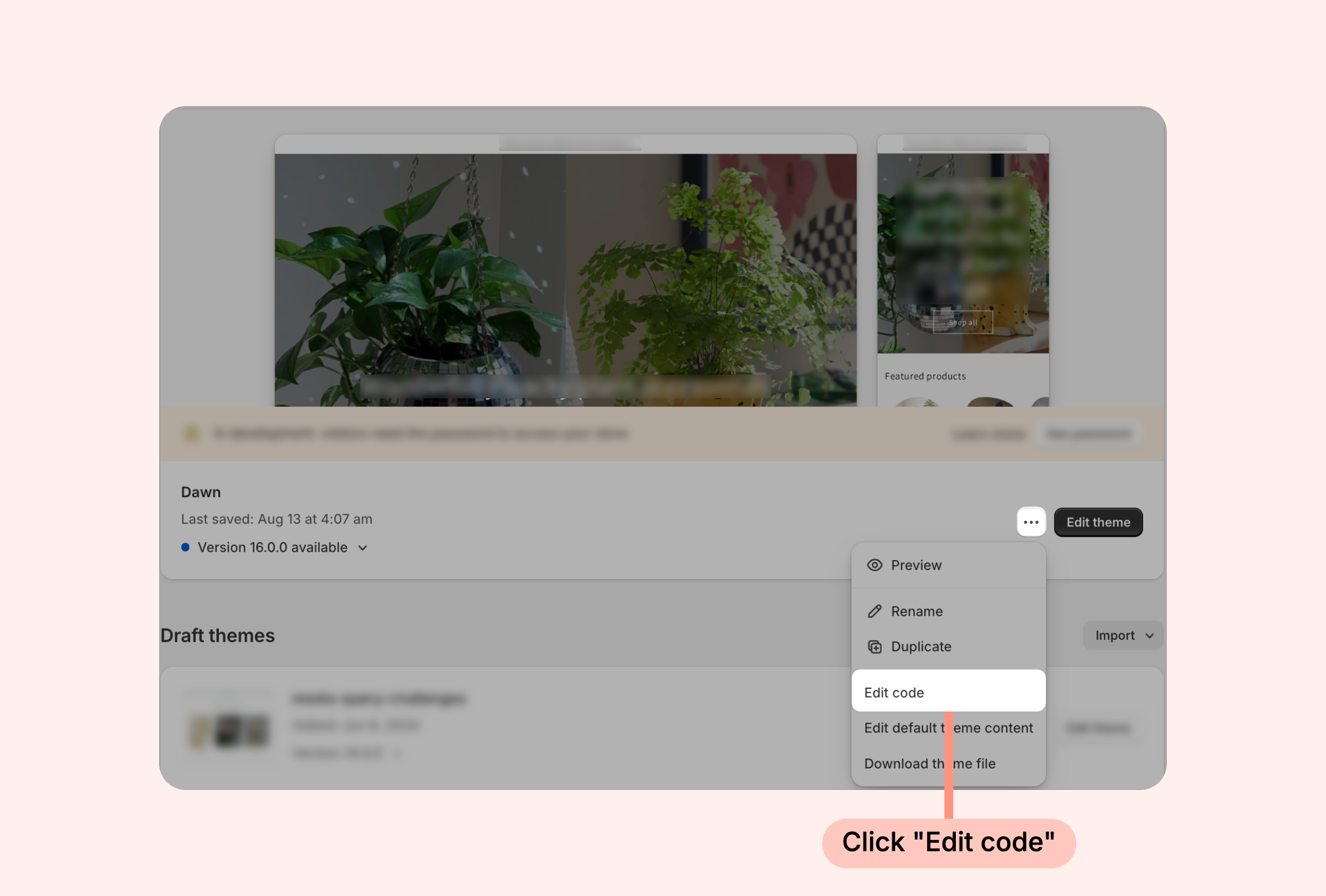
- Open the file where you wish to add the Star Rating Widget
- Paste the code below where you want the ratings to appear, and save your file:
{% if shop.metafields.loox["global_stats"] %}
{% assign looxstats = shop.metafields.loox["global_stats"] | split: ',' %}
<div class="loox-rating loox-rating-hp" data-rating="{{ looxstats[0] }}" data-raters="{{ looxstats[1] }}"></div>
{% endif %}
Note: This version of the Star Rating Widget can be displayed on any of your store's pages, even if you're already displaying an individual product's rating on the same page.
Customization options via code
The widget supports the following data attributes. Add them to the <div class="loox-rating" ...> tag to customize the widget via code.
Display the average rating before the star icons (e.g. "4.6 ★★★★★")
By default the widget renders the stars first and then the text after. To flip the order:
1. Add data-pattern="[rating]" to the code so the rating number appears.
<div class="loox-rating"
     data-id="{{ product.id }}"
     data-rating="{{ product.metafields.loox.avg_rating }}"
     data-raters="{{ product.metafields.loox.num_reviews }}"
     data-pattern="[rating]"></div>
2. Add the following CSS to your theme's stylesheet (it should be titled base.css, theme.css, or something similar):
.loox-rating .loox-rating-content {
  display: inline-flex;
  align-items: center;
}
.loox-rating .loox-rating-label {
  order: -1;
  padding-right: 4px;
}
Other text patterns you can use:
data-pattern="[rating]/5" will be displayed like this: 4.6/5.
data-pattern="[rating] · [count] reviews" will be displayed like this: 4.6 · 213 reviews.
Linking the Star Rating Widget to the Floating Reviews Widget
When displaying the Star Rating Widget on your product pages, the rating icons will automatically link to the Reviews Widget displayed on the same page. However, the widget can also be linked to the Floating Reviews Widget instead, opening the product's entire collection of reviews in a floating window.
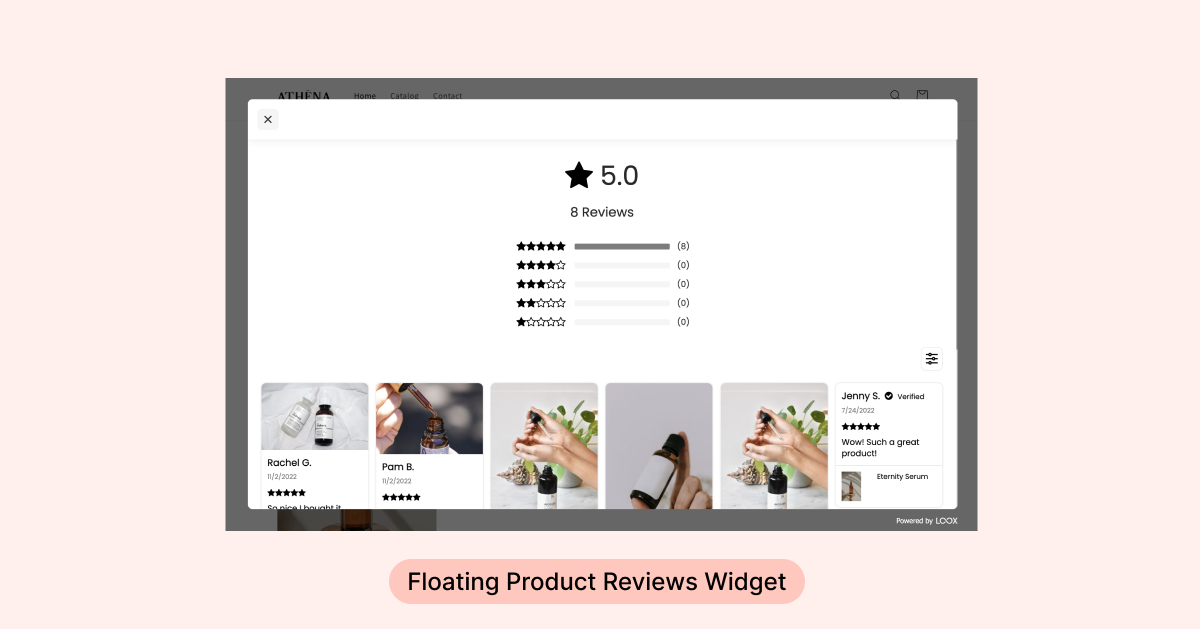
To link your Star Rating Widget to the Floating Reviews Widget:
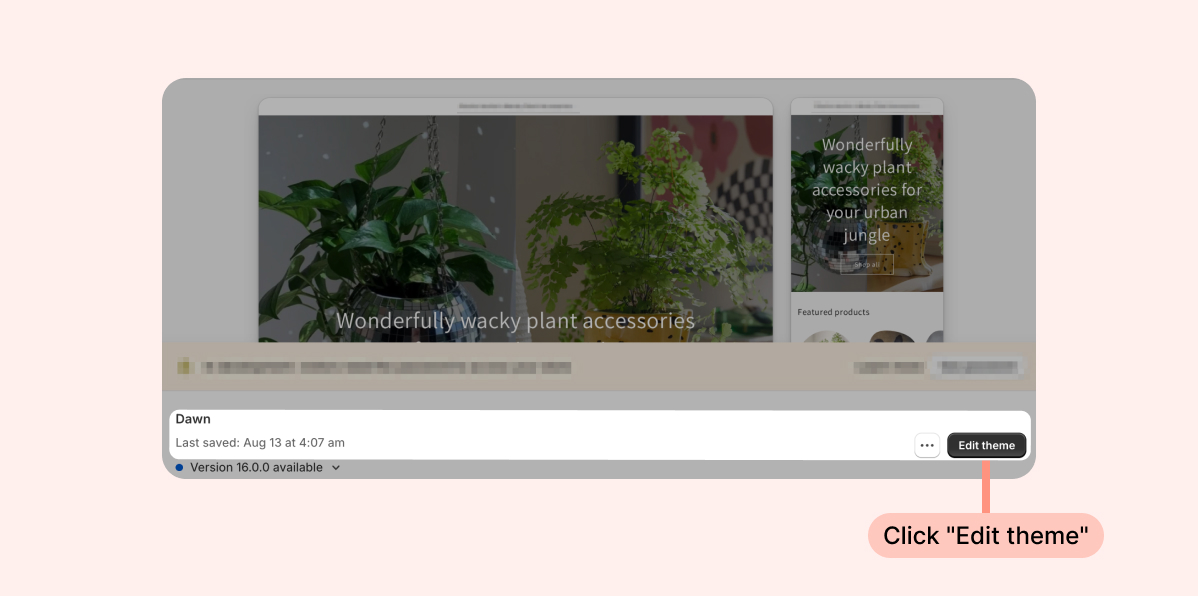
- Inside the Shopify Themes menu, click Edit theme:
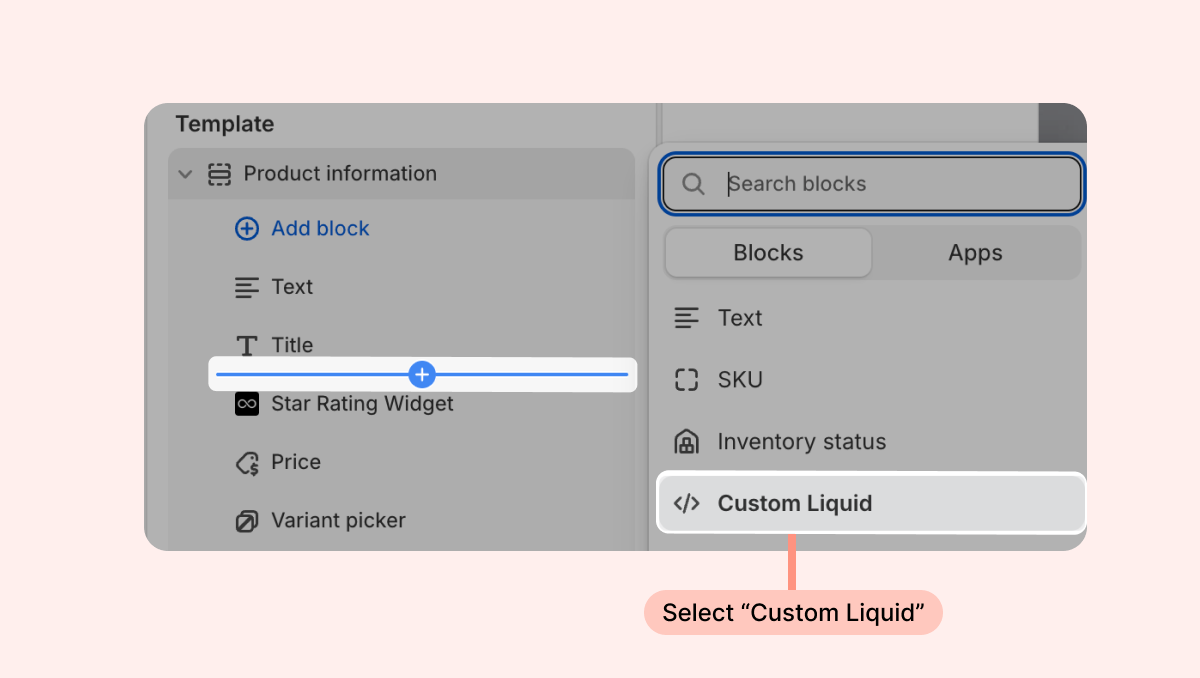
- Head to the page you're looking to work on and click the + in your desired location on the left-hand sidebar to add a new section. Under Sections, search for "Custom Liquid." If it appears, select this option.
- Next, add the following code snippet to the section's Liquid Code and hide your original Loox Star Rating Widget app block so you won't have a duplicate widget:
<div class="loox-rating" data-id="{{ product.id }}" data-rating="{{ product.metafields.loox.avg_rating }}" data-floating-product-reviews-enabled="true" data-raters="{{ product.metafields.loox.num_reviews }}"></div>- If you don't have the option to use a custom liquid section in the spot you're looking to add the widget, follow the instructions below on how to add the widget via liquid code:
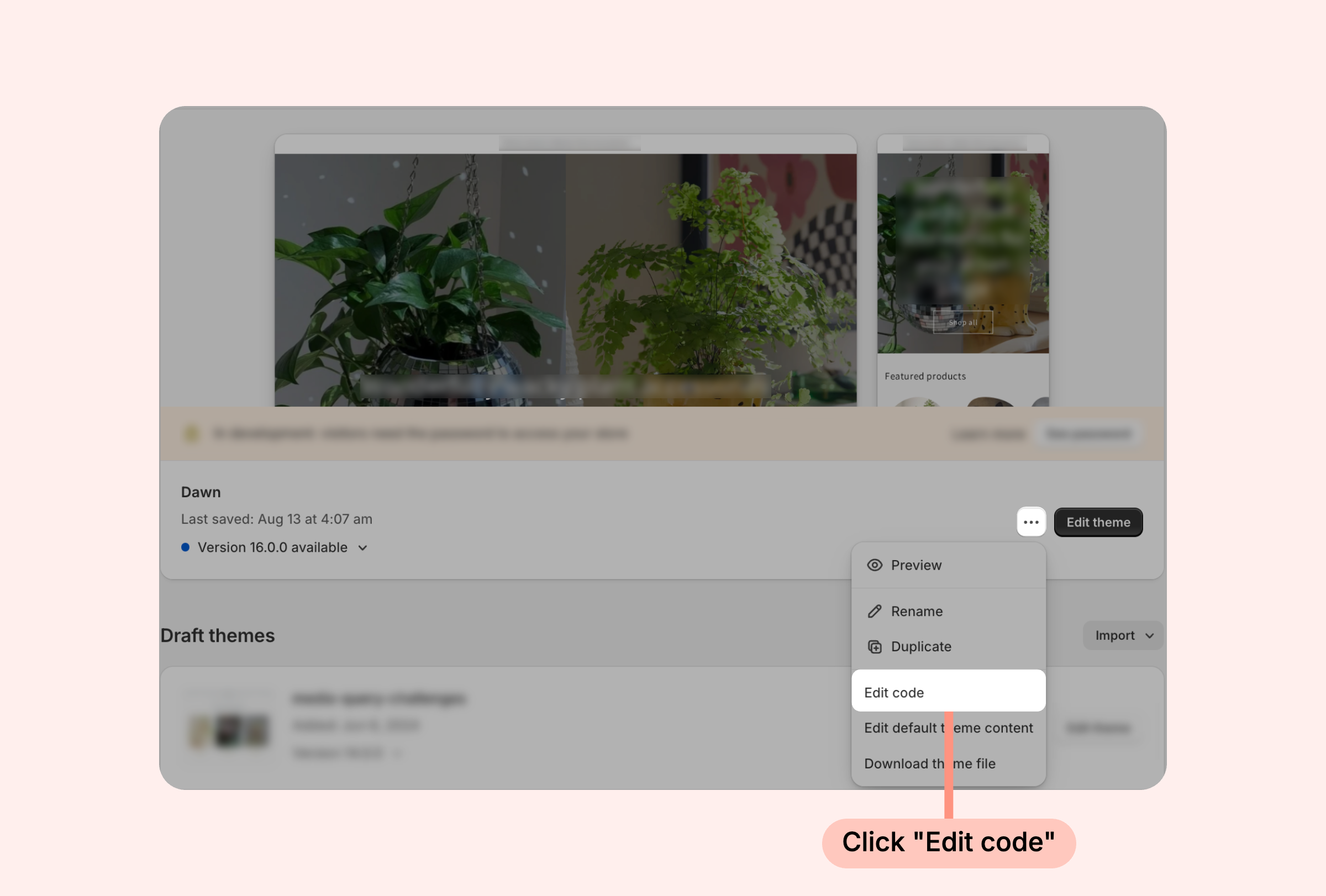
- Inside the Shopify Themes menu, click the "... " button and then select "Edit code":
- Open the template or section you use for product pages (usually, it's called product-template.liquid or product.liquid, but some themes work differently).
- Find the following code:
<div data-id="{{ product.id }}" data-rating="{{ product.metafields.loox.avg_rating }}" data-raters="{{ product.metafields.loox.num_reviews }}"></div> - Replace it with the code below, and save your file:
<div data-id="{{ product.id }}" data-rating="{{ product.metafields.loox.avg_rating }}" data-floating-product-reviews-enabled="true" data-raters="{{ product.metafields.loox.num_reviews }}"></div>
- Once implemented, when a customer clicks on the product page's rating icons, the Floating Reviews Widget will appear and display reviews of that product page only.
Troubleshooting- if the widget doesn't appear after adding the code
Most often it's one of these reasons:
The code is in the wrong place in the file. The code needs to be pasted inside the block that renders one product (where {{ product.id }} is valid). If it's above or below that block, Shopify can't fill in the product info, and the widget won't appear.
You edited the wrong file. Many themes have several product templates (for example product.liquid, product-template.liquid, or a JSON template). If you edit one that isn't actually used on the page, you won't see any change. Try adding the code to a different product template.
The product has no reviews yet. By default, the widget is hidden when a product has 0 reviews. To show the widget with empty stars, add data-show-empty-stars="true" to the code.
You see the number but no star icons. The data is there, but the Loox script isn't running on the page. Check that the Loox core script is enabled on your theme. For vintage themes, contact our support team at [email protected].
You see nothing at all. View the page source and look at the <div class="loox-rating" ...> line. If data-id, data-rating, or data-raters are empty, the code is outside a product context. Move it inside the product loop or product template.
The product card is loaded by JavaScript (quick view, cart drawer, AJAX collection loading). The Loox script scans the page once upon loading, so content added later may not get stars. Contact support in these cases.
Theme CSS is hiding the widget. Inspect the element in your browser. If .loox-rating is there but invisible, your theme may be overriding it with display: none or zero size. Theme code customization is needed in this case.
A browser extension is blocking it. Ad blockers or privacy extensions sometimes block review widgets. Test in an incognito window with extensions disabled.