
Offering a photo/video discount but want to make sure it's only redeemed on the right products? You can now limit your review discounts to a specific collection - giving you full control over where your discounts apply while still incentivizing high-quality visual reviews.
Why limit your discount to a specific collection?
By default, Loox photo/video discounts apply store-wide. Limiting your discount to a specific collection lets you:
- Protect margins on expensive or already-discounted products
- Drive customers toward specific product categories or new inventory
- Keep your review incentive program running without opening your entire catalog to discounts
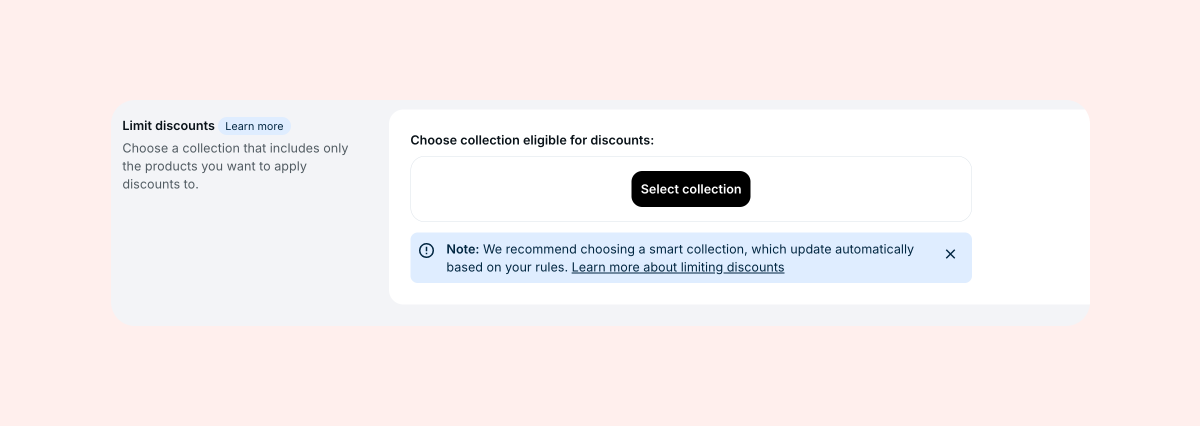
How to limit your discount to a specific collection
Note: To use this feature, Loox requires permission to access your Shopify collections. If you installed Loox before this feature was released, you'll see a prompt in your Discounts settings asking you to approve the required permissions. Follow the on-screen steps to grant access before continuing.
- Inside the Collect Reviews settings section, go to Preferences - Discounts.
- Scroll down to Limit Discounts.
- Click Select collection to open the Shopify collection picker.
- Select the collection you want to limit the discount to. Currently, only one collection can be selected.
- Click Save.
Once saved, all new discount codes generated by Loox will be eligible for products in the selected collection only.
Note: Existing discount codes already issued to customers will not be affected by new discount limitation rules. Only newly generated codes will reflect any changes you make going forward. If you delete the selected collection from your Shopify store, any discount codes created while the limitation rule was set up will no longer be applicable to any products, essentially rendering them invalid. In cases like that, reach out to our support team- they can reset those discounts to make them applicable to your whole store.
How the disclaimer works
When a collection limitation is active, Loox automatically adds a discount disclaimer to key points in your customer's review journey. This keeps things transparent and sets the right expectations before customers try to redeem their code.
The disclaimer appears in:
- The review form media submission dialog
- The review form "Thank you" dialog
- The review "Thank you" email
- The discount reminder email
- The review editing flow
When customers click the disclaimer, they'll see a message explaining that the discount is limited to specific products, along with a direct link to the eligible collection in your store.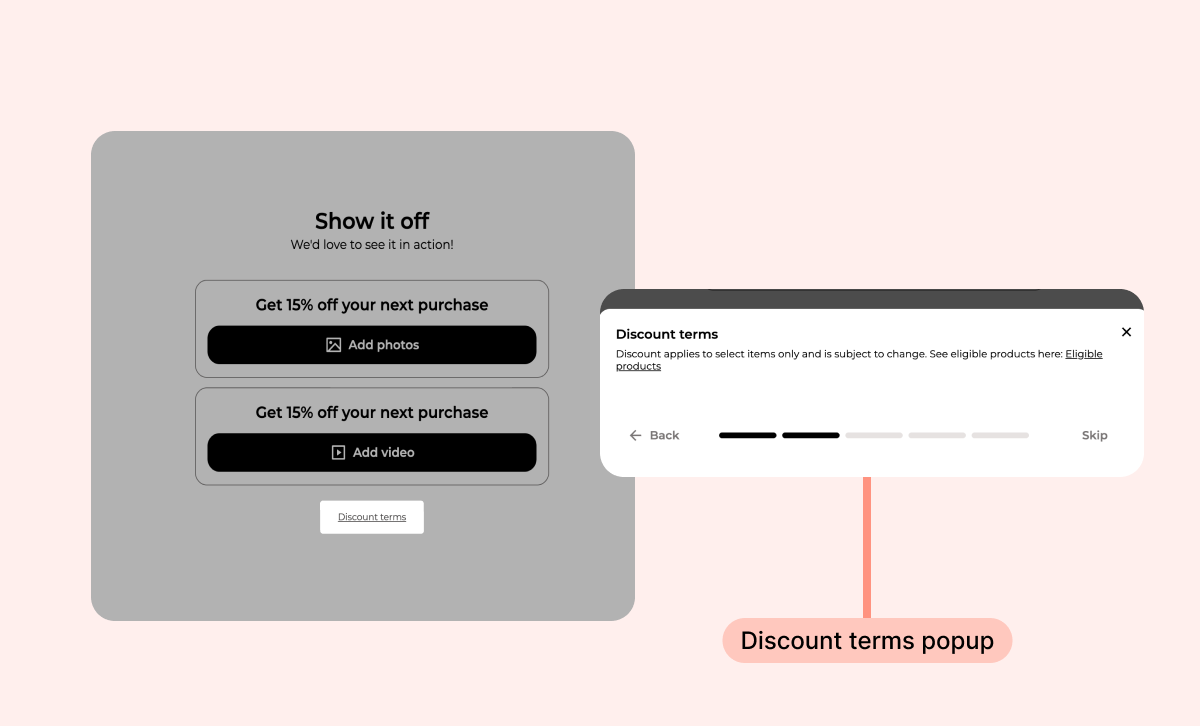
Customizing the disclaimer text
Loox uses default disclaimer text, but you can edit it to match your brand's voice. Any changes you make apply across all locations where the disclaimer appears.
To customize the disclaimer text from the review form editor:
- Inside the Collect Reviews settings section, go to Preferences - Discounts.
- After selecting a collection, follow the callout on the page that directs you to the Review Form Editor.
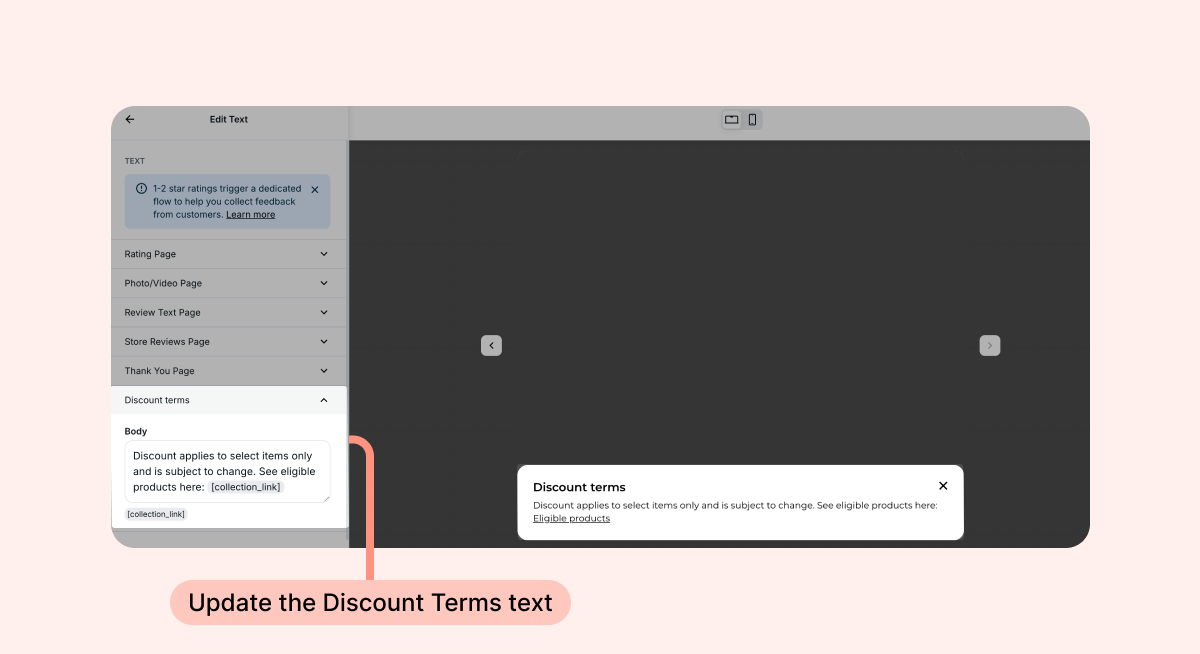
- In the editor, go to the Text section and scroll down to Discount terms.
- Update the text as needed and click Save. You can use the placeholder [collection_link] to link to the relevant collection.
To customize the disclaimer text from the emails editor:
- Inside the Collect Reviews settings section, go to Preferences - Emails.
- Open either the Review "Thank you" email or the Discount reminder email.
- Scroll to the disclaimer text field at the bottom of the text sections and update as needed.
- Click Save.
Note: The disclaimer text is shared across all touchpoints - editing it in one place updates it everywhere.
Excluding specific products using Shopify smart collections
The collection limitation feature works at the collection level. If you need to exclude specific products rather than include a specific group, you can use a Shopify smart collection to build custom eligibility rules.
Example: Exclude products by tag
- In your Shopify admin, go to Products → Collections and click Add collection.
- Under Collection type, select Smart.
- Set the condition: Tag - is not equal to - Loox-Exclude.
- Save the collection.
- Tag any products you want to exclude from discount eligibility with "Loox-Exclude" in Shopify.
- Back in Loox, select this smart collection as your discount limitation collection.
Any product tagged "Loox-Exclude" will automatically be excluded from discount eligibility as Shopify updates the collection in real time. You can also build rules based on other criteria- like price range, vendor, product type, or inventory levels- to create the eligibility rules that work best for your store.
FAQs
Q: Can I select more than one collection?
A: At this time, only one collection can be selected. To include products from multiple collections, we recommend creating a new collection in Shopify that groups all the relevant products together, then selecting that collection in Loox.
Q: What happens to existing discount codes if I change the selected collection?
A: Existing discount codes already issued to customers will remain limited to the previously selected collection. Only new discount codes generated after the change will apply to the updated collection.
Q: What happens if I delete the selected collection from Shopify?
A: If the collection is deleted, any discounts created while the limitation was set up will no longer apply to any products on your store, effectively rendering them invalid. We recommend updating your collection selection in your Loox discount settings as soon as possible if this happens, and you can also reach out to our support team at [email protected] to make those existing discounts apply store-wide.
Q: Where does the disclaimer link lead?
A: The disclaimer includes a direct link to the eligible collection page on your store, so customers can browse the products they can use the discount on. The collection will appear even if it's not one you've added to your store's frontend navigation.
Q: Does this affect referral or upsell discounts?
A: No, collection-based discount limitations apply only to photo/video review discounts. Referral and upsell discounts are not affected.
Q: Can I remove the collection limitation and go back to store-wide discounts?
A: Yes. Inside the Collect Reviews settings section, go to Preferences - Discounts, remove the selected collection, and save. All new discount codes will then apply store-wide, but any discount codes created while the rule was in place will still only apply to the selected collection.