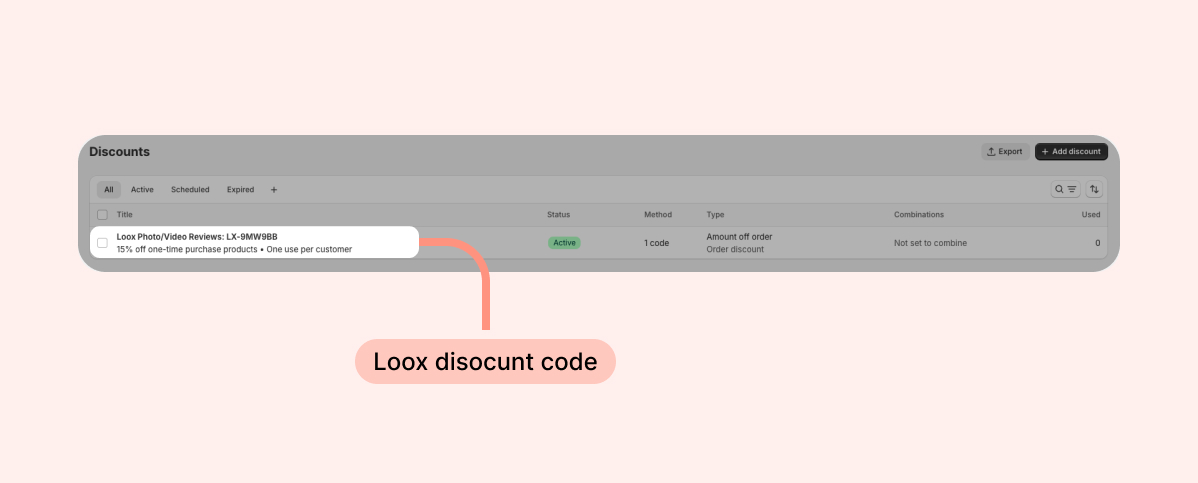
Motivate your customers to submit visual reviews by offering them a next-purchase discount for reviews that include a photo or video. That way, you get valuable social proof, and they get encouraged to come back to your store for a return purchase.
This article will cover the different types of discounts available and the reminder email we send to ensure your customers don’t forget to claim their reward.
Offer discounts for photo/video reviews
Encourage your customers to share their experiences with UGC by offering discounts based on whether they submit a photo or a video review.
Note: To ensure customers only get one discount per review, they can add either photos or a video to their review, not both. Video reviews are available on the Convert Plan and up (and the legacy Scale and Growth Plans). Learn more
To offer discounts for customers who submit a photo/video review:
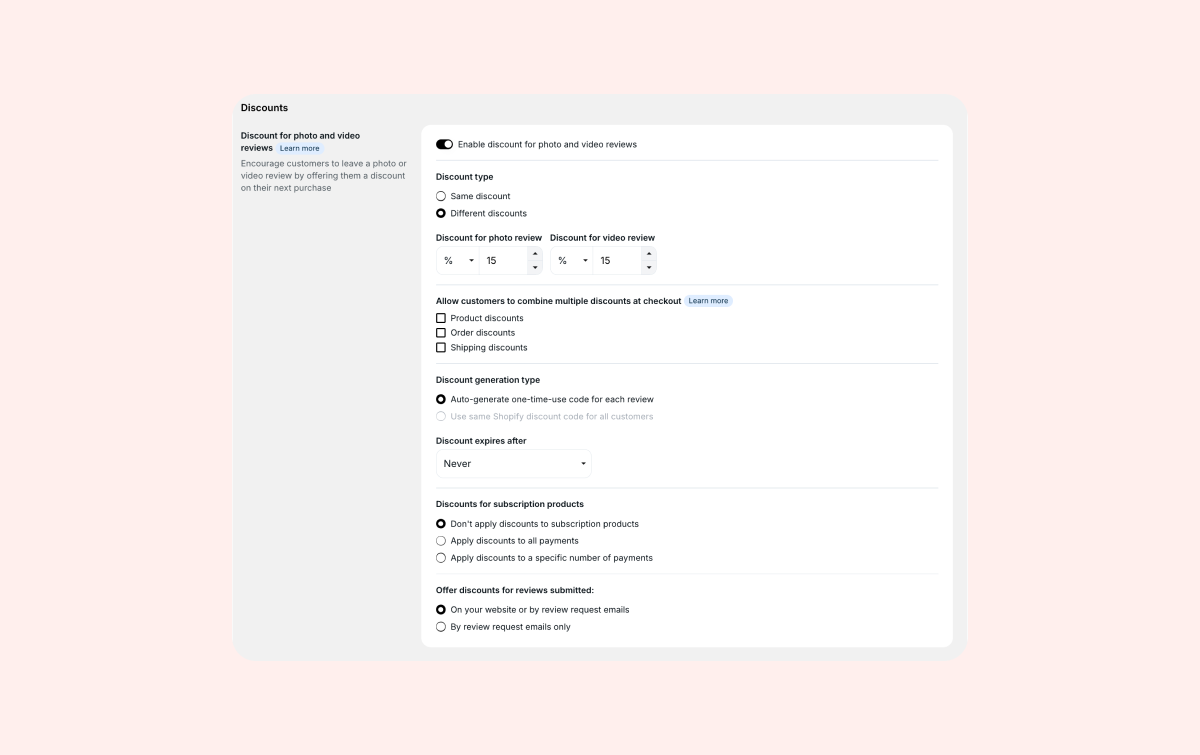
- Head to your Loox admin under Collect Reviews > Discounts.
- Toggle on “Enable discount for photo/video.”
- Select whether you would like to offer the same discount or different discounts for photo and video reviews. Set the discount type and amount and choose from two types of discounts:
- Percentage (%): For example, 15% off
- Fixed: For example, $10 off (your store’s currency will be automatically used)
- Click "Save."
Note: Loox will provide discounts to all customers who submit a photo or video review, regardless of its rating or tone. By default, your discount will apply to all your products. Read more about how to limit your discount to a specific collection.
Combining multiple discounts
Loox discounts for photo and video reviews can be combined with other Shopify discounts, allowing customers to stack several offers in a single checkout.
To allow customers to combine their review discount with additional Shopify discounts:
- In the Loox admin, head to Collect Reviews > Discounts.
- Under "Allow customers to combine multiple discounts at checkout", select which types of Shopify discounts can be combined with your review discounts: product, order, and/or shipping.
- You may be required to grant relevant Shopify permissions to enable discount combinations.
- Make sure any relevant Shopify discounts also have combinations enabled in your Shopify Discounts Menu.
- Once enabled, all new review discounts will automatically follow your discount combination rules.
Notes:
- Existing discounts will not be affected. You can edit existing discount codes directly in your Shopify Discounts menu.
- Loox discounts for photo and video reviews are considered Order discounts.
- According to Shopify's limitations, customers can use up to 5 product or order discount codes and 1 shipping discount code on the same order. For a detailed breakdown of all supported discount combinations, see Shopify’s guide to combining discounts.
Offering a single Shopify discount code
Create a discount code in Shopify and use it as the code given for photo/video reviews through Loox.
This option allows you to create a discount code with specific rules in Shopify Discounts. The code created in Shopify supports advanced limitations, including limiting it to selected collections or setting a minimum purchase amount.
Note: Using a single Shopify discount code is only available if you have set up your offer to “Same discount” for photos and videos.
To create a discount code in Shopify, and offer it as the code given for photo/video reviews through Loox, follow the steps below:
- Inside your Shopify Discounts page, click “Create discount.”
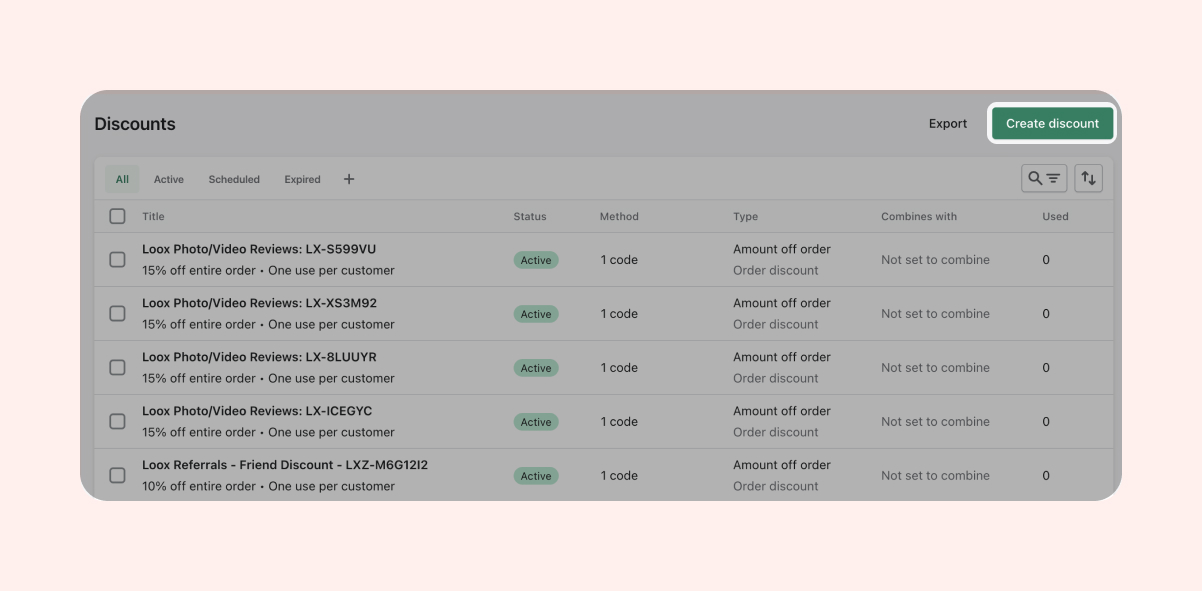
- Select your discount type and amount and click "Save discount."
- In Loox, go to Collect Reviews > Discounts.
- Under "Discount generation type", select “Use same Shopify discount code for all customers” and enter your custom discount code under “Insert code.”
- Click "Save".
Note: Loox will validate that the discount code you enter:
- Exists in your Shopify admin
- Uses a supported discount type (Loox accepts only “Amount off order”)
- Matches the amount configured in your Shopify settings
If something doesn’t match, Loox won’t save the code.
Auto-generate a unique code for each review
This option will automatically generate a new, unique code for every customer who submits a photo/video review.
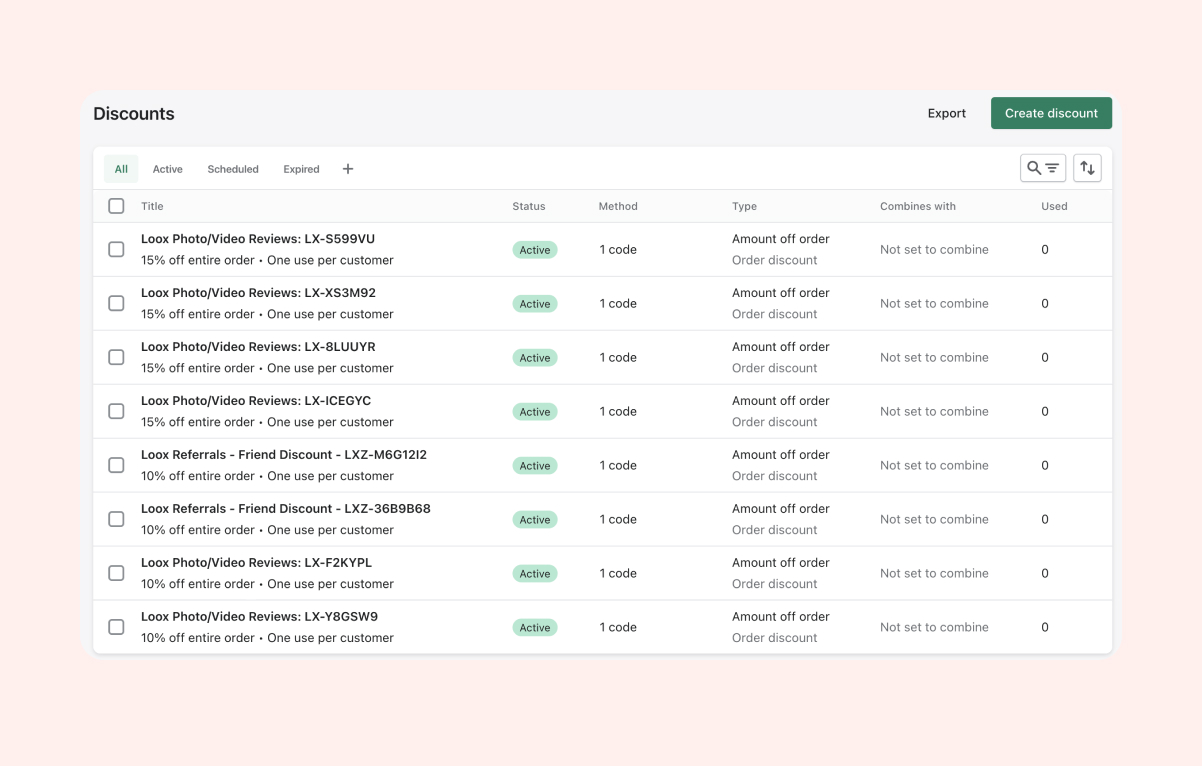
You'll be able to see all discount codes in your Shopify Discounts.
Discount codes for photo/video reviews will appear with the following prefix: “Loox Photo/Video Reviews: LX-” :
Making discounts redeemable on subscription products
By default, review discounts apply only to one-time purchases. If you sell subscription products, you can make these discounts redeemable on subscriptions too - and choose whether the discount will be applied to the first purchase only, a certain number of recurring purchases, or every recurring purchase.
To set up discounts for subscription products:
- Head to your Loox admin under Collect Reviews > Discounts.
- Make sure "Discount generation type" is set to auto-generate a unique code for each review. Subscription discounts are available with auto-generated codes only.
- In the "Subscription discounts" section, choose how the discount applies:
- Don’t apply discounts to subscription products - subscription products will not be eligible for the discount
- Apply discounts to all payments - set the discount to apply to every recurring payment of the subscription
- Apply discounts to a specific number of payments - set the discount to apply only to a set number of subscription payments.
- Click "Save".
Good to know
- The terms are set at the time of purchase. If a customer subscribes while your offer is active, their discount runs for the full number of payments you set, even if your Loox discount later expires or changes.
- If you change your subscription discount terms - the number of payments, the amount, or turning it off - subscriptions already ordered keep their original terms. New subscription orders placed after the change follow the new terms
- If a customer stops a subscription, starting it again counts as a new order. This means their previous discount won't apply to their new subscription.
Tip: Loox creates a standard Shopify subscription discount on your behalf, so it behaves the same way as a discount you'd set up directly in Shopify. This works with Shopify's own subscriptions and with subscription apps that follow Shopify's subscription framework, such as Recharge, Loop, and Skio.
Key discount customization settings
- Discount code expires after - Set an expiration period for the discount codes to create urgency. This can be done by setting the expiration period using the dropdown menu. This will only affect discount codes automatically generated by Loox.
- Offer discounts for reviews submitted...
- On your website or review request emails - Offer discounts to customers who submit a review on your store and those who submit a review through a review request email.
- By review request emails only - Offer discounts to customers who left a review through your “review request emails” only.
- Limit discount to a specific collection - Control which products are eligible for the discount by restricting discounts to a specific collection. Learn more.
Discount reminder emails
By default, we email customers who didn’t use their discount, reminding them of their discount code with a link to your store to redeem it.
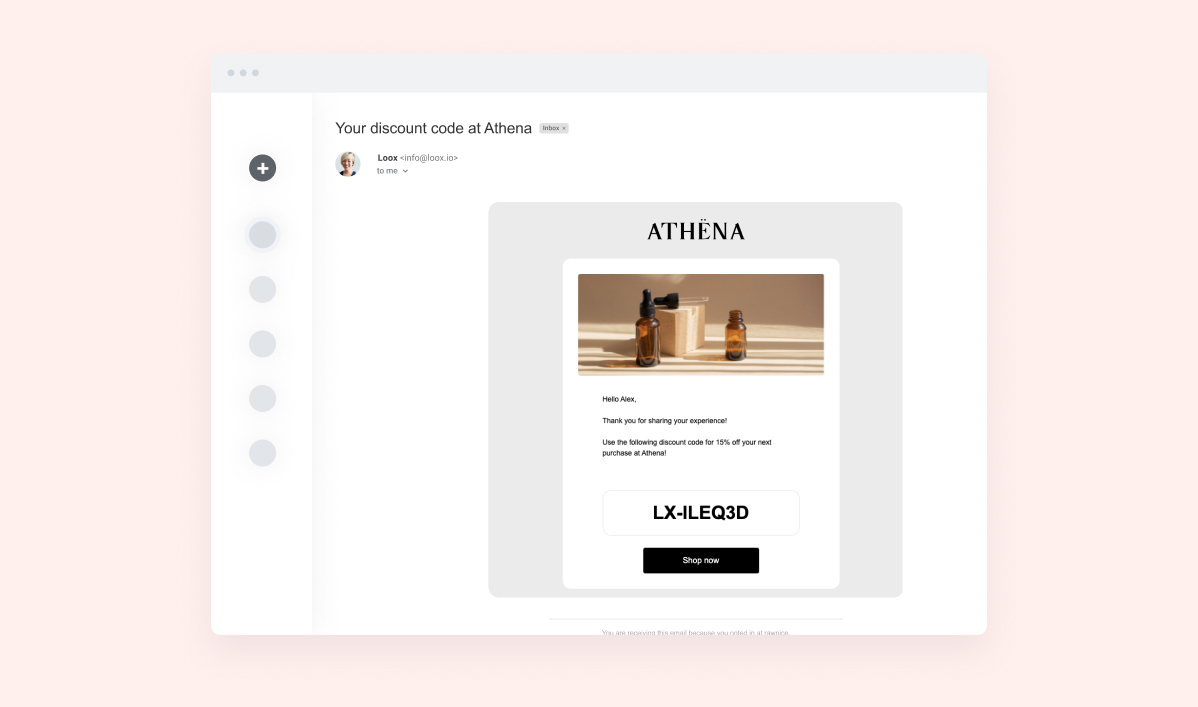
The “Discount reminder email” is sent according to the expiration date selected in your discount settings:
- In the case where your discount isn’t limited (no expiration date set), the email will be sent 7 days after the code was initially created.
- “7 Days” - The email will be sent 3 days before the discount code expires.
- “14 Days” - The email will be sent 7 days before the discount code expires.
- “21 Days” and above - The email will be sent 14 days before the discount code expires.
You can customize the email’s appearance and text on the Discount reminder for photo/video review settings page:
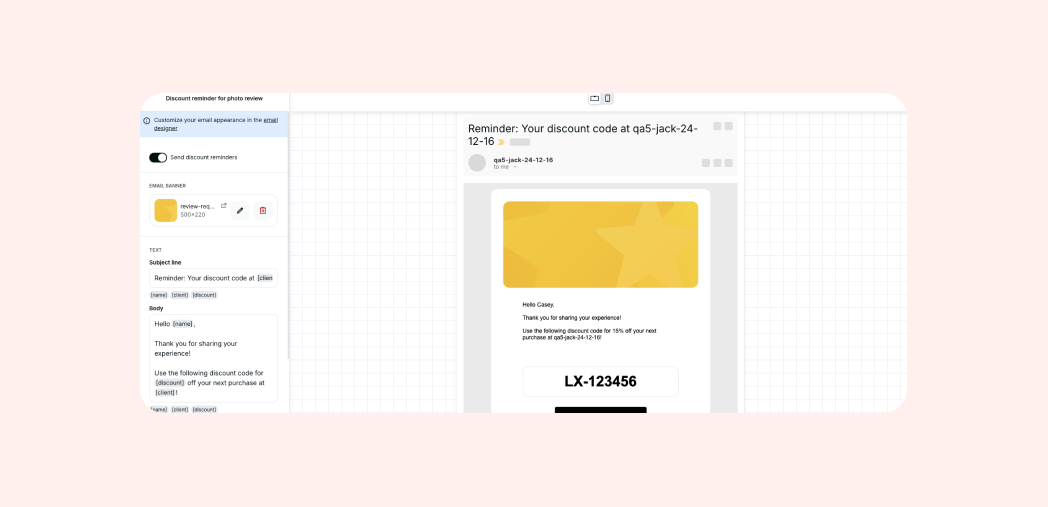
Note: If you have a discount collection limitation set up, a disclaimer will automatically be included in the discount reminder email, informing customers of the eligible collection.
Tip: To see how your discount reminder looks in a real inbox, click Send test email at the top right of its settings page. We'll send it to the email address linked to your Shopify account (with any unsaved changes included). The test email uses sample details in place of placeholders like [name], and any buttons or links are inactive.
Tracking your Loox discounts
Your discount codes can be viewed and tracked in the "Manage reviews" section of the Loox app.
To keep track of your Loox discounts, follow the steps below:
- Inside your "Manage reviews" section, find the relevant customer review.
- Click the “... ” button to open the drop-down menu and select "See discount details."
- You will be redirected to view the discount's details and information inside your Shopify Discounts menu