
Quick Search gives you instant access to any page, setting, or widget in the Loox admin - no more clicking through menus to find what you need. Open it with a single click, type what you're looking for, and jump straight there.
Why use Quick Search?
Whether you're switching between settings during a busy setup or troubleshooting on the go, Quick Search helps you move faster. Instead of navigating through multiple menus to reach a specific page, you can get there in seconds - directly from anywhere in the Loox admin.
How to open Quick Search
There are two ways to open Quick Search:
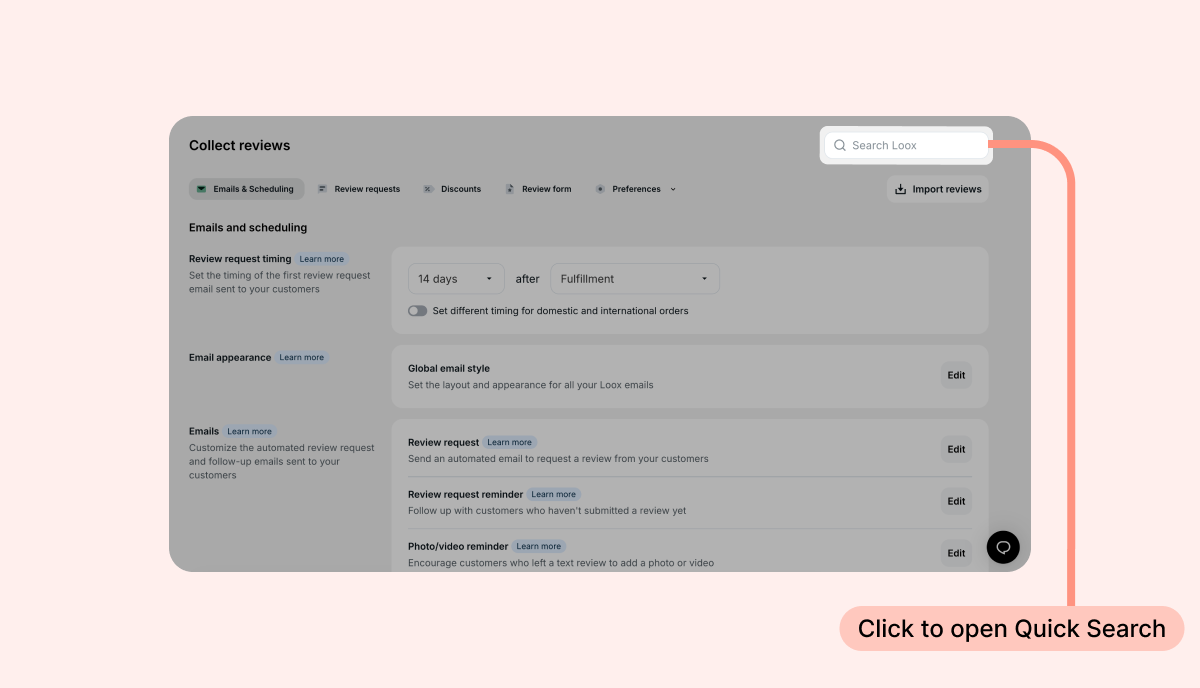
- Search button - Click the "Search Loox" bar in the top right corner of the admin.
- Keyboard shortcut - Press
Cmd+Eon Mac orCtrl+Eon Windows/Linux from anywhere in the admin. Please note that this option is only available on some browsers- on others, this shortcut may already have a different function.
What you'll see when you open it
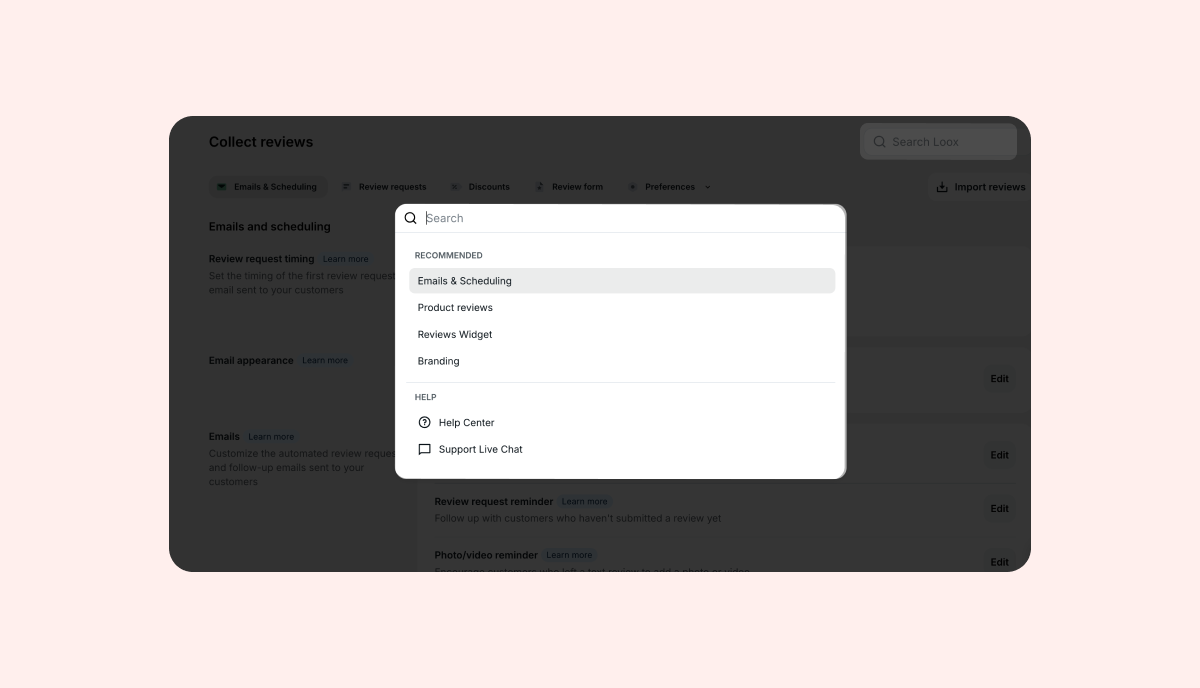
When you open Quick Search without typing anything, you'll see two sections to help you get started:
- Recommended - A curated list of commonly visited pages, such as email settings, managing reviews, Reviews Widget, and branding settings.
- Help - Quick access to support live chat.
Once you start typing, results appear in real time. Quick Search uses fuzzy matching, so you don't need to type an exact page name. For example, typing "brand" will surface branding settings, and "email" will find all email-related pages across Loox.
What you can find with Quick Search
Quick Search covers the full Loox admin, including:
- Modules - Top-level areas like Collect Reviews, Manage Reviews, Widgets, Settings, Import Reviews, Referrals, and Upsell
- Settings pages - Individual pages within modules, such as email settings, branding, localization, and integrations
- Support access - "Support live chat" opens the live chat widget
How to navigate and select results
- Keyboard - Use the arrow keys to move through results, then press Enter to select.
- Mouse - Click any result to navigate directly to that page.
Selecting a result takes you straight to that page in the admin. The dialog closes automatically once you make a selection.
If your search returns no results, you'll see a "No results" message. Try adjusting your search terms or browsing the relevant module directly.
FAQs
Q: Does Quick Search work on all operating systems?
A: Yes - you can always use the searchbar in the top right corner of any page in your admin to access quick search. As for the keyboard shortcut, use Cmd+E on Mac and Ctrl+E on Windows or Linux- just note that this shortcut is browser-dependent and may already be used for another function in your browser.
Q: What if Quick Search doesn't find what I'm looking for?
A: Try a broader or different search term. You can also browse directly to the relevant module in the Loox admin. If you still need help, reach out to our support team.
If you have more questions, contact our Support team at [email protected]. We're available 24/7 and happy to help!