
Show off your customers' reviews on your homepage using the Reviews Widget. You can display your entire reviews collection or highlight a specific product.
The article below will walk you through adding the Reviews Widget to your homepage using the Shopify Theme editor and its customization options or by adding the widget manually by code.
Adding the widget via the Theme Editor
To add the Reviews Widget to your homepage using the Shopify Theme Editor, follow the steps below.
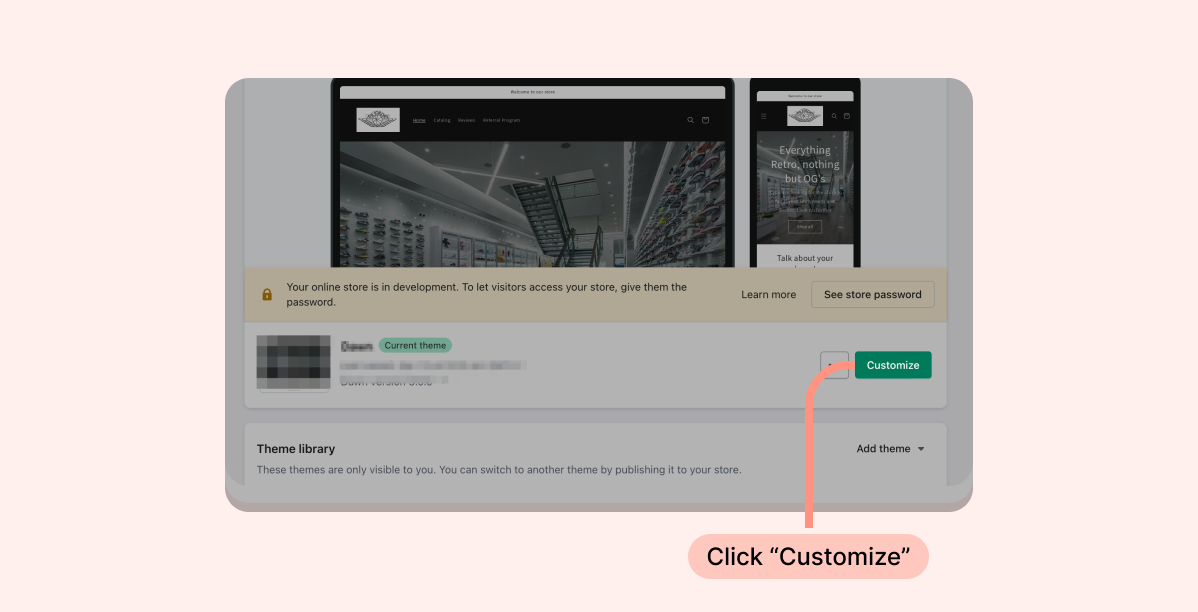
- Inside the Shopify Themes menu, click "Edit theme" to access the Theme Editor:
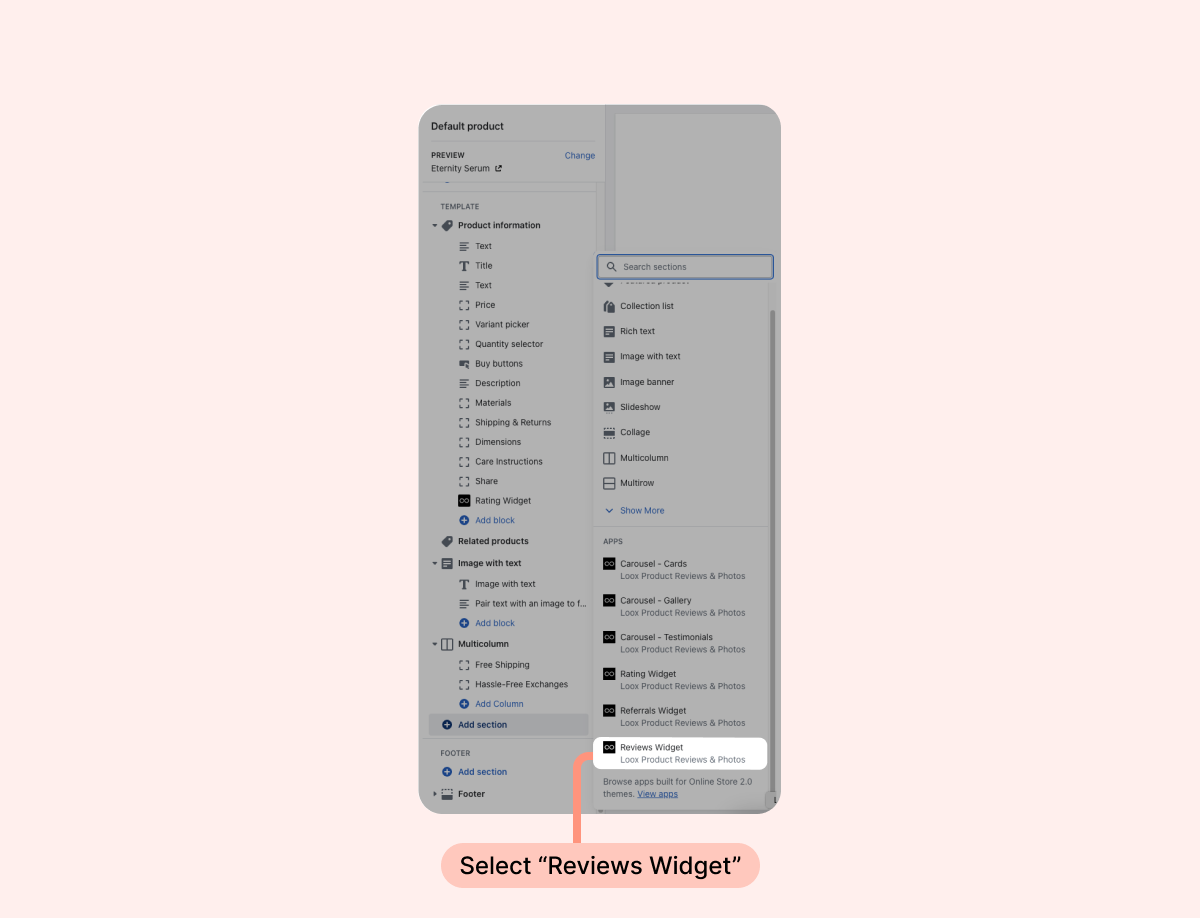
Click “Add section” and choose the “Reviews Widget”
Drag and drop the widget's app block where you would like it to appear.
- Click "Save".
Customization options
Customize the Loox Reviews Widget to fit your brand’s look and feel.
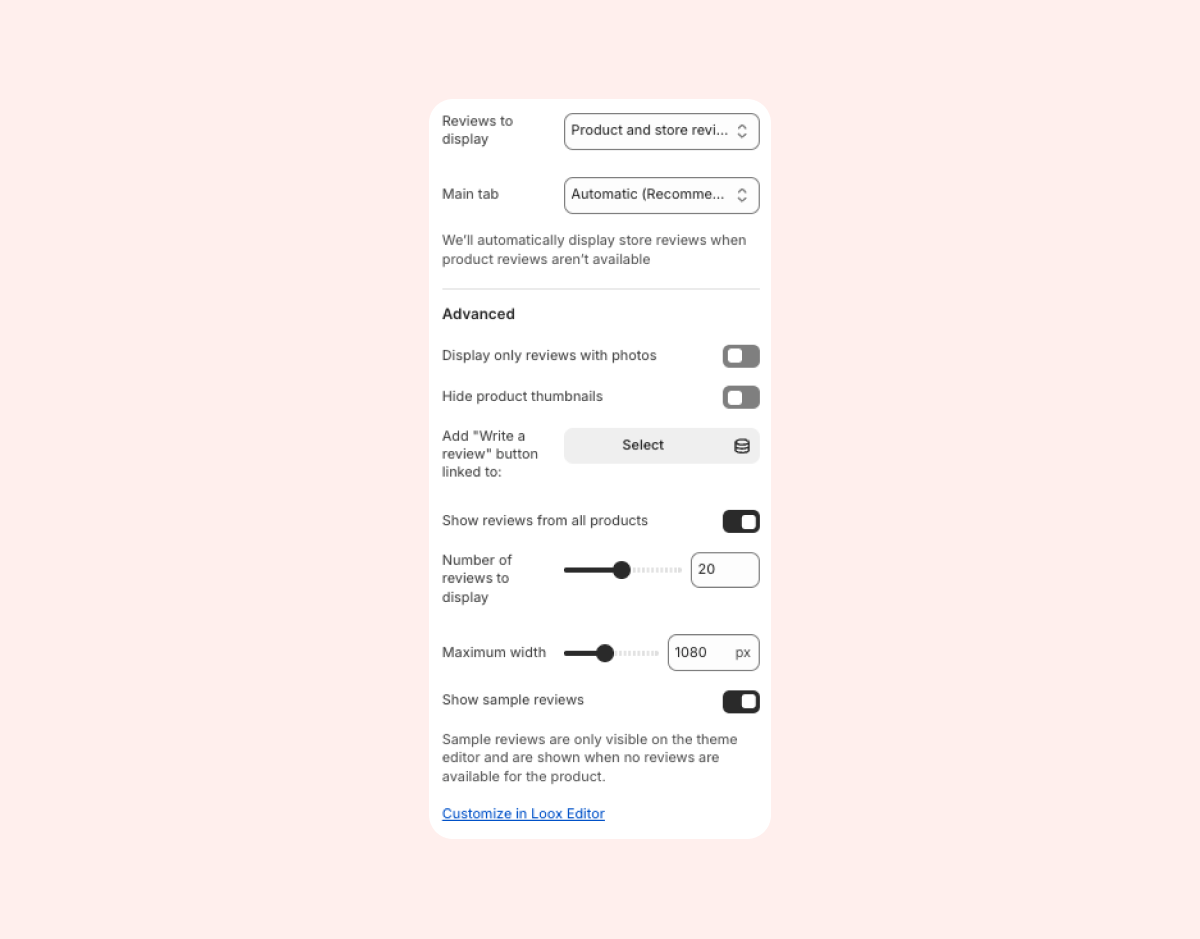
- Reviews to display: Select whether to display product reviews, store reviews, or both. This will affect the widget per app block.
- Main tab: Select which tab will be displayed first by default. When set to "Automatic", we will display product reviews first, but if no product reviews are available, we will automatically display store reviews instead.
- Display only reviews with photos: When checked, the widget will display only photo and video reviews. Text-only reviews will not be displayed.
- Hide product thumbnails: Remove the associated product’ picture and name below each review.
- Add "write a review" button linked to: Select a specific product to link a dedicated "Write a review" button to. Customers can submit reviews for that product on the homepage.
- Show reviews from all products (enabled by default): All approved reviews of all products will appear. If disabled, only the reviews of the selected product will appear. When the widget is displaying product-specific reviews, reviews you tag as featured will automatically be pinned to the top of the widget. When the widget is set to display aggregated reviews from all products, you can make sure that featured reviews still appear at the top of the widget by enabling Always show featured reviews in your Reviews Widget’s settings.
- Number of reviews to display: Choose how many reviews to display on the Reviews Widget before clicking on the “Show more reviews” button.
- Maximum width: Limit the width and the number of reviews displayed per row of the widget.