
The Loox Reviews Widget lets you showcase customer reviews in different layouts on your store's product pages. By displaying authentic social proof, you can build trust with potential customers and encourage more sales.
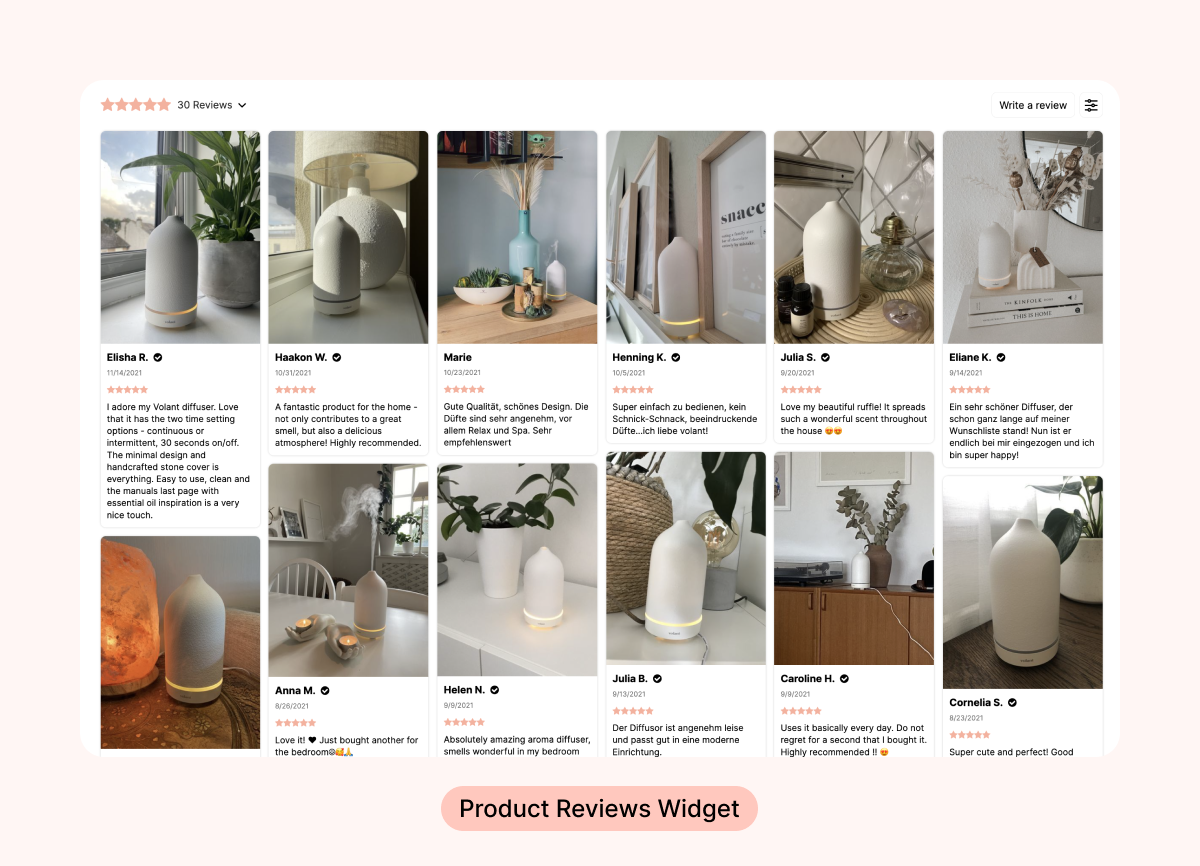
How to add and customize the Reviews Widget
You can add the Loox Reviews Widget directly from your Shopify Theme Editor. Follow the steps below:
- Inside your Shopify Themes menu, click "Customize" to open the Theme Editor.
- Select the product page template (or any other page) you would like to edit.
- Click "Add section" on the left-side menu, and select "Reviews Widget".
- Drag and drop the widget's app block where you would like it to appear.
- Click "Save".
Customization options
You can tailor the Reviews Widget to match your store's look and feel via the widget's app block in the Shopify theme editor:
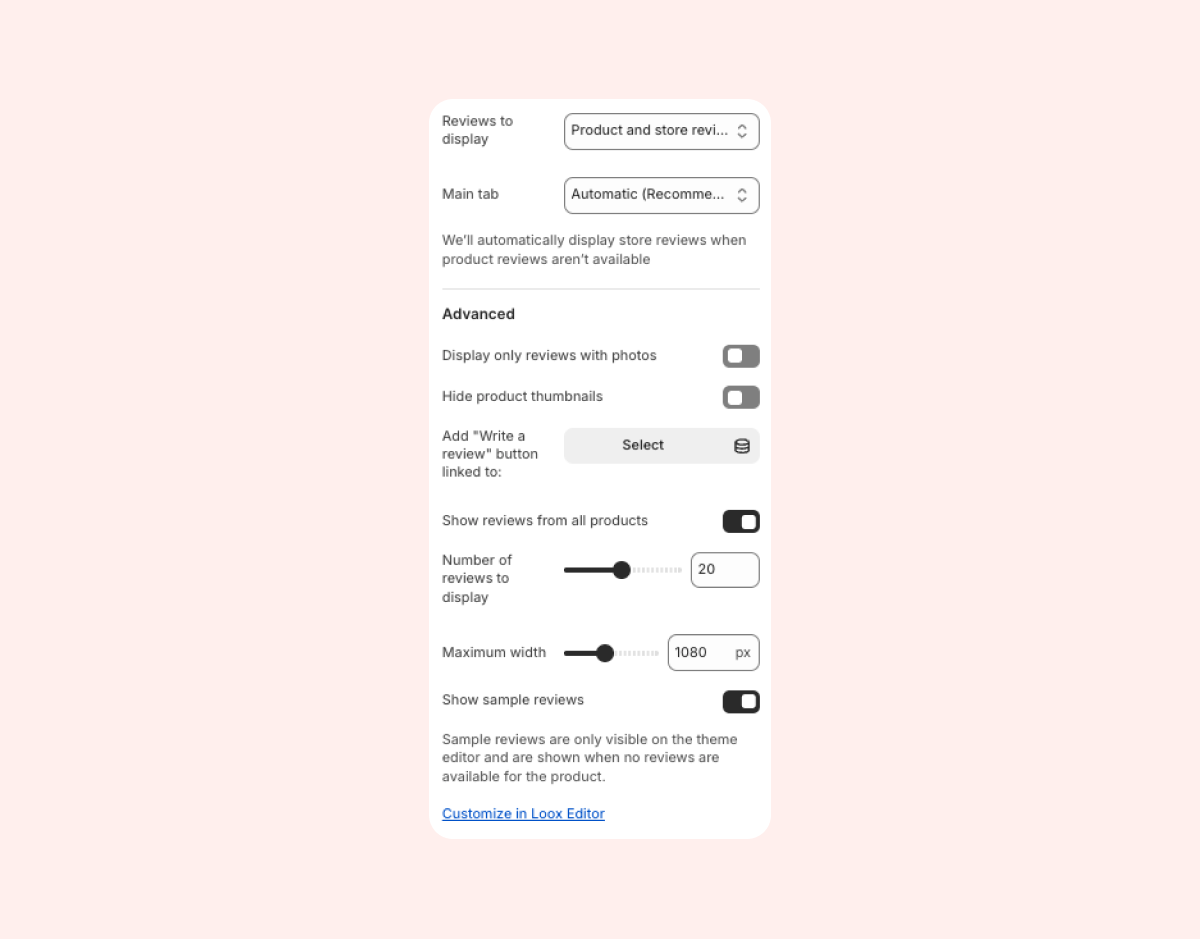
- Display product/store reviews - Display only product reviews, only store reviews, or both.
- Display only reviews with photos/videos – Show reviews that include visual content.
- Show reviews from all products – Display reviews across your entire store instead of only specific products.
- Hide product thumbnails – Remove product thumbnails appearing at the bottom of each review.
- Adjust maximum width – Set the maximum widget of the widget to fit your design.
- Show sample reviews in the Theme Editor – Enable preview mode while editing (sample reviews won't appear on live pages).
Tips:
- Learn more about additional customization options available in the widget's live editor within the Loox admin.
- Learn more about adding an AI Review Summary to your Reviews Widget.
- Learn more about adding Smart Filters to your Reviews Widget.
Choose which reviews to display
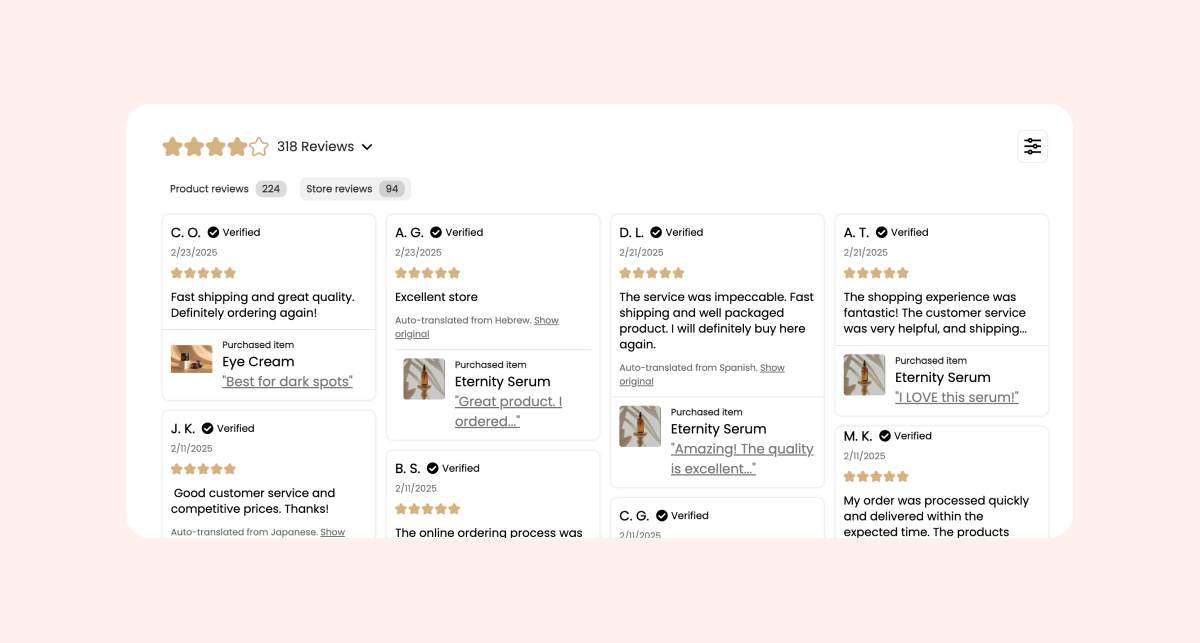
The Reviews Widget can display product reviews, store reviews, or both. This flexibility lets you show the right type of social proof on every page, whether you're highlighting overall brand trust on your homepage or product-specific feedback on product pages.You control this per widget block directly in your Shopify Theme Editor.
Why use different display modes section:
Show store reviews on high-traffic pages like your homepage to build trust with new visitors. Display product reviews on product pages to help shoppers make confident purchase decisions. Or combine both to give customers a complete picture of your brand and products.
How to configure display modes section:
- Inside your Shopify Themes menu, click "Customize" to open the Theme Editor.
- Navigate to the page where you've added the Reviews Widget.
- Select the Reviews Widget block.
- Under "Reviews to Display", choose:
- Both (default) - Display both product reviews and store reviews with tabs. Shoppers can switch between review types.
- Store Reviews Only - Display only store reviews. Best for homepages or dedicated review pages.
- Product Reviews Only - Display only product reviews. Best for product pages when you want to focus on product-specific feedback.
5. If you selected "Both", choose which tab will appear first under "Main Tab":
- Automatic (default) - Shows product reviews first. If no product reviews exist, store reviews will be displayed instead.
- Product Reviews - Always shows the product reviews tab first.
- Store Reviews - Always shows the store reviews tab first.
Product pages
The Reviews Widget now supports displaying store reviews on product pages. When you set "Reviews to display" to "Both" or "Store Reviews Only" on a product page template, the widget will display accordingly.
FAQs
Q: Can I display reviews from all products on one widget?
A: Yes! Enable "Show reviews from all products" in the app block's settings.
Q: Do sample reviews appear on my live store?
A: No, sample reviews are only visible when previewing inside the Theme Editor.
Q: Can I use different display settings on different pages?
A: Yes! Each Reviews Widget block can have its own settings. For example, display store reviews on your homepage and product reviews on product pages.
Q: Can I remove or customize the Reviews Widget for specific products?
A: Yes- if your products use different product templates, you can customize or remove the Reviews Widget independently on each template. Open the relevant product template in the Shopify Theme Editor and select the Reviews Widget app block. Whatever settings you adjust there will only apply to the widget on pages assigned to that template.