
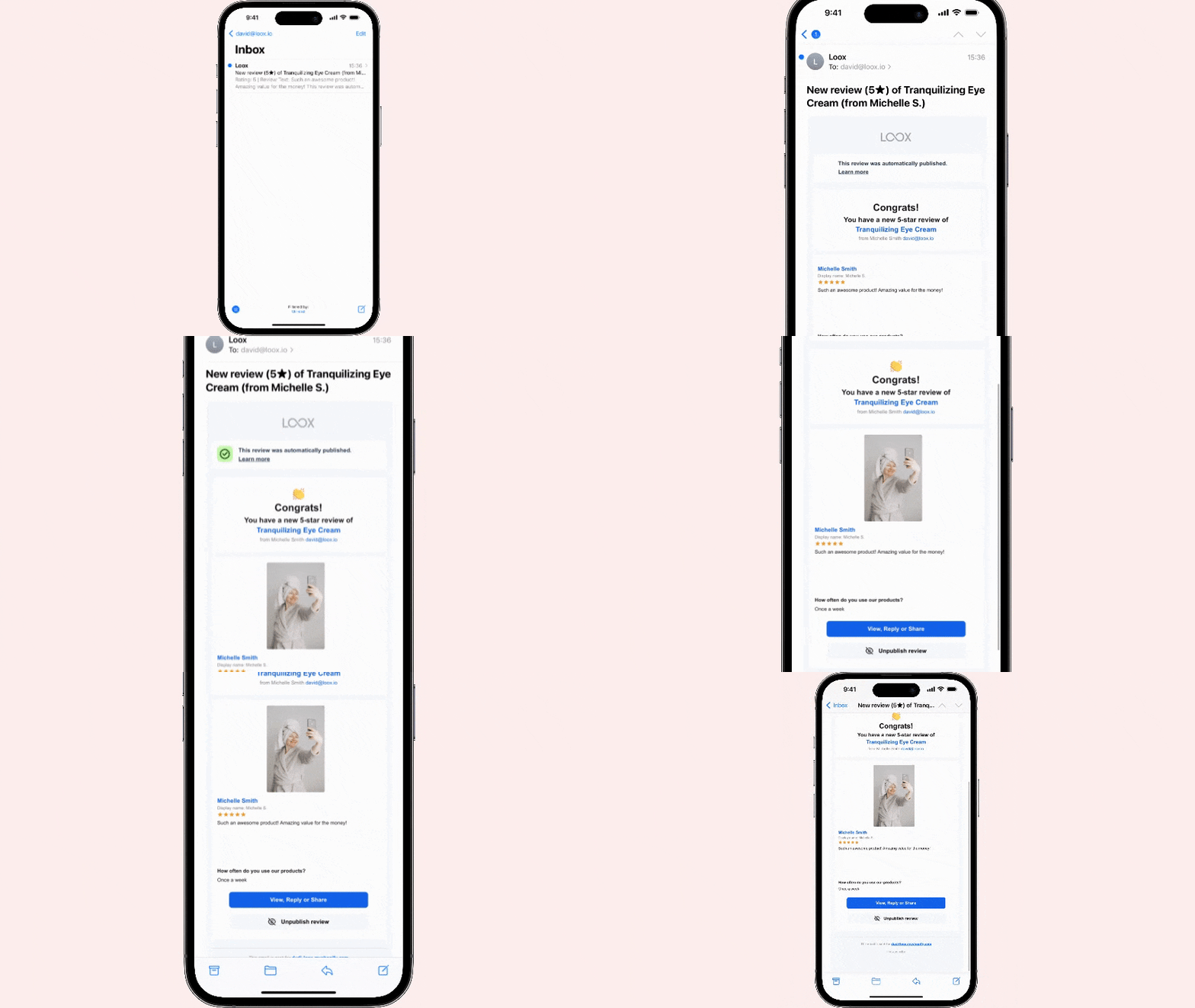
Stay on top of every review. Loox sends you an email notification whenever a new review comes in or when an existing review is updated by the customer. That way, you can respond quickly, spot trends, and keep your team in the loop - without checking the Loox dashboard manually.
Why use review notification emails?
Getting notified the moment a review is submitted means you can act fast - whether that's replying to a happy customer, flagging a concern, publishing or unpublishing, or sharing a win with your team. You can also customize a sparkling review to share on socials directly from the notification email. Instead of manually forwarding review emails or relying on one inbox, you can route notifications directly to all the people who need them.
How to set up review notification emails
- In your Loox admin, go to Settings > General > Email settings.
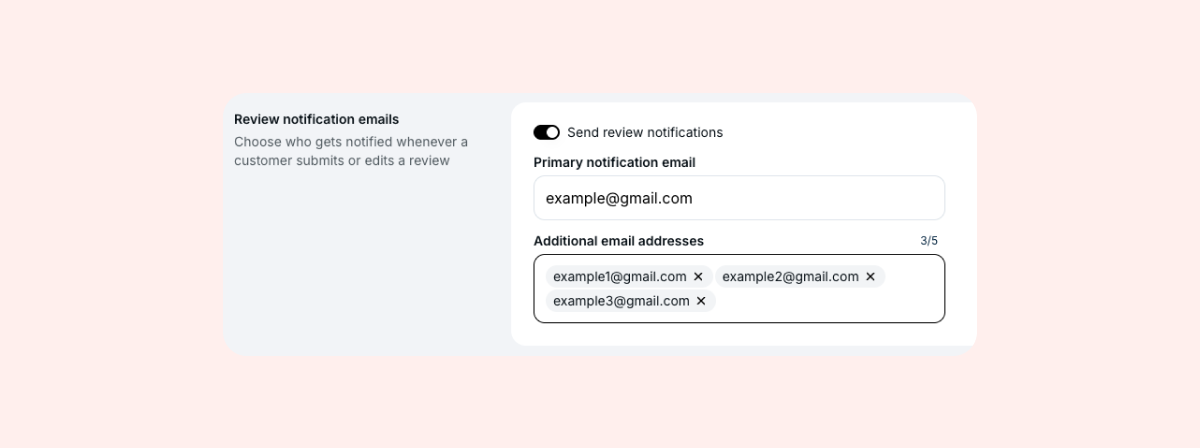
- Scroll down to the Review notification emails section, below Email replies address.
- Toggle Send review notifications on.
- Under Primary notification email, confirm or update your primary notification address.
- By default, this is the email address associated with your Shopify account.
- Under Additional email addresses, enter up to 5 additional addresses.
- Press Enter after each address to add it.
- Click Save.
Once saved, each address will receive an individual notification email whenever a review is submitted, edited, or deleted by a customer.
FAQs
Q: Which email address receives review notifications by default?
A: Notifications go to the email address associated with your Shopify account. You can update this at any time under Primary notification email.
Q: How many email addresses can I add?
A: You can add 1 primary address and up to 5 additional addresses - 6 recipients in total.
Q: When will each address receive a notification?
A: Each address receives an individual notification email whenever a review is submitted, edited, or deleted by a customer.
Q: Can I add additional addresses without enabling review notifications?
A: Additional email addresses are only active when the Send review notifications toggle is on. If notifications are turned off, no addresses will receive emails.
Q: Can I remove an additional email address?
A: Yes. Go to Settings > Email settings, find the address under Additional email addresses, and remove it by clicking the X. Click Save to confirm.
Q: When will I receive these notifications?
A: You'll receive review notification emails whenever a customer submits a new product or store review, deletes their review, or updates their existing review (to update the star rating or text, or to add a photo or video).