
Available on the Convert and Unlimited Plans.
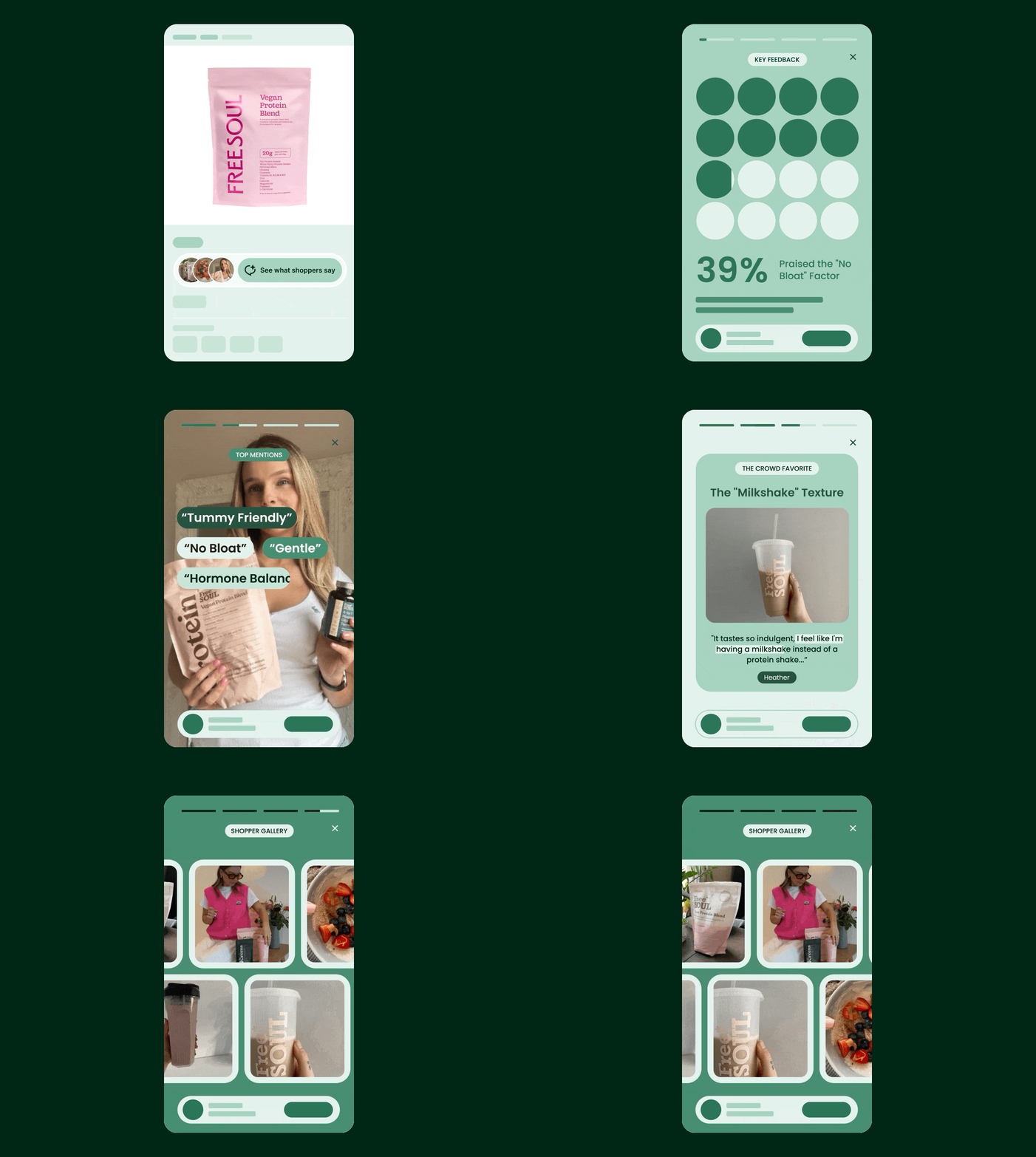
Turn your best reviews into an interactive, visual, and mobile-first story experience that shows shoppers the most compelling reasons to buy - right at the top of your product page. The Review Stories Widget uses AI to analyze your product reviews and surface insights and highlights in a tappable, social story-style format. Instead of scrolling through individual reviews, shoppers get an instant snapshot of what real customers love about your product - before they even think about leaving the page.
Why use AI Review Stories?
Most shoppers never scroll down far enough to read your reviews. AI Review Stories brings your best social proof to the top of the page in an appealing format, so it's front and center when it matters most.
- Give shoppers the full picture, fast - AI-generated slides pull together key sentiments, standout quotes, and stats from your reviews into a quick, engaging summary
- A familiar, tappable format - The story-style experience feels natural to shoppers who are used to tapping through social media stories. Review Stories are optimized for mobile shoppers, inspired by the story format they already know from social media
- No setup required - Loox automatically generates stories for your top products using your existing reviews. Your stories are already waiting for you
- Fully customizable - Choose your entry point style, adjust colors to match your brand, and show or hide individual slides per product
How it works
AI Review Stories analyzes a product's reviews and creates a story experience with between 5-8 slides that includes:
- An intro with your product's total review count
- Top mentions and key feedback from your review pool
- Highlighted quotes from your most compelling reviews, with customer photos when available
- A recap slide with a summary verdict and a "Shop now" call to action
Shoppers access the story by tapping the Review Stories entry point, which appears near the top of your product page. They can tap or swipe through slides at their own pace. The story experience is optimized for mobile, designed around the tap behavior shoppers already use on social media. It also works seamlessly on desktop, where shoppers can navigate with arrows or clicks.
Note: Your stories stay current on their own. When a product's review count changes by 20%, Loox automatically regenerates its story to reflect your latest reviews.
Requirements
For a product to qualify for AI Review Stories, it needs to have at least 15 published reviews. For groups and bundles, the reviews of all the products in the group or bundle count together. If the product/group has at least four review photos, those photos will be included in the story.
Note: If you're interested in generating stories for additional qualifying products, contact our support team or submit a request here.
How to add AI Review Stories to your store
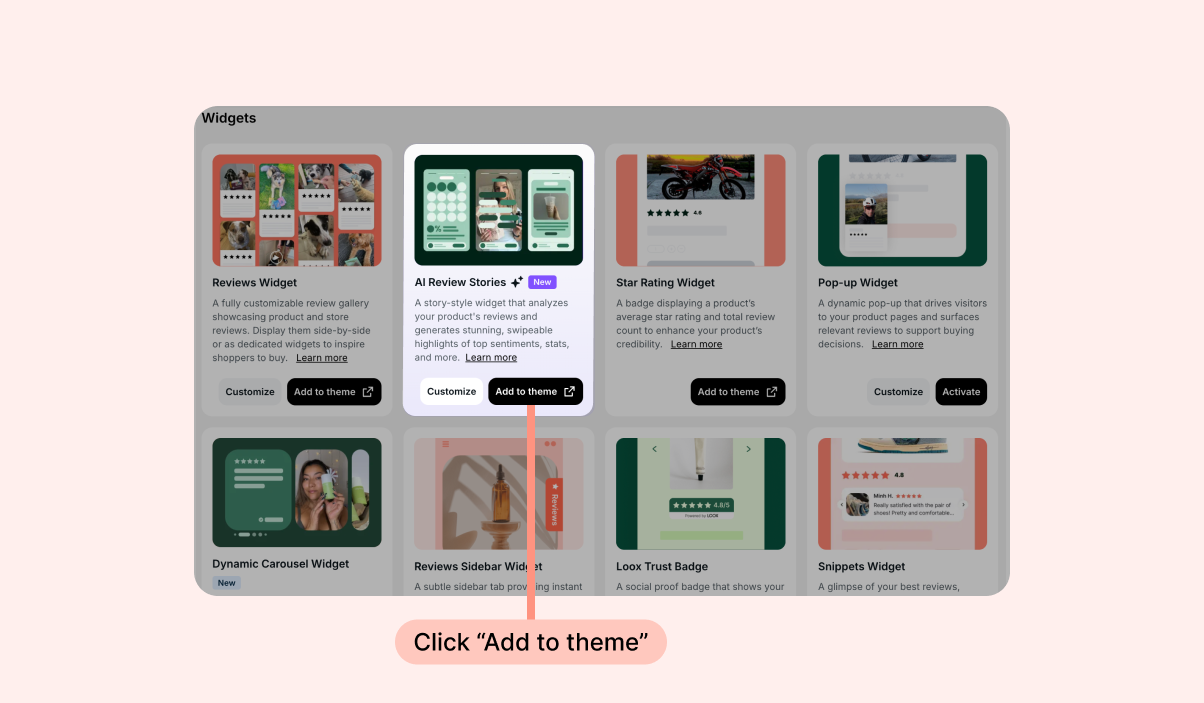
In the Loox admin, go to Widgets and locate the AI Review Stories card.
Click Add to theme to open the Shopify theme editor and add the Review Stories widget block.
In the Shopify theme editor, position the Review Stories app block where you'd like it to appear on your product page template.
Click Save.
Once the widget is added, all of your generated stories go live on their respective product pages.
Note: We recommend placing the Review Stories entry point above the fold on your product page. Make sure it doesn't push the "Add to Cart" button out of view on mobile.
Customizing AI Review Stories
You can customize AI Review Stories in the widget's editor within the Loox admin. To open it, go to the Widgets page in the Loox admin and click Customize on the AI Review Stories card. In the editor that opens, you can also hide individual slides or the whole Review Story for specific products.
Hide/display stories for certain products
First, head into your Loox admin to open the widget's editor. To hide a product's story entirely, use the product picker at the top of the editor. The picker lists your products, product groups, tag groups, and bundles together, and you can search it by product name or tag.
Next, toggle on "Hide for this product" in the top bar:
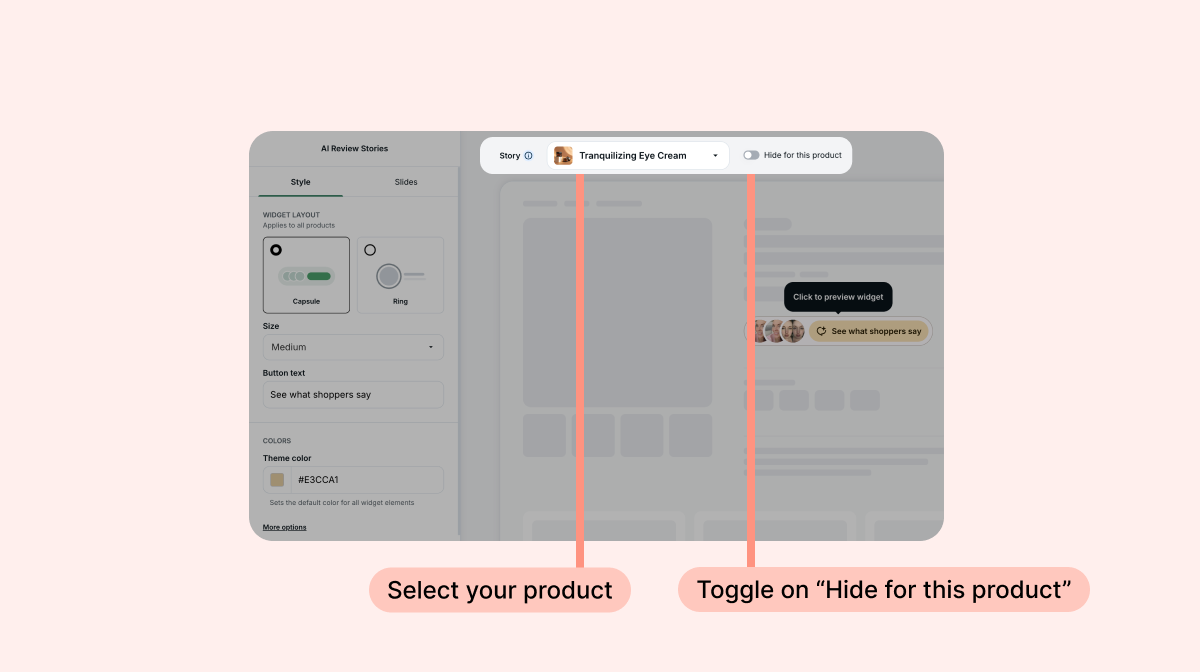
This removes the entry point from that product page without deleting the story - essentially hiding the story only for that specific product. This will not affect the Review Stories on other product pages. If you decide to re-enable the story for that product at another time, the story will still be saved for you.
Slides
In the widget's editor under the Slides tab, you can manage the story slides for each product individually:
- First, use the product picker at the top of the editor to make sure you're working on the story for the right product.
- Reorder slides by dragging and dropping them in the list. The Intro slide is locked in place.
- Show or hide slides using the eye icon next to each slide. The Intro slide is always visible and cannot be hidden.
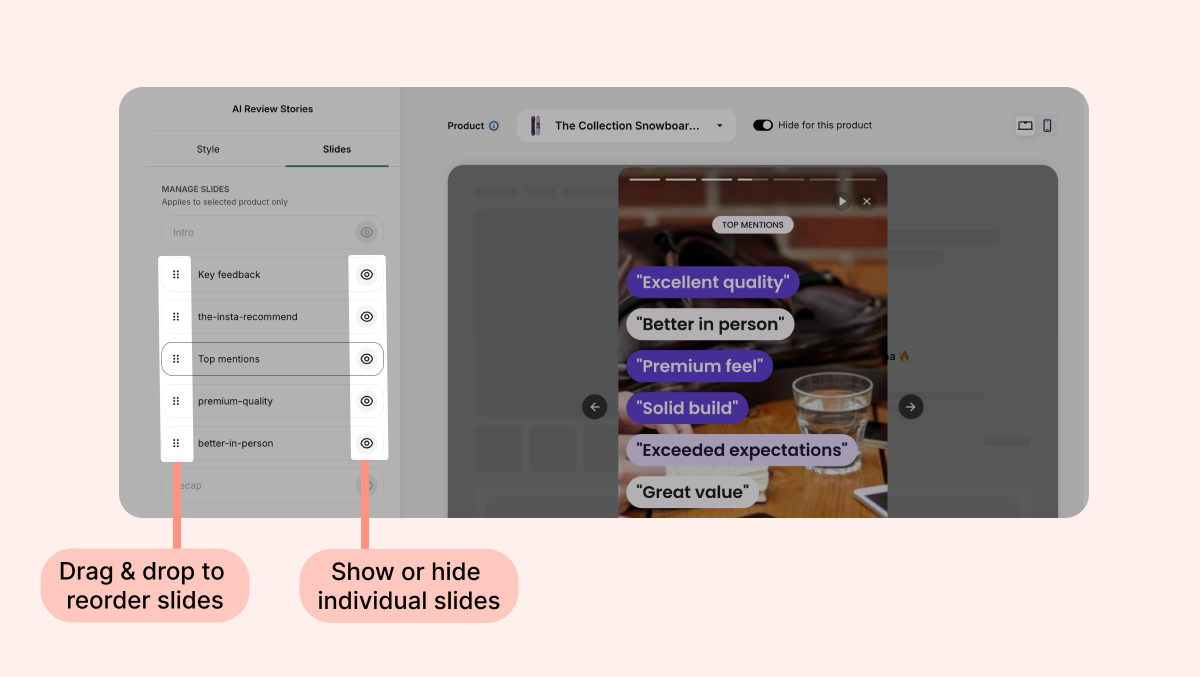
Note: Slide order and visibility settings are per product, not store-wide.
Entry point style
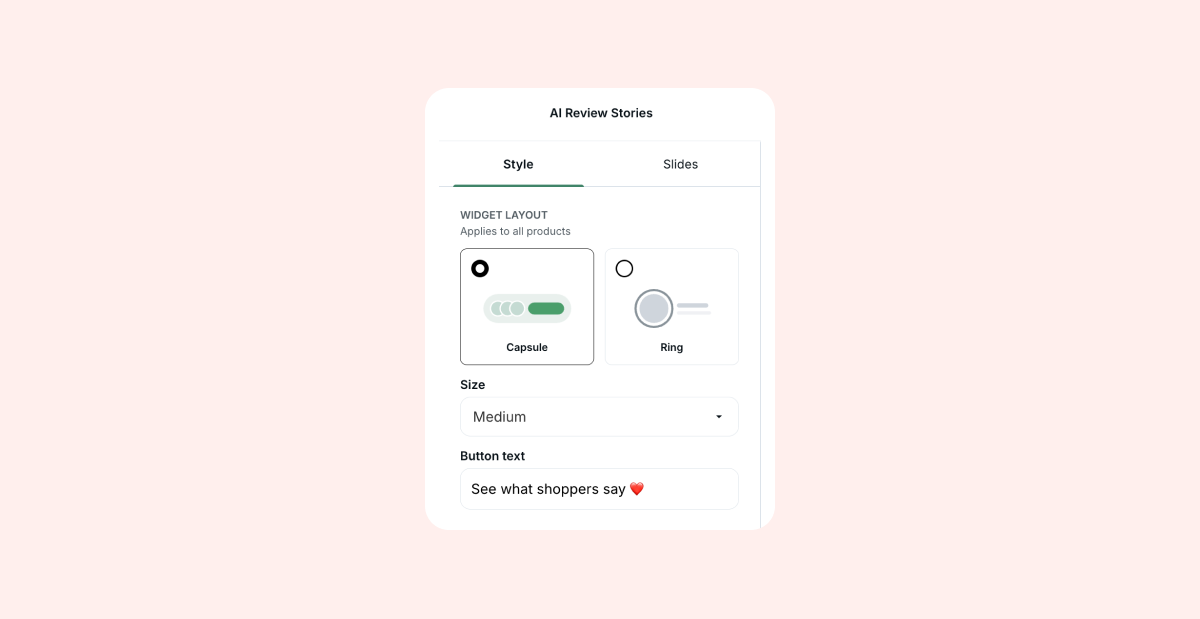
In the widget's editor under the Style tab, choose your entry point variant under Widget layout:
- Pill - A compact button with review thumbnails and a text CTA.
- Ring - A circular, animated thumbnail with a title and subtitle.
You can also select the size (Small, Medium, or Large) and edit the button's text.
Colors
You can customize the widget's colors in the editor under the Style tab. The entry point colors are automatically pulled from your store's branding palette, but you can override any individual color (of the text, button, background, or outline) under "more options" using the color pickers.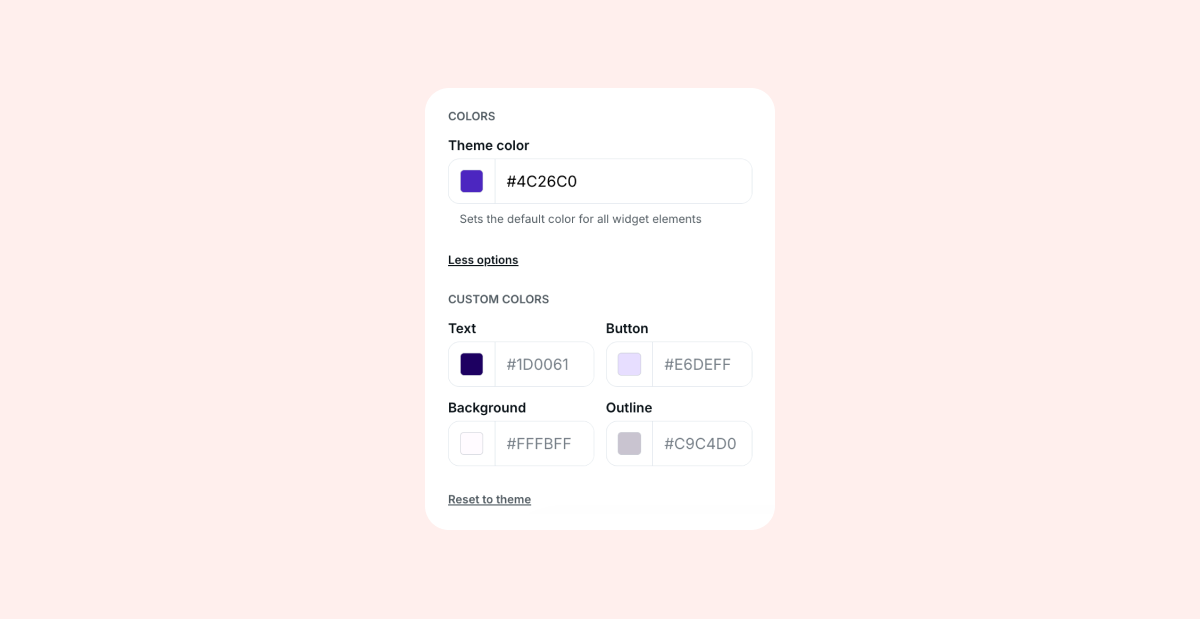
If you want to reset the colors back to the default, use the Reset to theme option at the bottom of the color selection menu.
Review Stories for product groups, product bundles, and grouped-by-tag widgets
Review Stories work with the ways you already combine reviews across products:
Product groups - Products in a product group share one story, built from the group's combined reviews. The same story is displayed on every product page in the group, replacing each product's individual story
Product bundles - A bundle gets its own story, built from the combined reviews of the products inside it. The products inside the bundle keep their own individual stories on their own pages
Tag groups - Products that have been grouped by tag behave the same way as product groups. One story is built from the combined reviews and displayed on every product that shares the tag
Loox generates these stories automatically the same way it does for individual products. There is nothing to set up per group or bundle. Since the reviews on a bundle page were written about the individual products inside the bundle, the story will be generated about the bundle as one combined product.
FAQs
Q: My storefront is multilingual. Will this widget appear in any of my store's supported languages?
A: This widget doesn't yet offer multilingual support- it will appear in the primary language of your store.
Q: Can I choose which products get stories?
A: Loox generates stories for your qualifying products, groups, and bundles automatically. You can hide any product's story from your storefront using the toggle in the Loox editor. If you'd like stories for additional products, contact our support team at [email protected].
Q: How long does it take for the stories to be generated and appear on my storefront?
A: It takes up to 15 minutes for the widget to appear on your storefront when you first add it. After that, it will be instantly available with no wait time.
Q: What happens if I remove the widget from my theme?
A: Your stories and all customizations are preserved. The entry points will stop appearing on your storefront, but you can add the widget again at any time and everything will restore instantly.
Q: My products are in a product group. Will each product show a different story?
A: No. Every product in a group displays the same story, built from the group's combined reviews. This applies to regular product groups and to groups created by tag.
Q: What happens if I downgrade from the Convert plan?
A: The entry points will be removed from your storefront. Your stories and customizations are saved, and if you upgrade again, everything will be restored.
Q: Do I need to write or edit the story content?
A: No. Loox AI generates all story content from your existing reviews. The quotes shown in each story come directly from your real customer reviews.
Q: How does the story experience work for shoppers?
A: Shoppers tap the entry point on the product page to open a full-screen story. They can tap or swipe through slides, and tap the "Continue Shopping" button or the X to return to the product page.
Q: Will stories update when I get new reviews?
A: Yes- when a product's review count changes by 20%, Loox automatically regenerates that product's story so it stays in sync with your latest reviews. This happens on its own, with no action needed from you.
Q: Will Review Stories analyze my unpublished reviews as well?
A: No, the widget will only use the product's published reviews.
Q: Can I edit the content of the stories?
A: No, Review Stories are fully AI-generated and cannot be edited. However, you can opt to hide individual slides or a whole product's story.
Q: Can I hide Loox branding on the Review Stories?
A: Yes, set your branding settings to "hide Loox branding" to remove the Loox logo from this widget.
If you have more questions, contact our support team. We're available 24/7 and happy to help!