
Create customized Klaviyo email templates that use Loox parameters. You can build flows on Klaviyo for review requests or review request reminders, or create follow-up flows based on the reviews your customers submit to Loox.
To implement Loox parameters in your Klaviyo email templates, first make sure to activate your Klaviyo integration and select or create the email template you wish to use.
- Once the body of the email is written, add a new section block:
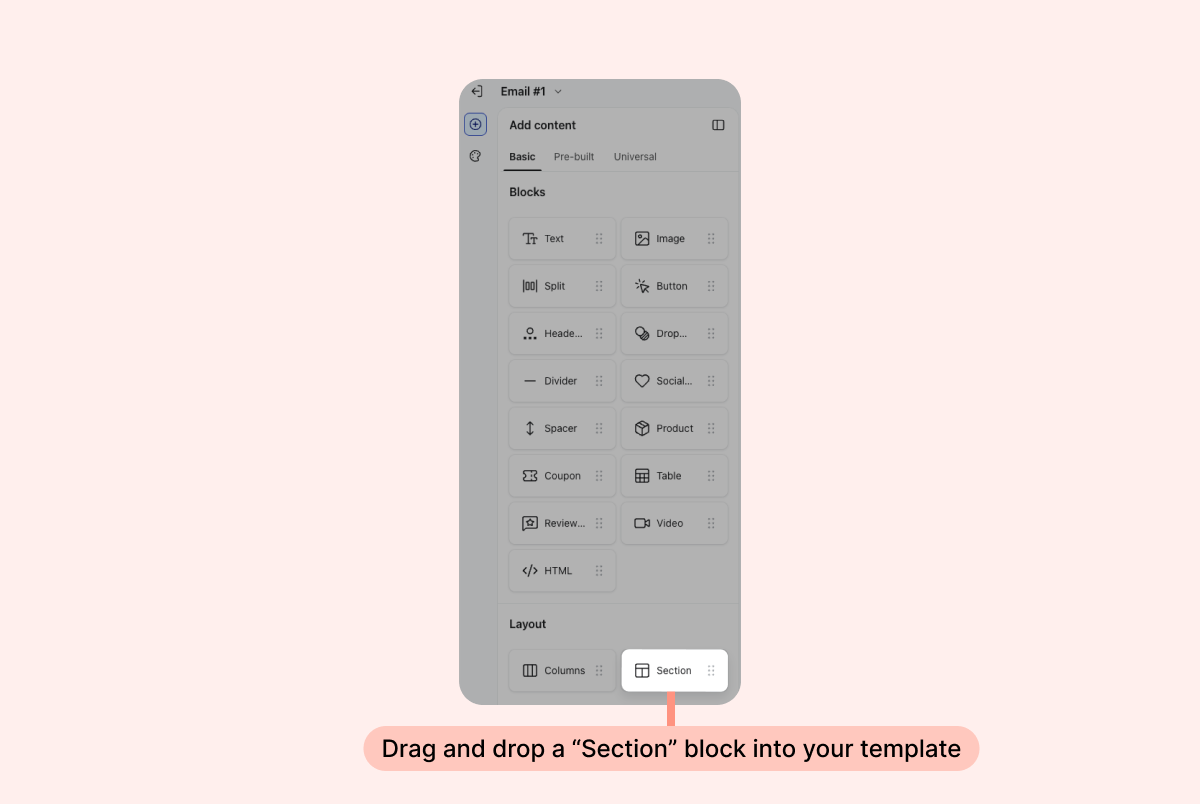
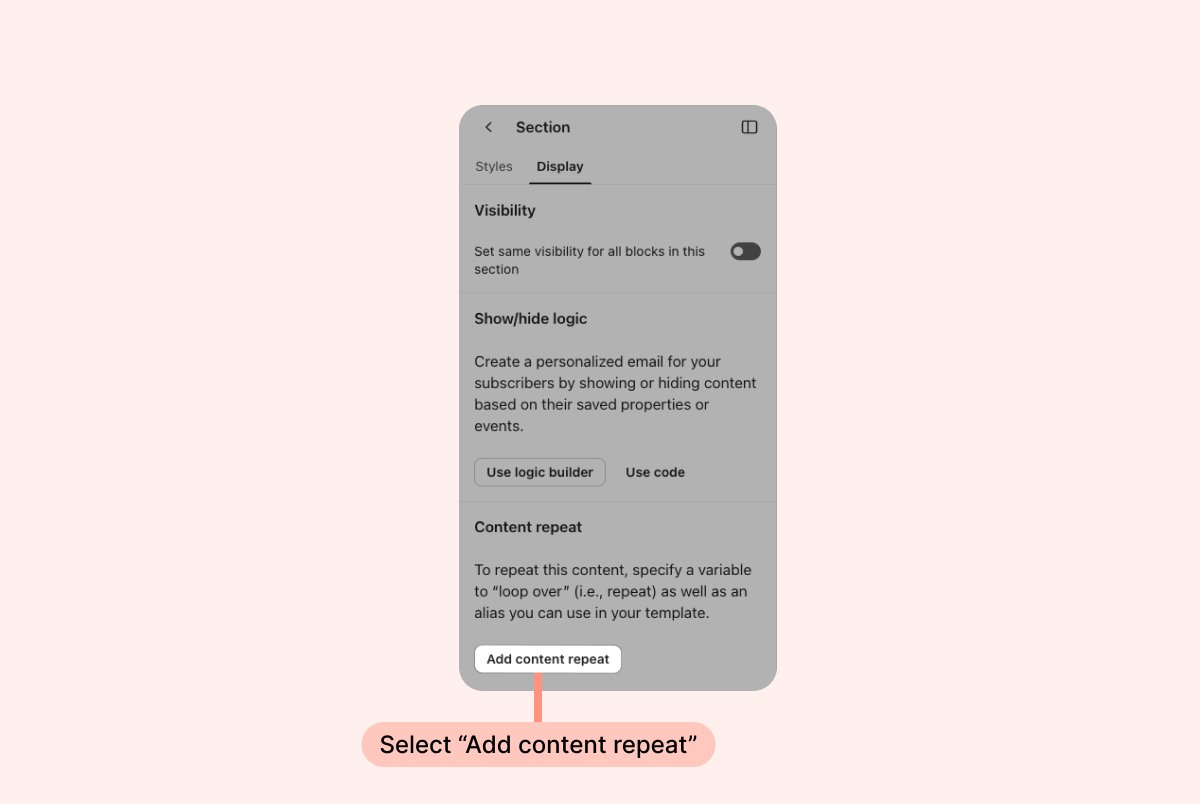
- In the section's Display menu, click "Add content repeat:"
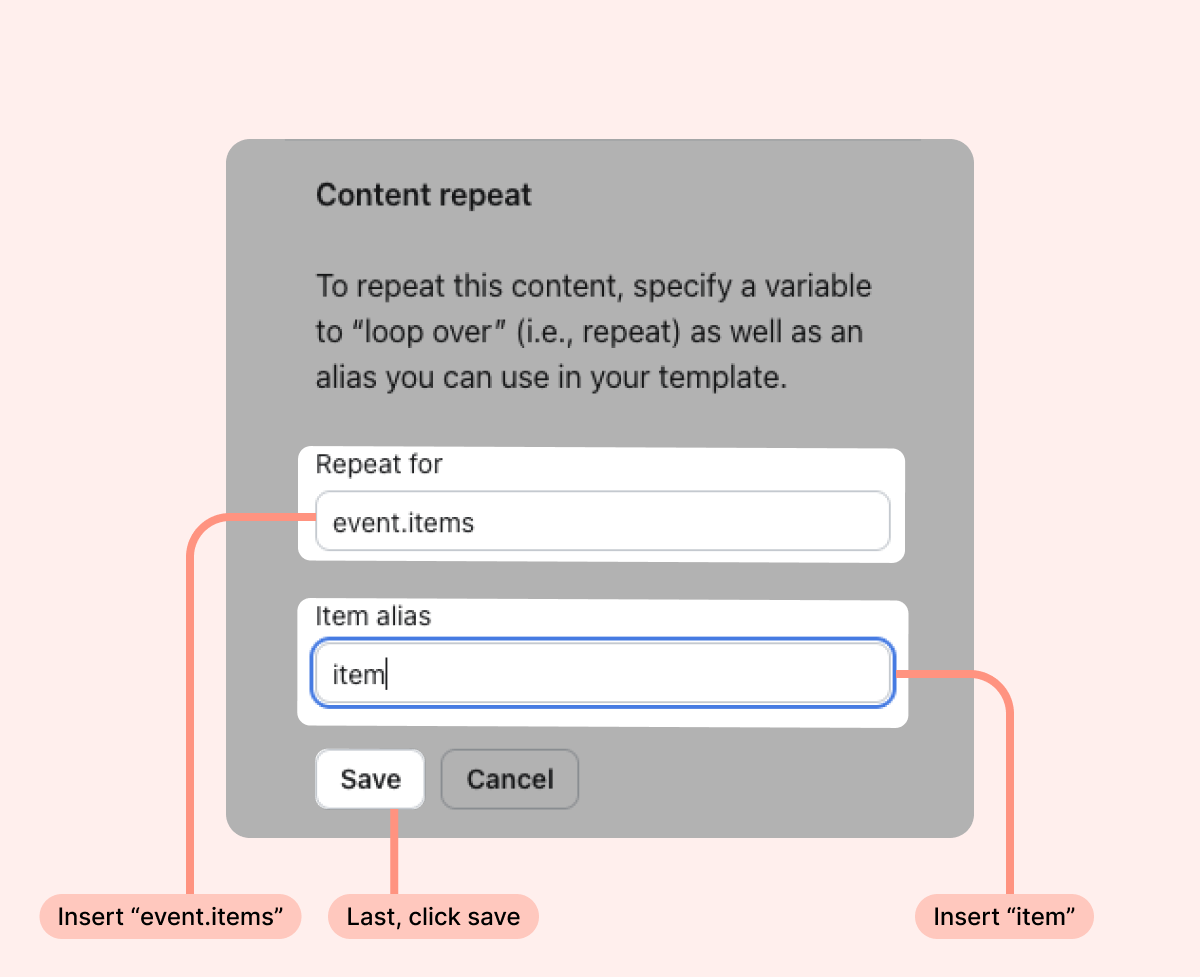
- Create content repeat rules using the following parameters:
Repeat for:event.items
Item alias:item
- Next, add an image block and click "select image":
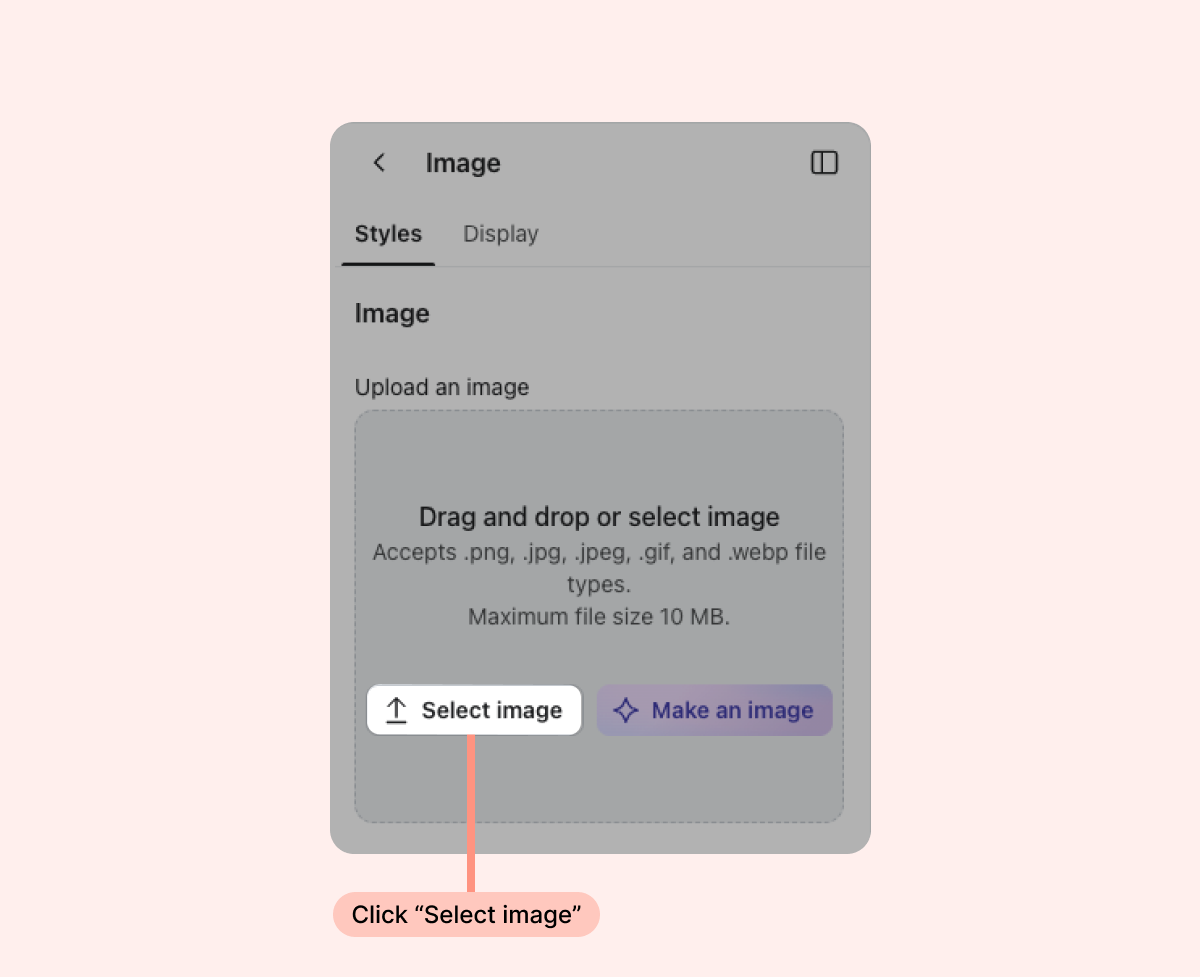
- In the image selection window that opens, select dynamic image and enter the following Loox parameter:
{{ item.image_url }}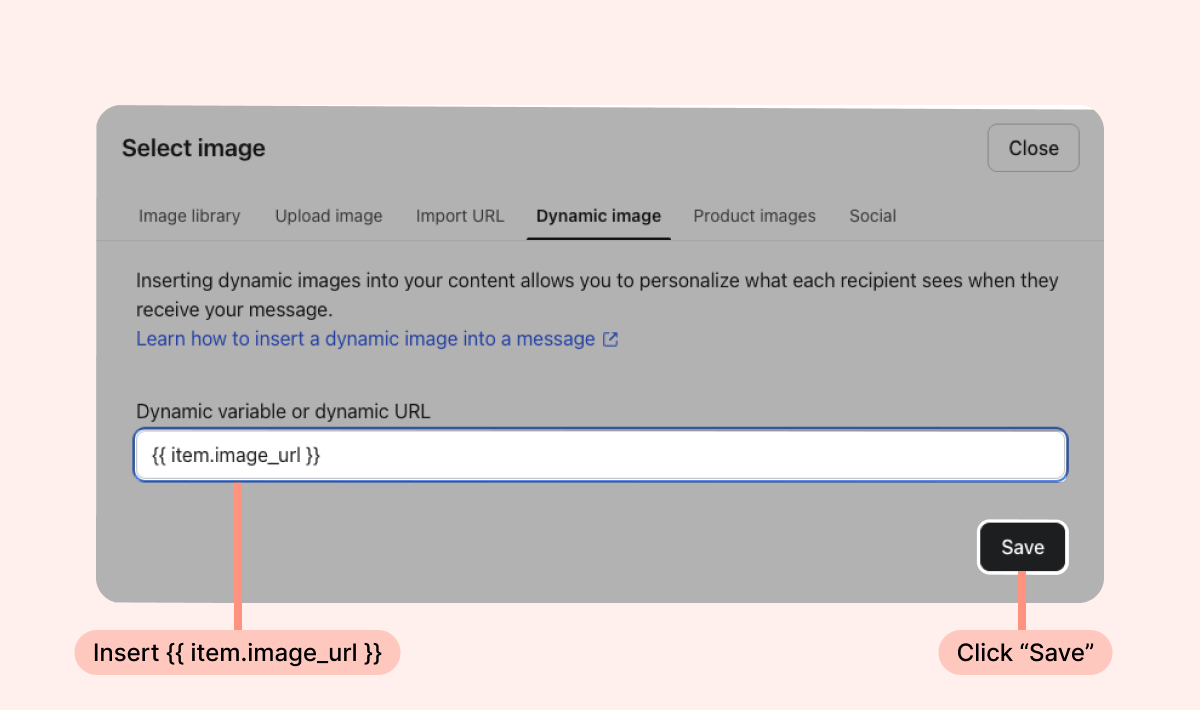
Tip: We recommend adding a fixed width of 200px for the product image.
- To display the customer's purchased items in the email, add a text block and click "edit text:"
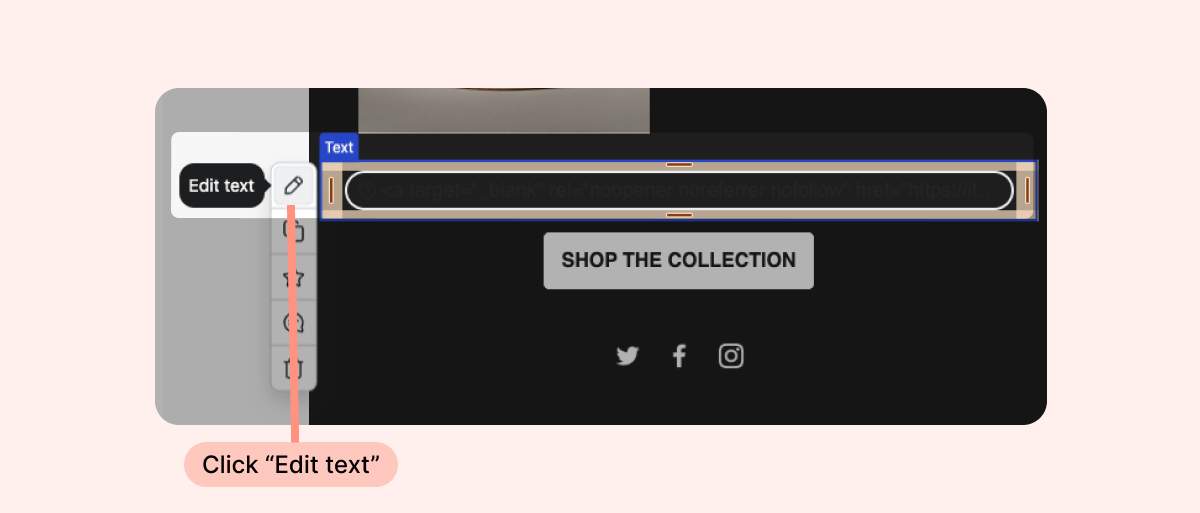
- Next, add the following Loox parameter:
{{ item.name }}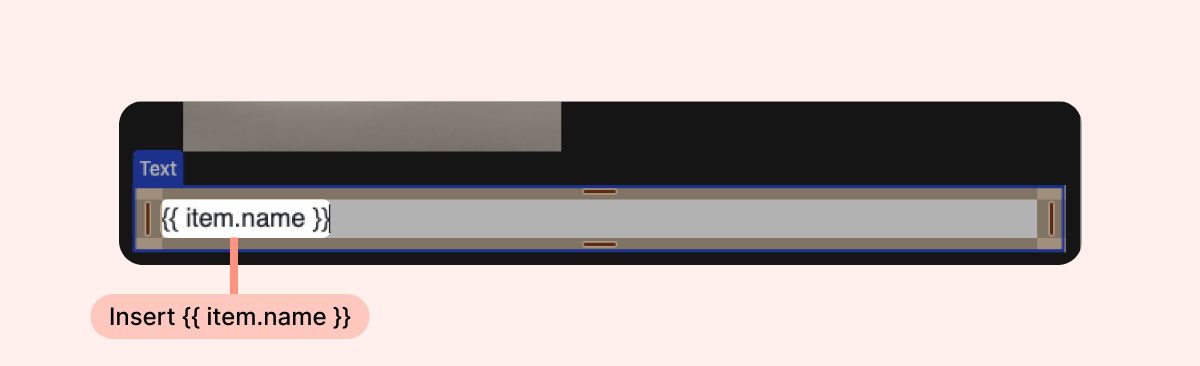
- To add a "Write a review" button that redirects your customers to the product's review form, add a "Button" block that uses the following Loox parameter:
{{ item.review_url }}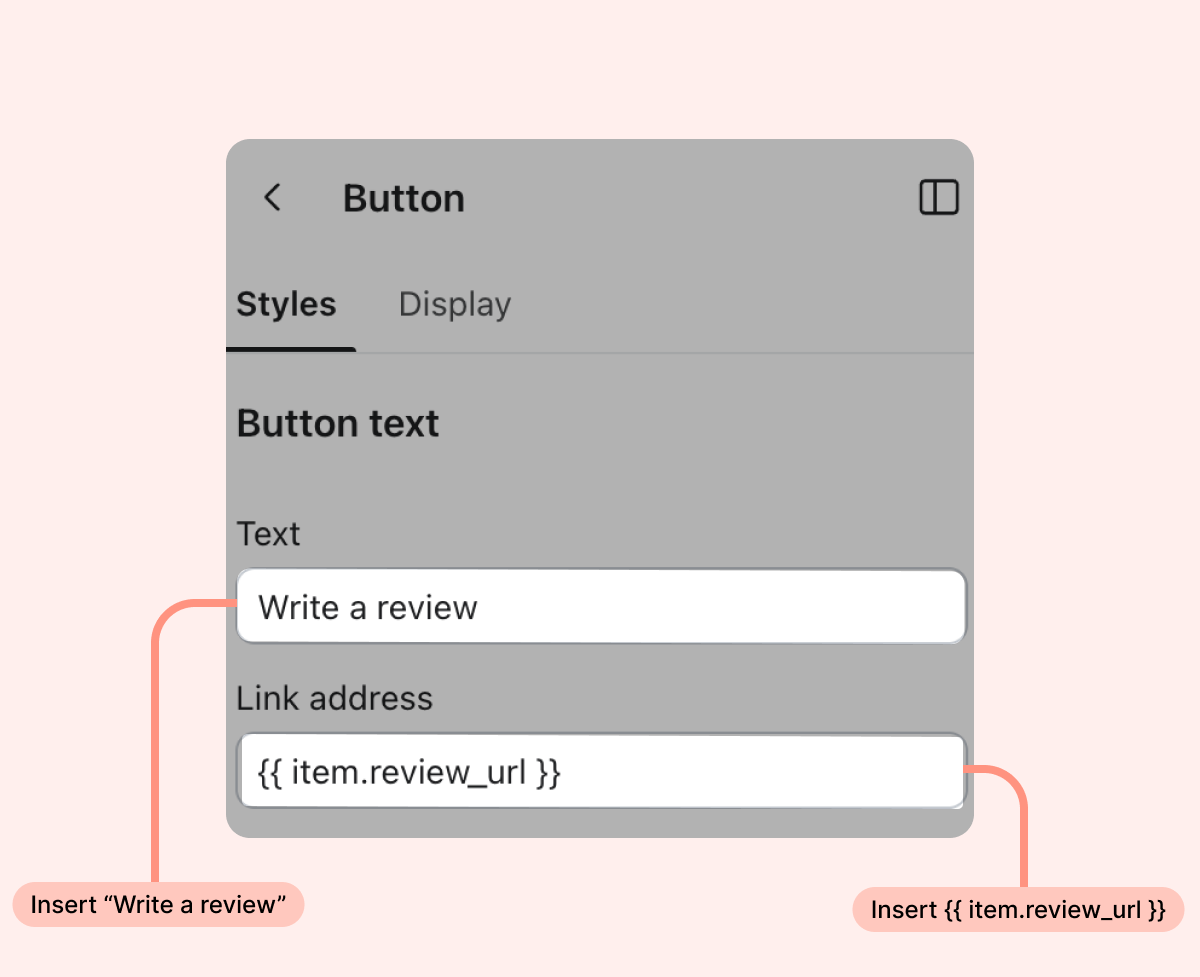
Tip: We recommend changing the button's text to "Write a review".
That's it! Using these parameters, your Klaviyo email template will display your customer's order information and collect their reviews using a dedicated "Write a review" button.
Below are some additional Loox parameters that can be used to add customer data into your emails:
| Parameter | Description | Example value |
| external_id | The customer's ID on Shopify | 11697461002531 |
| order_id | The Shopify ID of the order | 4105623830562 |
| country_code | The country code where the order was delivered | US |
| currency | The currency used at checkout | USD |
| items | A list of line items in the order | The information available on the products purchased is listed below: |
Product information
- id - The Shopify ID of the product purchased by the customer.
- name - The name of the product purchased, e.g. "T-Shirt".
- price - The price of the product purchased.
- quantity - The number of times a product was purchased in the same order.
- image_url - A URL address that adds the product's image.
- review_url - A URL address that redirects your customers to the review submission form associated with the product.
Tip: Learn more about creating Flows on Klaviyo's help article: Getting Started with Flows.