Showcase impactful glimpses of your best reviews on any of your store's pages using the Snippets Widget. This article explains how to add the widget to any location on your store where you're not able to add the Loox app block.
Note: If you are using a Shopify 2.0 Theme, click here to learn how to display Loox Widgets on your store pages using the Loox app block- no code necessary.
When to add the Snippets Widget via code vs. via app block
You might need to add the widget via code if:
1. you're on a vintage (1.0) Shopify theme.
2. you're on a 2.0 theme but want to add the widget in a location where you can't use the Loox app block. For example- if you want to add the widget to a custom snippet or using a page-building app like PageFly, GemPages, or Replo.
Adding the widget via custom liquid block
Before adding the widget via liquid code, check if your theme supports custom liquid blocks in the location where you're looking to add the widget. This will make it easier for you to access and customize the code.
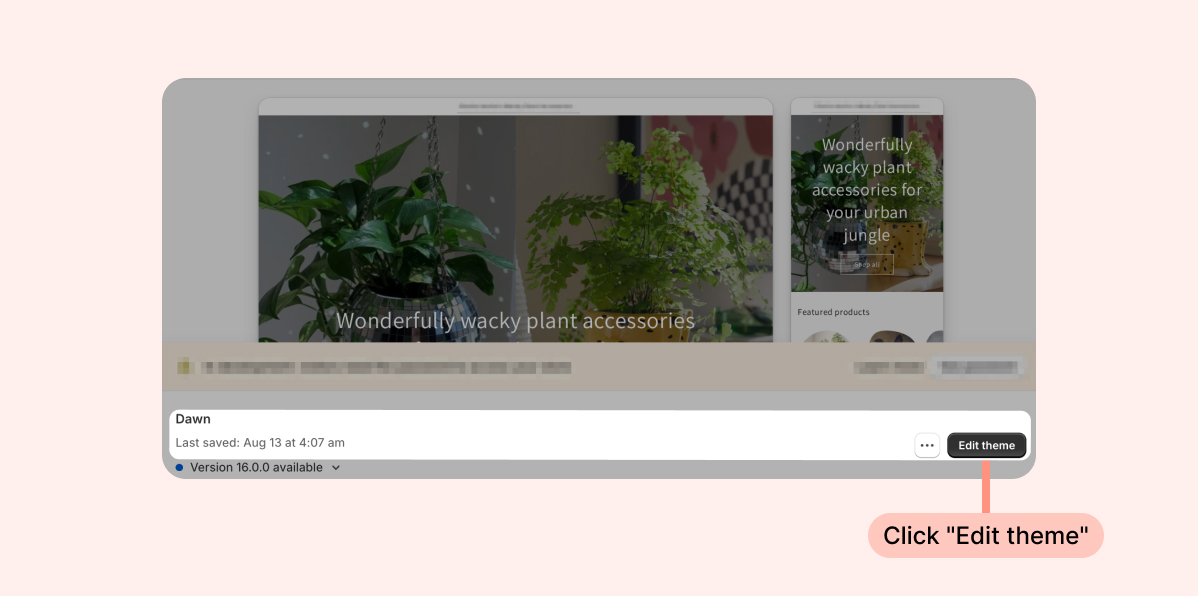
- Inside the Shopify Themes menu, click Edit theme:
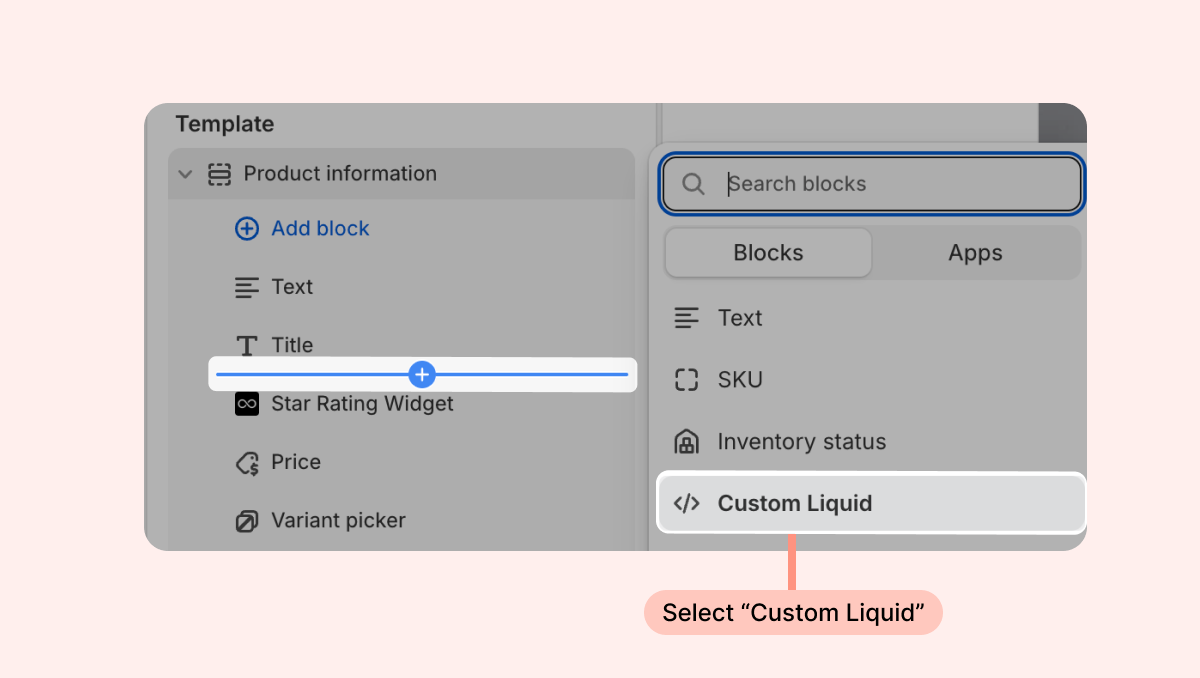
- Head to the page you're looking to work on and click the + in your desired location on the left-hand sidebar to add a new section. Under Sections, search for "Custom Liquid." If it appears, select this option.
- Next, add the following code snippet to the section's Liquid Code:
<loox-snippets-widget
  product-id="{{ product.id }}"
  show-border="true"
  show-rating="true"
  color-scheme="default"
  shadow="basic"
  font-size="14px"
  background-color="white"
  text-color="currentColor"
  name-color="currentColor"
  border-color="blue"
  rating-icon-color="yellow"
  border-radius="32px"
  show-image="true"
  hide-arrows-mobile="false"
  reviews-limit="10"
  shadow-color="black"
  alignment="left"
  max-width="320px"
  >
  </loox-snippets-widget>
If you don't have the option to use a custom liquid section in the spot you're looking to add the widget, follow the instructions below on how to add the widget via liquid code.
To manually add the Snippets Widget via code:
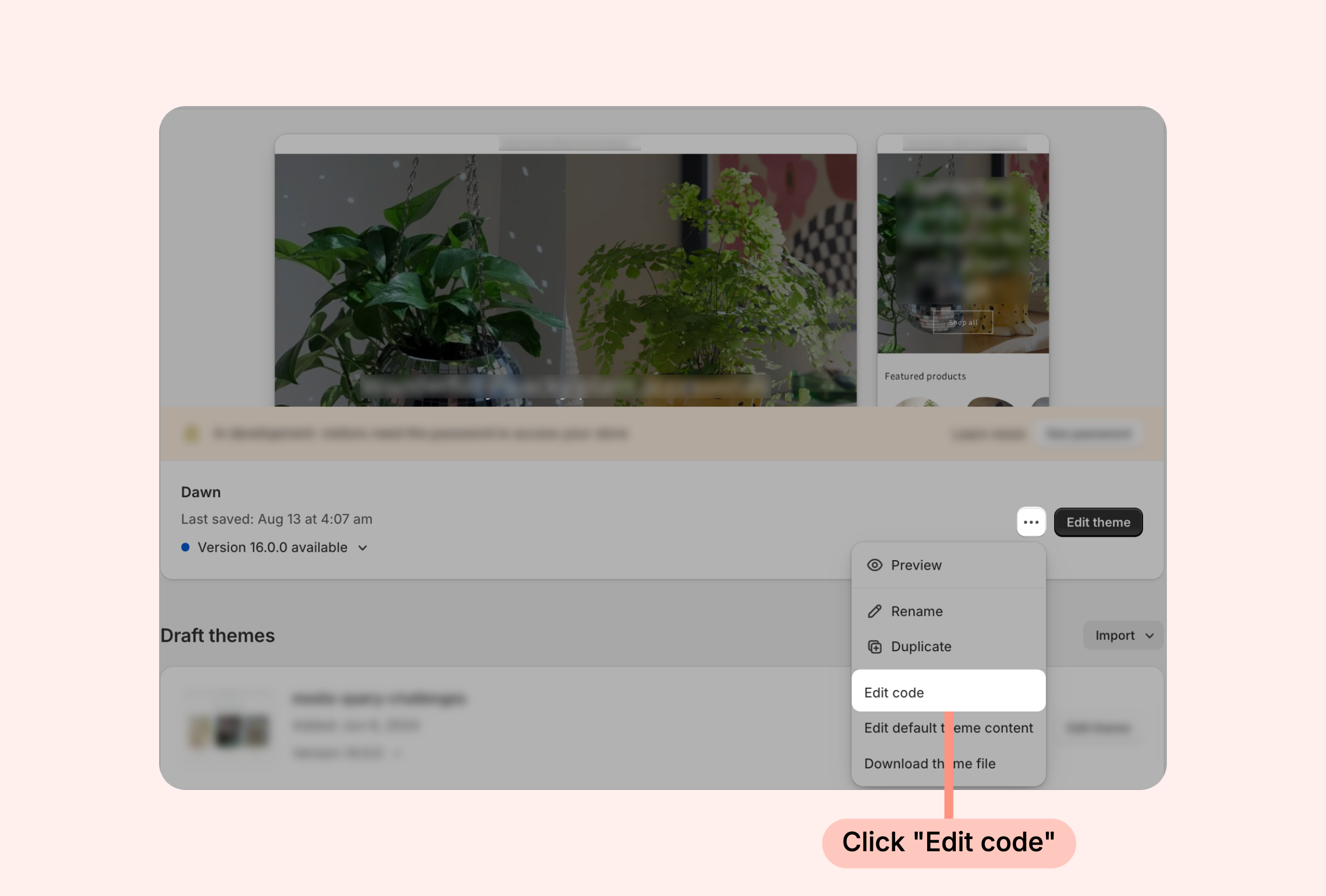
- Inside the Shopify Themes menu, click the “... ” button next to “Edit theme” and select "Edit code":
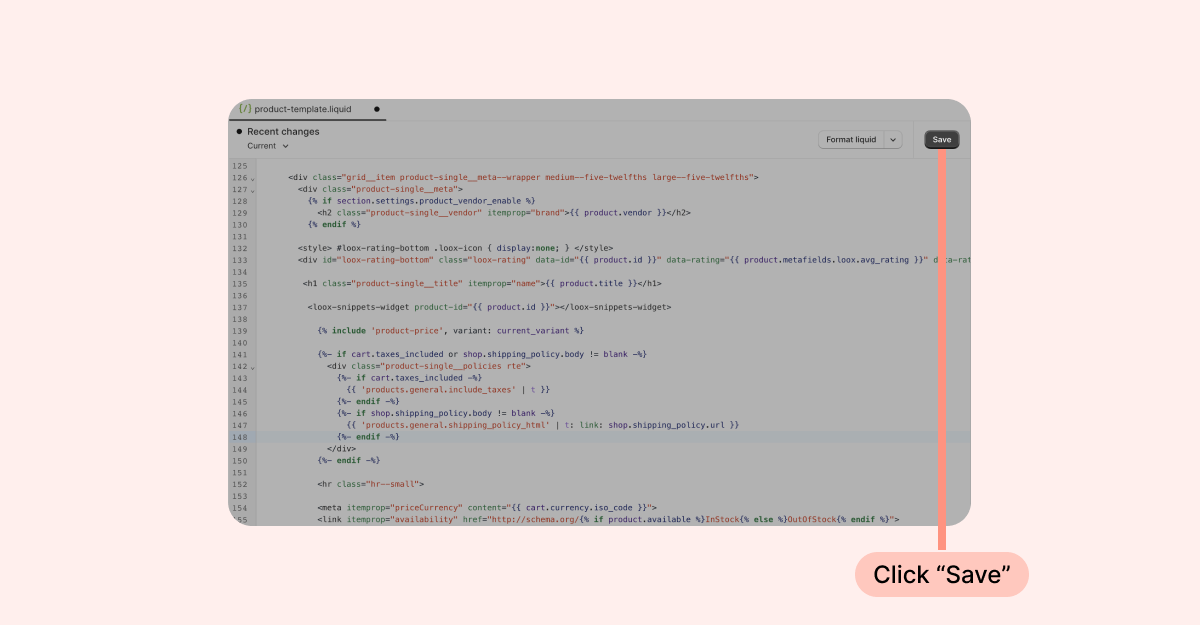
- Open the relevant page template or section. For example - product page: product.liquid / product-template.liquid / product-page.liquid / propduct-main.liquid. You can also add the Snippets Widget to other pages, such as your homepage or collections pages.
- Copy the line of code below and paste it where you would like the widget to appear:
<loox-snippets-widget product-id="{{ product.id }}"></loox-snippets-widget>
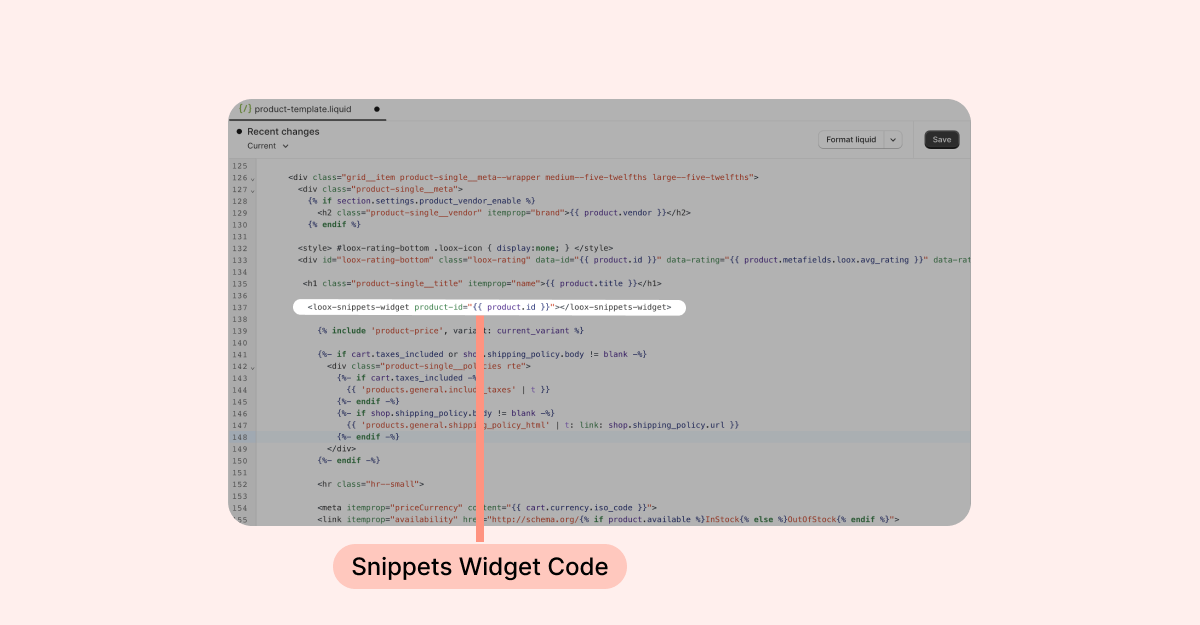
- Click “Save”: