
Syncing reviews to TikTok? Click here.
Display your product reviews and ratings on your Google Shopping Product Listings to turn casual window shoppers into customers.
Using our Google Shopping integration, you can showcase your customers' reviews and ratings on your product listings, helping your build trust and credibility with potential customers and ultimately increase traffic and sales.
To integrate your Loox reviews with your Google Shopping product listings, you'll need to:
- Ensure your reviews meet Google's Product Ratings Policy.
- Ensure you have at least two strong identifiers (ID / MPN / GTIN) to match between your product and review feeds.
- Make sure the settings in your Loox admin match the identifiers that appear in your Merchant Center.
The Loox + Google Shopping integration is available on the Convert plan and up. Click here to upgrade.
Google's Product Ratings Policy
The first step you can take is making sure your reviews meet Google's Product Ratings policy.
In order to qualify, you have to meet the following criteria:
- You have more than 50 reviews total.
- You sync all of your verified reviews.
- Your reviews must not violate copyrights, be offensive, or spam.
- Reviews must include text.
- No identifying content of the reviewer can be publicly displayed (including full names, email addresses, phone numbers, etc.').
To comply with Google's Product Ratings Policy, our integration will automatically send all of your verified "Published" and "Unpublished" reviews to Google.
Tip: We recommend publishing all reviews and adding public replies to address any negative feedback.
Note: Google has the right to approve or reject your review feed at their discretion. You can read Google's full policy here.
Which reviews are synced to Google Shopping?
Loox syncs the following reviews to Google Shopping:
- Verified reviews - reviews collected directly through Loox review requests that are connected to a verified order (reviews that are manually marked as verified don't qualify)
- Migrated reviews - verified reviews from your previous review platform that you brought to Loox during your migration process
Note: AliExpress reviews do not qualify for your Google Shopping review feed.
Setting up Google Shopping in Loox
To make sure Google displays the correct reviews for your products, the integration settings in your Loox admin must match the same identifiers used on your Google Shopping product feed (generated by your Google Sales Channel app or a third-party app such as Simprosys).
Adding matching identifiers
- Head into your Google Merchant Center.
- Under the "Products" tab, click one of your products to access the product details.
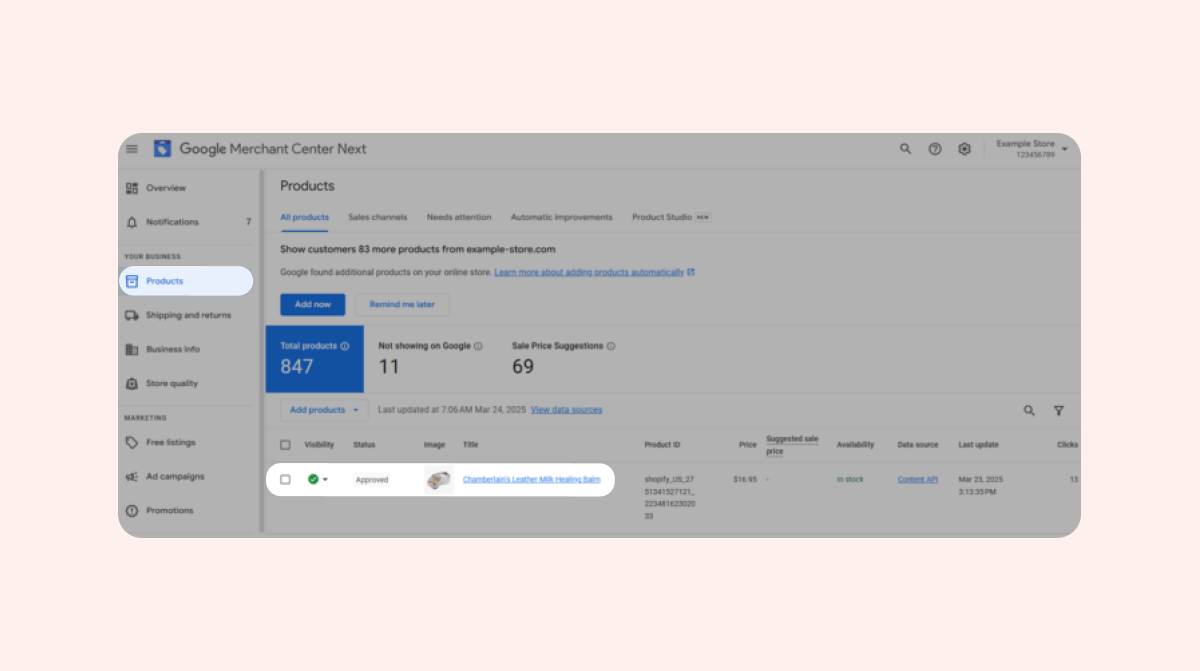
- You can find the identifiers (Product ID / MPN / GTIN) reported to Google under the product details. They will also appear under "Raw data source attributes: Content API" within the "Additional details" tab.
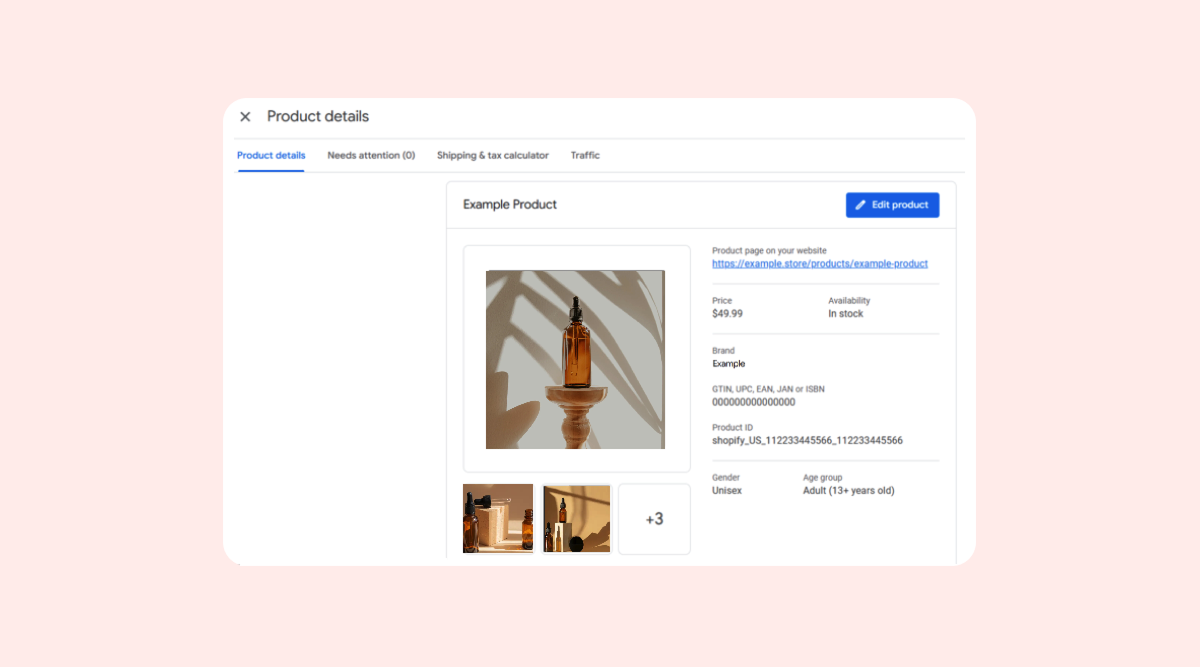
If only one identifier appears in your Merchant Center (usually the Product ID), this is how you can add a second identifier:
1. If you're using Google Sales Channel: take each product's existing Product ID from Shopify and add it as the MPN for each product on Google Sales Channel. There's usually no need to do this on a variant level- just add the MPNs on a mother-product level.
2. If you're using Simprosys: take each product's SKU from Shopify and add them as MPN values on Simprosys. If you don't yet have SKUs set up for your products on Shopify, you can learn how to do so here. You can find more information on how to add the MPNs to your products feed in Simprosys's help article.
Note: If you've just added MPNs to your product feed, it can sometimes take a day or two to be reflected in the Merchant Center. If the MPNs still aren't appearing after a few days, make sure your products aren't marked as "custom products" on the Merchant Center. That type of product doesn't have an MPN, so if this field is checked, it can cause the MPN not to be reported to the Merchant Center.
Adjusting your Loox integration settings
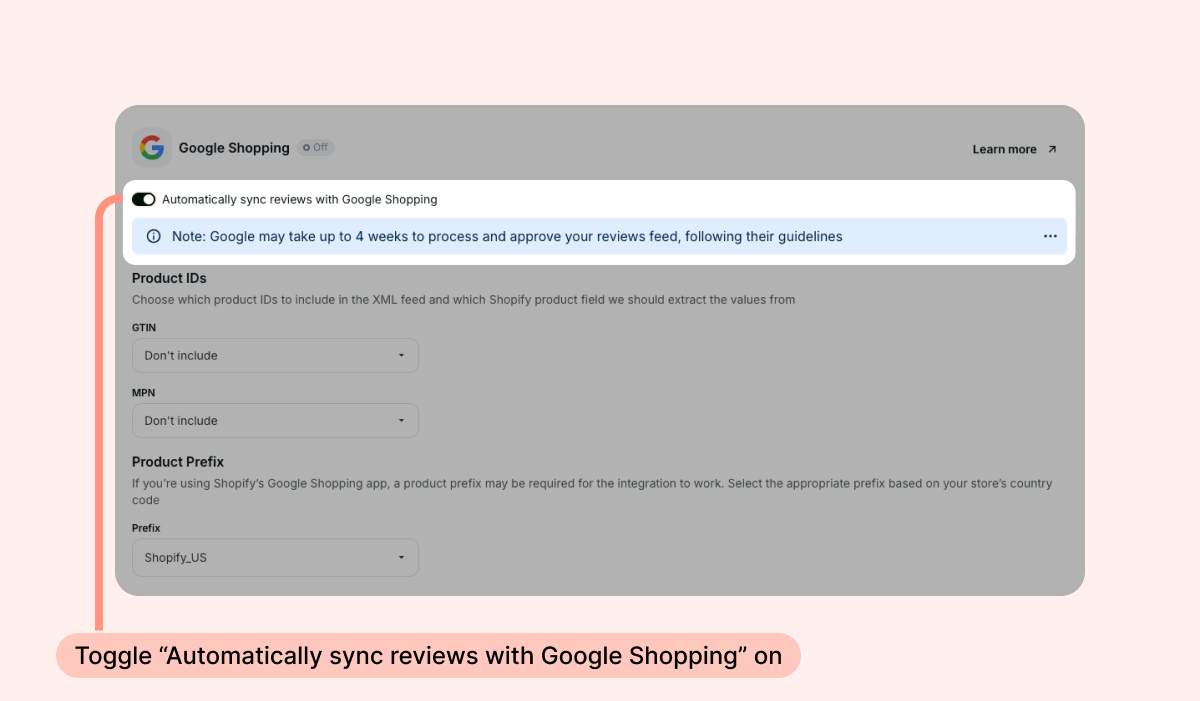
- Once you have two identifiers set up and appearing in the Merchant Center, head into the Loox admin under Integrations > Google Shopping.
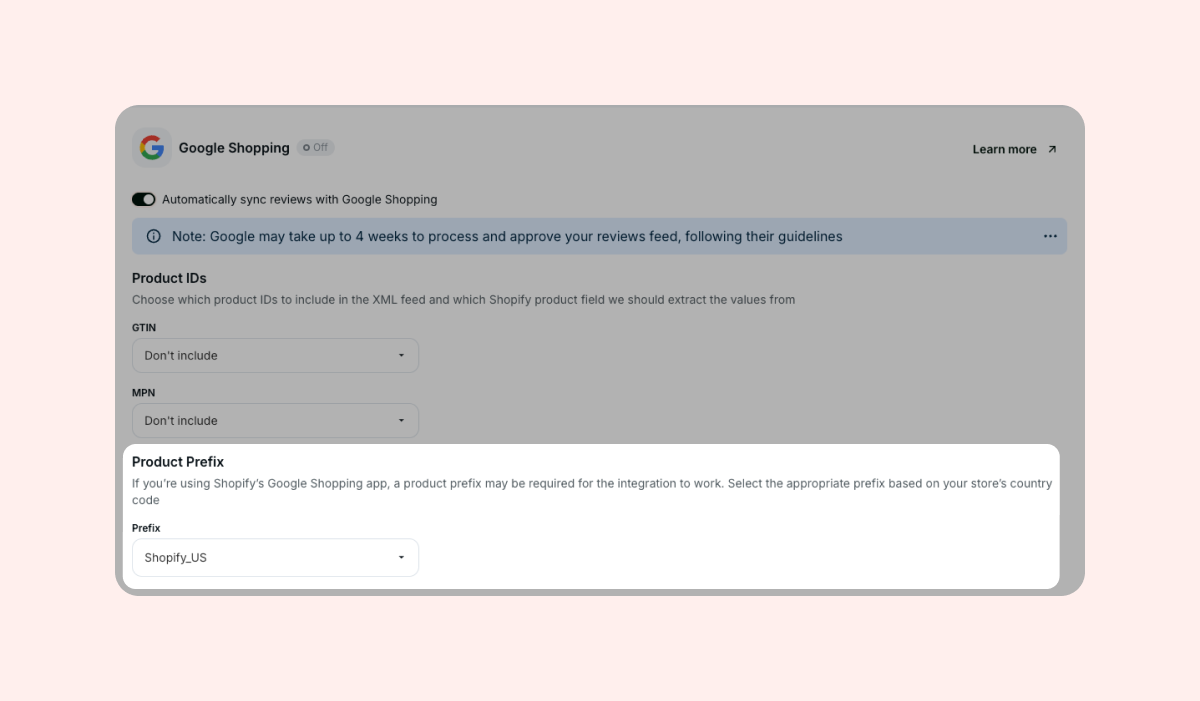
- Toggle on "Automatically sync reviews with Google Shopping."
- Next, adjust your identifiers to match the ones that appear in your Merchant Center. For example, if you added MPNs from your Shopify product IDs, select "Product ID" under the "MPN" field. If you don't have a GTIN set up, leave that setting as "Don't include."
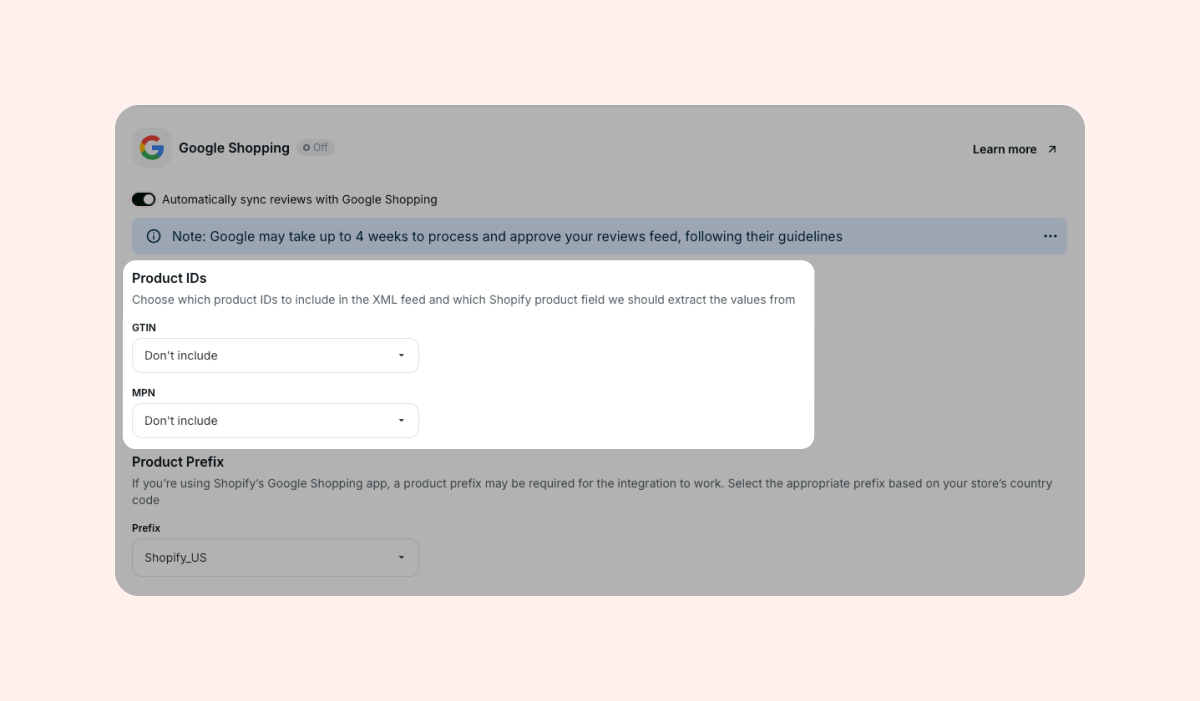
- Product Prefix: If you sync your products using Shopify's native Google Sales Channel, your feed includes a unique product ID:
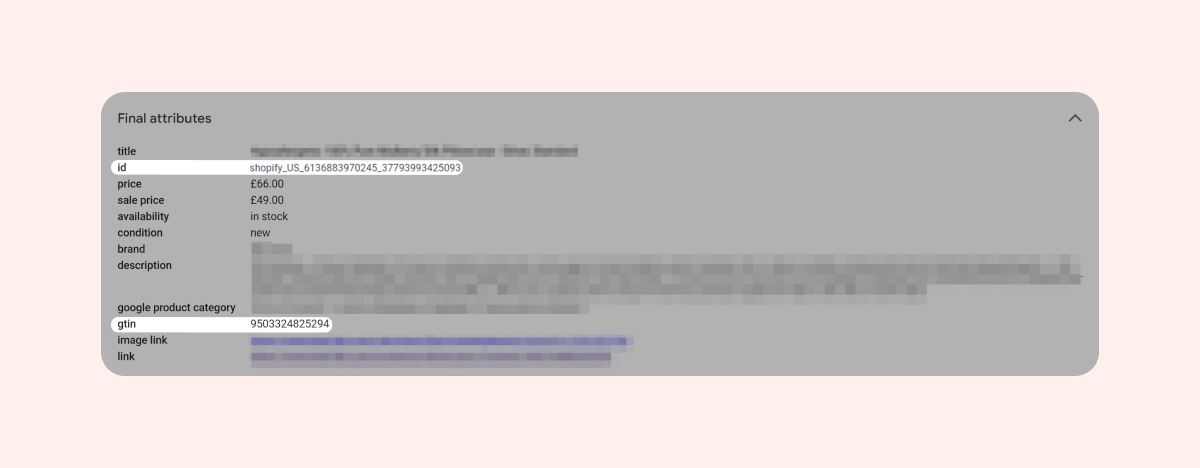
shopify_{country code}_{product_ID}_{Variant_ID}We automatically include the same product ID in your review feed to match your product feed.
The {country code} can differ depending on which country you sell in. By default, we set this value to shopify_US. If you sell to countries outside the US, please select the relevant country code as it appears in your Google Shopping feed.
The screenshot below shows that the product ID uses the shopify_US prefix, and the GTIN is extracted from the product's barcode:
- Once you have two strong identifiers set up and the settings in your Loox admin match the identifiers in your Merchant Center, you're all set! It can take Google up to 30 days to process your review feed and start displaying your ratings on your product listings.
Notes
- When adjusting your identifiers, keep in mind that GTINs are global identifiers (these are generally pulled from the product's "barcode" value on Shopify) and MPNs are internal identifiers that you can configure as you wish (usually to match the product's ID or SKU on Shopify).
- You can read more about product identifiers in this guide by Google: About unique product identifiers.
- You can read more about changing the identifiers reported on your Shopify Products: Product details.
- Even after adding two strong identifiers and activating the integration in your Loox admin, your Loox review feed will not appear in your Merchant Center. The feed is sent automatically via our backend to Google and is not expected to show up on the frontend.
- Keep in mind that our integration is with Google Shopping Product Listings, not Google Ads. Often, after accepting your review feed, Google will also decide to display your ratings on Google Ads, but they don't guarantee it. We do not currently support an integration with Google Seller Ratings.
If your ratings still aren't appearing on your live listings after 30 days, check again to make sure the information in your Google Merchant Center matches what appears in Loox.
If it is correct and still not appearing, contact Google Shopping Support to understand the issue. Once Google has given you an update, contact our support team at [email protected] and we will help you resolve the issue.
You can contact Google here: Contact Us - Google Merchant Center Help
FAQs
Q: How does Loox identify if an imported review is verified (so it can be included in the review feed that's sent to Google)?
A: If an imported review contains a Shopify metaobject ID, Shopify order ID, and is marked as verified by the origin source, Loox recognizes it as a verified review that can be included in the review feed that's synced with Google.